# 🎬 Export a CapCut Pro Edit on PC Without a Subscription — The Cache Method and Its Limits
**URL:** https://onehack.st/t/export-a-capcut-pro-edit-on-pc-without-a-subscription-the-cache-method-and-its-limits/324769
**Category:** Tutorials & Methods
**Tags:** bypass, video-editing
**Created:** [August 14, 2026, 8:28pm UTC](https://onehack.st/t/export-a-capcut-pro-edit-on-pc-without-a-subscription-the-cache-method-and-its-limits/324769 "2026-08-14T20:28:36Z")
**Posts on this page:** 19
**Page:** 1
### Author:  [@GhostX](https://onehack.st/u/GhostX)
#### Post date: [August 14, 2026, 8:28pm UTC](https://onehack.st/t/export-a-capcut-pro-edit-on-pc-without-a-subscription-the-cache-method-and-its-limits/324769/1 "2026-08-14T20:28:37Z")
CapCut can let you preview Pro elements, then ask you to subscribe at export. This workaround uses the video **CapCut renders while preprocessing a compound clip** , imports it back into the normal desktop app, and tries to export that single clip. 🔁
**It is an unofficial workaround, not a Pro unlock, and it may stop working after an update.**
* * *
### 📦 What to expect
| | |
| --- | --- |
| 💻 Guide tested on | Windows desktop |
| 📁 Extra tools | File Explorer only |
| 🎬 Result | A single rendered clip |
| ✏ Editable layers | Keep your original project for these |
| ⚠ Success | Depends on the project and CapCut version |
**Before starting:** save your project. If CapCut offers a way to duplicate it, run these steps on the duplicate. Don’t count on Undo restoring your layers after closing and reopening the app.
* * *
### 🚀 Step 1 — Preprocess the finished edit
1. Click your timeline and press `Ctrl + A` to select the clips.
2. Right-click → **Create compound clip**.
3. Right-click the compound clip → **Preprocess compound clip**.
4. **Wait until preprocessing reaches 100%.** Keep CapCut open while it runs.
* * *
### 📁 Step 2 — Find the rendered file
Open File Explorer and look inside your project’s `Resources\combination` folder. With CapCut’s usual Windows save location, start here:
`%LOCALAPPDATA%\CapCut\User Data\Projects\com.lveditor.draft`
Open your project folder, then **Resources → combination**. If you changed where CapCut saves projects, look in your chosen project location instead.
Find the regular `.mp4` file. **Do not use** the one ending in `.mp4.alpha.mp4`. Leave File Explorer open.
* * *
### 🔄 Step 3 — Close CapCut, then reimport
1. Save and **fully close CapCut** —both the editor and its home window.
2. Reopen CapCut and open the **same project**.
3. Import the regular `.mp4` you found, place it on the timeline, and remove the original compound clip **from the working copy**.
4. Try exporting. Watch the finished file and check the **picture, sound, timing, and resolution** before using it.
The close-and-reopen step matters: importing the cached file while CapCut is still open has produced a damaged-file error.
* * *
### 🧨 Claims to ignore
- ❌ **“Every Pro feature is guaranteed.”** I haven’t verified every effect, audio item, or export setting.
- ❌ **“It gives you CapCut Pro.”** Your account’s subscription status does not change.
- ❌ **“It works for everyone on Mac.”** One Mac member reported success; another, using CapCut 9.4.0 on an M4 Pro, still could not import the `.mp4` after following the steps and reinstalling.
- ❌ **“A successful export grants rights to paid assets.”** Check the terms for any music or stock material you plan to publish.
> ⚠ **“Some materials are damaged”?** Confirm preprocessing reached 100%, select the file **without `alpha`** in its name, and make sure CapCut was fully closed before reimporting. If the error remains, keep your editable project and assume this method does not work with that setup. Reinstalling did not fix it for the member who reported the Mac error.
**Summary 👉** **Compound clip → preprocess to 100% → locate the regular `.mp4` → fully close CapCut → reopen the same project → reimport → test export.** Keep the original edit safe until you’ve checked the final video. 🎬
---
### Author:  [@Jhon\_Watson](https://onehack.st/u/Jhon_Watson)
#### Post date: [August 30, 2026, 6:05am UTC](https://onehack.st/t/export-a-capcut-pro-edit-on-pc-without-a-subscription-the-cache-method-and-its-limits/324769/2 "2026-08-30T06:05:08Z")
Thank u ❤ brother, it is working.
---
### Author:  [@Johanpath](https://onehack.st/u/Johanpath)
#### Post date: [August 31, 2026, 8:58am UTC](https://onehack.st/t/export-a-capcut-pro-edit-on-pc-without-a-subscription-the-cache-method-and-its-limits/324769/3 "2026-08-31T08:58:27Z")
what’s for mobile users?
---
### Author:  [@GhostX](https://onehack.st/u/GhostX)
#### Post date: [August 31, 2026, 10:02am UTC](https://onehack.st/t/export-a-capcut-pro-edit-on-pc-without-a-subscription-the-cache-method-and-its-limits/324769/4 "2026-08-31T10:02:45Z")
This is known already, but just screen record it… obviously a way worse option than the PC method because you lose all your quality.
---
### Author:  [@Myself\_Shy](https://onehack.st/u/Myself_Shy)
#### Post date: [August 31, 2026, 11:50am UTC](https://onehack.st/t/export-a-capcut-pro-edit-on-pc-without-a-subscription-the-cache-method-and-its-limits/324769/5 "2026-08-31T11:50:45Z")
Thank you! ⭐ I was curious to try this app
---
### Author:  [@slimjval](https://onehack.st/u/slimjval)
#### Post date: [August 31, 2026, 4:20pm UTC](https://onehack.st/t/export-a-capcut-pro-edit-on-pc-without-a-subscription-the-cache-method-and-its-limits/324769/6 "2026-08-31T16:20:56Z")
thanks for sharing, any workaround for Mac users?
---
### Author:  [@GhostX](https://onehack.st/u/GhostX)
#### Post date: [August 31, 2026, 4:55pm UTC](https://onehack.st/t/export-a-capcut-pro-edit-on-pc-without-a-subscription-the-cache-method-and-its-limits/324769/7 "2026-08-31T16:55:33Z")
Here is the step-by-step method to use CapCut Pro features for free on a Mac by extracting the pre-rendered cache file directly from your system folders.
**Step 1: Pre-Process the Video inside CapCut**
1. Open your project on your Mac and add any Pro features or effects you want.
2. Click anywhere on your editing timeline and press **`Command + A`** to select every single track (video, audio, text, effects).
3. Right-click the highlighted clips and select **Create Compound Clip**.
4. Right-click your new compound clip and select **Pre-process compound clip** (or _Reprocess_).
5. Look closely at the top of the preview player— **wait for the progress bar to reach 100%**. Do not close CapCut or leave the timeline until it finishes, or the file will break.
6. **Rename your project** to something distinct (like “FinalVideoFree”) so you can easily spot it in your Mac system folders.
**Step 2: Grab the Hidden File in macOS Finder**
1. Minimize CapCut and open **Finder** from your Mac.
2. In the top Apple menu bar, click **Go** and select **Home**.
3. Open the **Movies** folder, then double-click **CapCut user data**.
4. Open the **projects** folder, then double-click the folder named **`com.lveditor.draft`**.
5. Inside, you will see folders named after your CapCut projects. Open the folder that matches the **project file name or date** you just edited.
6. Double-click the **resources** folder at the bottom, then open the **combination** folder.
7. You will see at least two video files. **Copy the standard `.mp4` file** (ignore the one that says `alpha` in its name).
8. Paste that file onto your Mac **Desktop**. You now have your fully edited video with Pro features active, in high quality, completely for free.
---
### Author:  [@RED101](https://onehack.st/u/RED101)
#### Post date: [September 1, 2026, 2:40pm UTC](https://onehack.st/t/export-a-capcut-pro-edit-on-pc-without-a-subscription-the-cache-method-and-its-limits/324769/8 "2026-09-01T14:40:16Z")
Absolute gem. Thank you, mate!!!
---
### Author:  [@slimjval](https://onehack.st/u/slimjval)
#### Post date: [September 5, 2026, 1:30pm UTC](https://onehack.st/t/export-a-capcut-pro-edit-on-pc-without-a-subscription-the-cache-method-and-its-limits/324769/9 "2026-09-05T13:30:17Z")
Thank you for your response and steps; however, I followed the instructions provided, and when I opened the com.lveditor.draft folder, I only found the root\_meta\_info.json file.
Please advise me on the best way to get it. Thanks in advance.
Your soonest reply is appreciated.
---
### Author:  [@GhostX](https://onehack.st/u/GhostX)
#### Post date: [September 6, 2026, 7:52am UTC](https://onehack.st/t/export-a-capcut-pro-edit-on-pc-without-a-subscription-the-cache-method-and-its-limits/324769/10 "2026-09-06T07:52:14Z")
Here is exactly why you are only seeing that single file, and how to fix it!
**The Problem** :
The file root\_meta\_info.json is a main “ **registry** ” file that CapCut uses to keep track of your project list. It sits in the main **com.lveditor.draft** folder. Your actual video clips are hidden inside subfolders located right next to that **JSON** file. If you see absolutely nothing else, you either missed a step inside CapCut, or you need to dig one level deeper.
Follow this exact roadmap to get your video:
**Step 1:** Make sure the file actually exists.
If the **com.lveditor.draft** folder is completely bare except for that **JSON** file, CapCut did not actually generate the temporary video file.
1. Open CapCut and return to your editing timeline.
2. Right-click your compound clip and select Pre-process compound clip (or Reprocess).
3. Look at the very top of your preview player. You must wait for the rendering percentage bar to hit **100%**.
4. **Crucial** : Do not close, minimize, or click away from CapCut until it finishes completely, or **macOS** will delete the cache file.
**Step 2:** Dig into the correct project folder
Once rendering hits 100%, go back to Finder and head to your path:
_Movies \> CapCut \> User Data \> Projects \> com.lveditor.draft_
1. Inside **com.lveditor.draft** , you should now see folders alongside your **JSON** file. They are usually named with your Project Name or a string of random numbers/letters.
2. **Tip** : _Change your Finder view to List View and click the Date Modified column header to sort by newest. Open the folder that matches the exact minute you finished editing._
**Step 3:** Extract the Video
1. Double-click your specific project folder to open it.
2. Open the folder named “ **resources** ”.
3. Open the folder named “ **combination** ”.
4. You will see your fully rendered . **mp4** video files here! Copy the standard file to your desktop (skip the file that says _ **alpha** _ in the name).
Let me know if you still can’t see the project folders after letting the pre-process bar reach **100%**!
---
### Author:  [@slimjval](https://onehack.st/u/slimjval)
#### Post date: [September 6, 2026, 9:28am UTC](https://onehack.st/t/export-a-capcut-pro-edit-on-pc-without-a-subscription-the-cache-method-and-its-limits/324769/11 "2026-09-06T09:28:02Z")
Thank you for your detailed explanation; however, I tried, but nothing works.
I **unhid** hidden files/folders, and I can’t see the project folders increase in size even after letting the pre-process bar reach 100%.
Here are some screenshots:
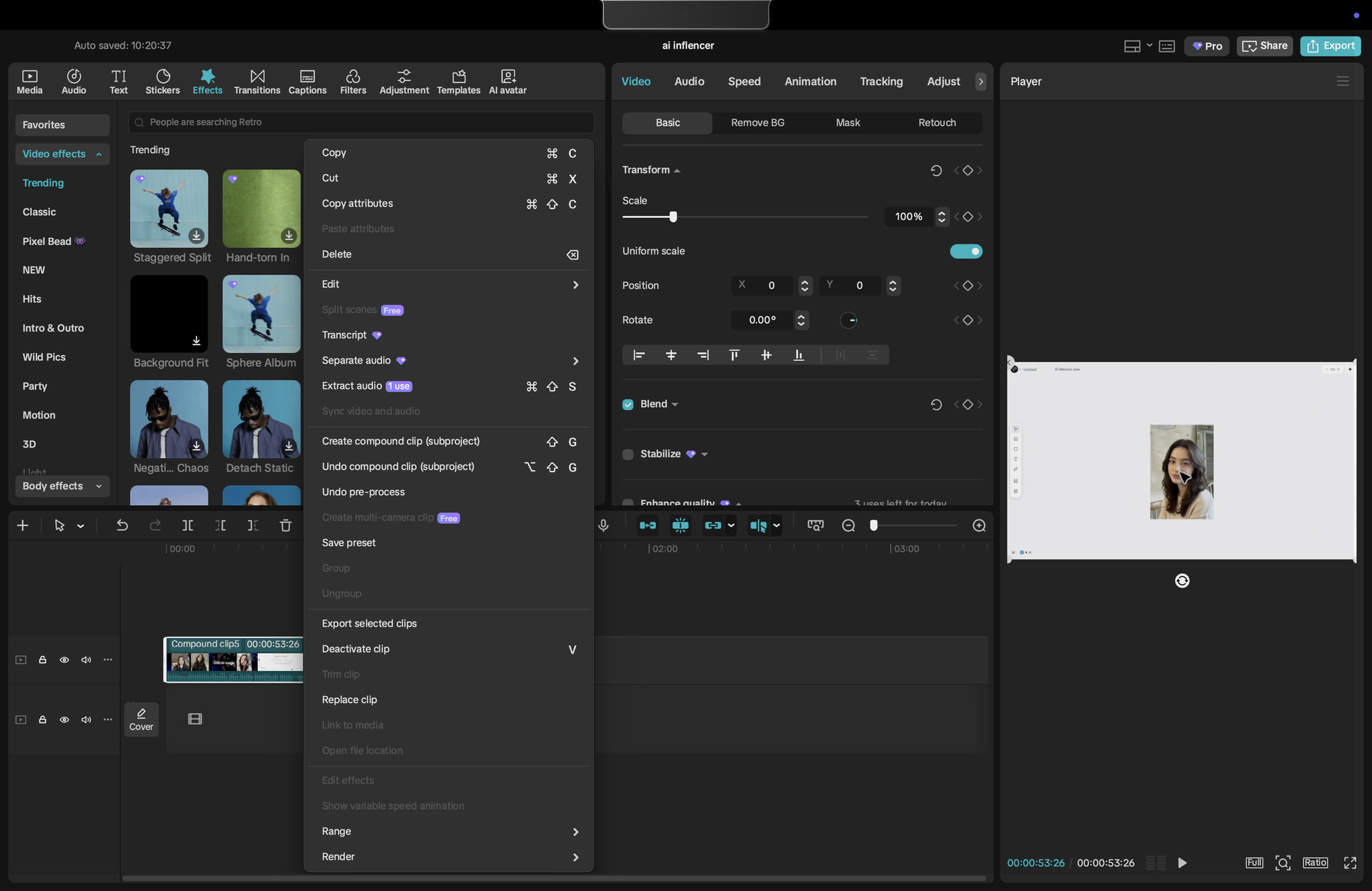
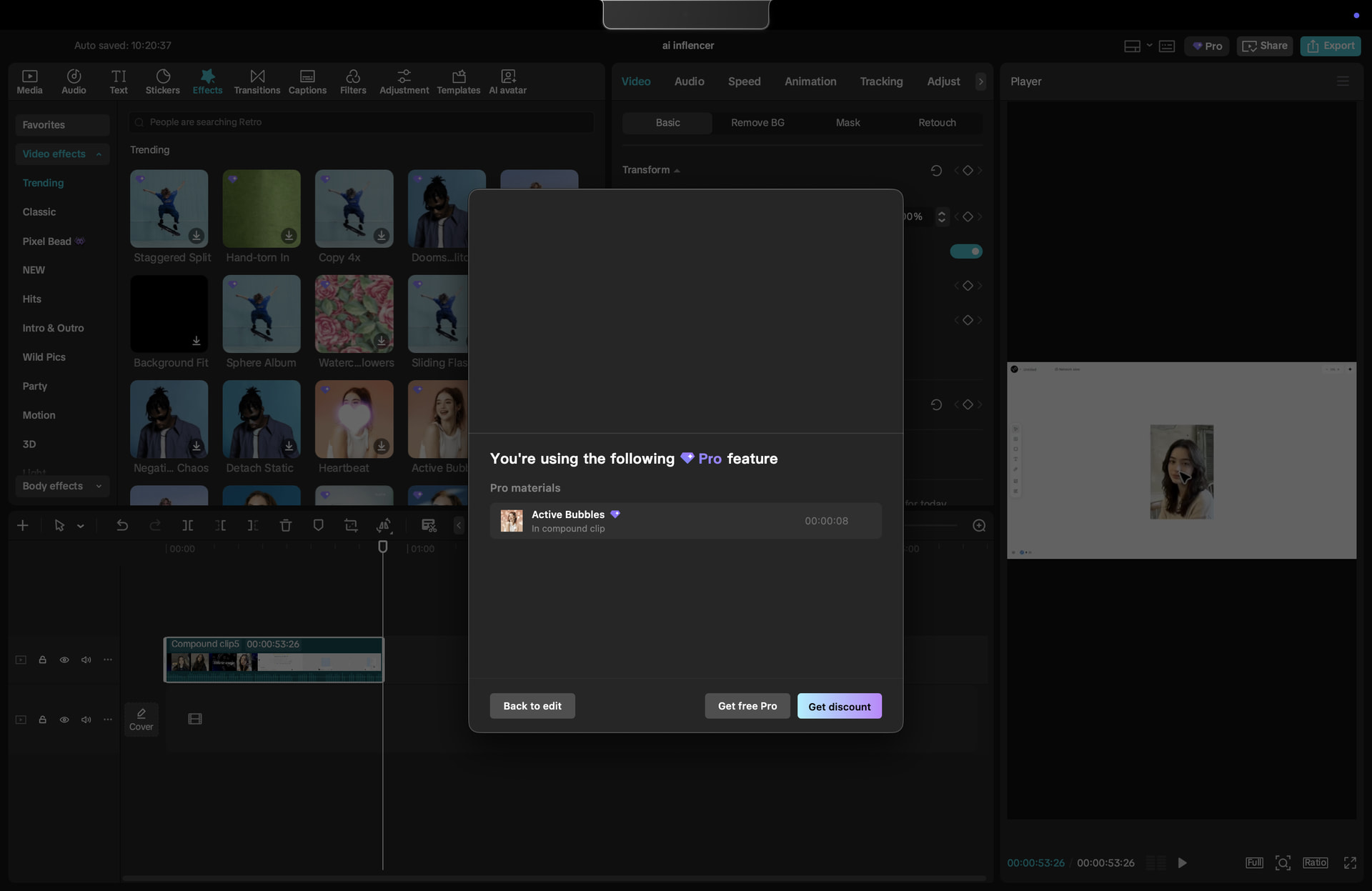

Please see the attached screenshots and let me know if you have any suggestions.
Thank you for your help. Your soonest reply is greatly appreciated.
---
### Author:  [@slimjval](https://onehack.st/u/slimjval)
#### Post date: [September 6, 2026, 12:12pm UTC](https://onehack.st/t/export-a-capcut-pro-edit-on-pc-without-a-subscription-the-cache-method-and-its-limits/324769/12 "2026-09-06T12:12:42Z")
I have gotten it, I looked at the folder where saved files are stored in my Mac (I changed it sometime ago) and that’s how I was able to find the video. Thank you for your help.
However, I noticed that the **.alpha** video is white and the **normal video** is not playable or doesn’t work/open/unrecognizable format even if its .mp4.
How can I fix that?
---
### Author:  [@GhostX](https://onehack.st/u/GhostX)
#### Post date: [September 7, 2026, 5:42am UTC](https://onehack.st/t/export-a-capcut-pro-edit-on-pc-without-a-subscription-the-cache-method-and-its-limits/324769/13 "2026-09-07T05:42:35Z")
Do not open the .mp4 video, follow the below steps:
**Phase 3 — Reimport and export clean**
1. Leave the Explorer window open and **completely close CapCut** — save your project, then close both the project window and the home-screen window (or End Task in Task Manager to do it fast).
2. Reopen CapCut and go back into your project.
3. Import the **`.mp4`** (not the alpha) into that same project.
4. Drop it on the timeline and **delete the original compound clip**.
5. **Export** — it should go through with no Pro warnings.
6. Done? `Ctrl + Z` afterwards to bring your editable project back if you want to keep working on it later.
---
### Author:  [@slimjval](https://onehack.st/u/slimjval)
#### Post date: [September 7, 2026, 1:31pm UTC](https://onehack.st/t/export-a-capcut-pro-edit-on-pc-without-a-subscription-the-cache-method-and-its-limits/324769/14 "2026-09-07T13:31:56Z")
I tried it to but this error:
“Couldn’t import. Some materials are damaged.”
I guess CapCut has patched it.
Or do you have any workarounds?
Thanks for your speedy reply.
---
### Author:  [@Harley](https://onehack.st/u/Harley)
#### Post date: [September 8, 2026, 7:05am UTC](https://onehack.st/t/export-a-capcut-pro-edit-on-pc-without-a-subscription-the-cache-method-and-its-limits/324769/16 "2026-09-08T07:05:08Z")
brother, this method is not patched yet, i have mac too and i use this same method for bypassing the pro feature warning.
---
### Author:  [@GhostX](https://onehack.st/u/GhostX)
#### Post date: [September 8, 2026, 7:14am UTC](https://onehack.st/t/export-a-capcut-pro-edit-on-pc-without-a-subscription-the-cache-method-and-its-limits/324769/17 "2026-09-08T07:14:13Z")
The method still works for me, so it doesn’t seem to be patched.
I think the issue may be happening because u missed one imp step.
**Once the preprocessing reaches 100%, completely close CapCut first.**
Then **reopen CapCut** , open the **same project** , **import the `.mp4`** file again, drag it onto the **timeline** , and **delete** the **original compound clip**.
Try following those steps in that exact order and it should hopefully work.
---
### Author:  [@slimjval](https://onehack.st/u/slimjval)
#### Post date: [September 8, 2026, 2:38pm UTC](https://onehack.st/t/export-a-capcut-pro-edit-on-pc-without-a-subscription-the-cache-method-and-its-limits/324769/18 "2026-09-08T14:38:37Z")
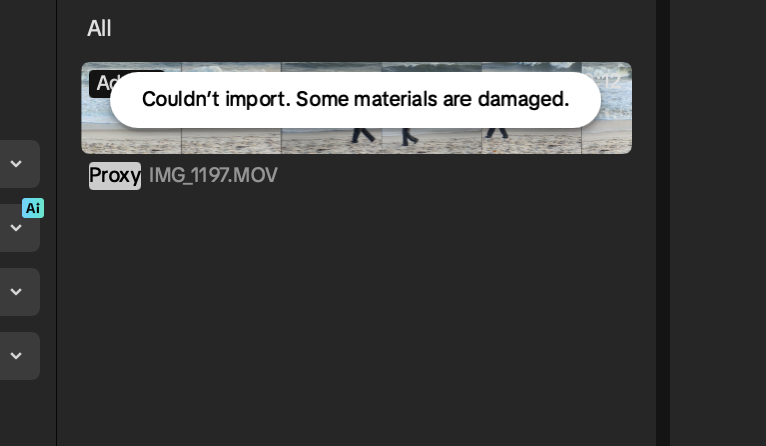
Still no luck. I use a Mac M4 Pro with 24GB RAM and CapCut v9.4.0. No VPNs or Cloudflare app running.
Any other suggestions? Please help a brother out
Thanks for your help.
Or do you suggest I delete CapCut and reinstall it?
---
### Author:  [@GhostX](https://onehack.st/u/GhostX)
#### Post date: [September 9, 2026, 3:40am UTC](https://onehack.st/t/export-a-capcut-pro-edit-on-pc-without-a-subscription-the-cache-method-and-its-limits/324769/19 "2026-09-09T03:40:17Z")
Can you **list out everything you did from start to finish**? That way, I can spot where things might have gone off track.
---
### Author:  [@slimjval](https://onehack.st/u/slimjval)
#### Post date: [September 9, 2026, 12:19pm UTC](https://onehack.st/t/export-a-capcut-pro-edit-on-pc-without-a-subscription-the-cache-method-and-its-limits/324769/20 "2026-09-09T12:19:30Z")
Open Capcut, create a new project, and open the Finder folder where all Capcut project files are saved. Used a Pro Audio in my video project, selected both audio and video on the timeline. Right-click to create a **Compound Clip** and then right-click to **Pre-process Compound Clip.**
Waited until the process finishes (without clicking or changing screens), then closed Capcut and reopened it.
I opened the project, then tried to drag and drop the .mp4 (not the .alpha video) into the timeline or Import box in Capcut but was still getting the same error: “Couldn’t import. Some materials are damaged”.
I had to uninstall and reinstall Capcut, before starting all of the above, but to no avail
Thank you for soonest reply.