# How To Save Notepad File As PDF Or HTML In Windows 10 Operating System
**URL:** \
**Category:** Tutorials & Methods\
**Tags:** tips-tricks\
**Created:** [November 1, 2021, 6:30am UTC](https://onehack.st/t/how-to-save-notepad-file-as-pdf-or-html-in-windows-10-operating-system/205675 "2021-11-01T06:30:10Z")\
**Posts on this page:** 1\
**Page:** 1
**Author:**  [@BlueHacker](https://onehack.st/u/BlueHacker)\
**Post date:** [November 1, 2021, 6:30am UTC](https://onehack.st/t/how-to-save-notepad-file-as-pdf-or-html-in-windows-10-operating-system/205675/1 "2021-11-01T06:30:10Z")
With default settings, the Notepad app in Windows 10 saves files as text files. That is, files are saved with the .txt extension.
Although text files are supported across computer and smartphone operating systems, PDF is the best format for sharing a text file with others.
If you want to save a Notepad file in any other format such as PDF or HTML, you can do so as well. The best part is that you do not need to install any third-party software for this job.
## **Save a Notepad file as PDF format in Windows 10**
**Step 1:** Open the text file you want to save as a PDF file in the Notepad app.
**Step 2:** Once the file is open in Notepad, click on the **File** menu, and then click the **Print** option to open the Print dialog.
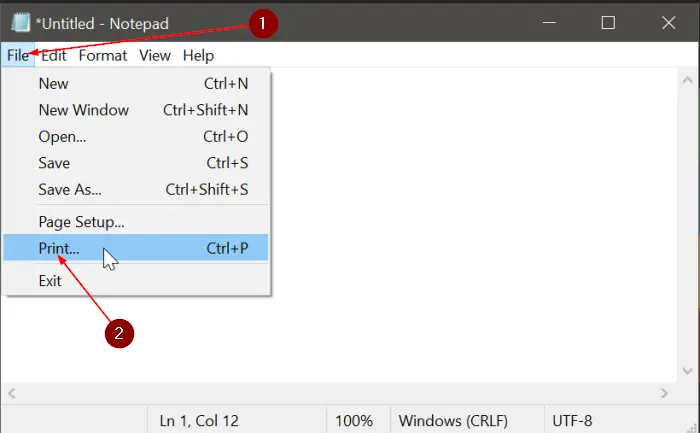
**Step 3:** In the Print dialog, select \*_Microsoft Print to PDF_ as the printer in the **Select Printer** section. Click on the **Print** button.

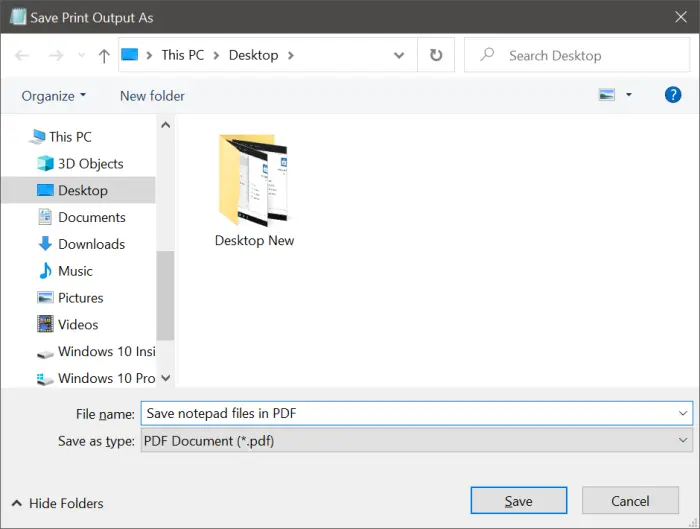
**Step 4:** You will now get the **Save as dialog**. Here, type a name for the PDF file and then click the **Save** button. That is it! You can now open the PDF file with any web browser or a dedicated PDF reader.
## **Save a Notepad file as an HTML file in Windows 10**
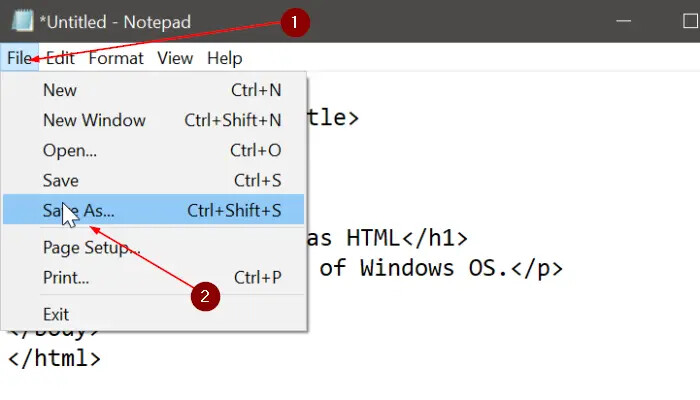
**Step 1:** In the Notepad, click on the **File** menu and then click the **Save as** option.
**Step 2:** In the resulting Save As dialog, type a name for the file. At the end of the file name, mention **.HTML** and then select the option labeled **All files** from the **Save as type** drop-down menu.
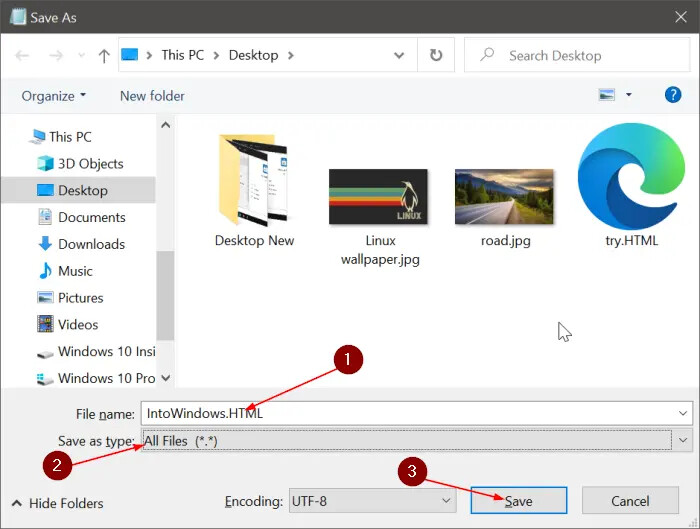
**Step 3:** Finally, click on the **Save** button. That is it!
**Happy learning!**