Microsoft launched the global sub-numbers Buffet
This global subscription to A1
(5TB Onedrive + online version of Office)
Periodically remove malicious bulk registration account
Cheers!!!
… And Over Every Possessor of Knowledge, There is (Some) One (Else) More Knowledgeable.
Again there is a possibility that the same thing will happen like the t.odmail.cn domain which is not working and hundreds of gb of data of many users might just get deleted.
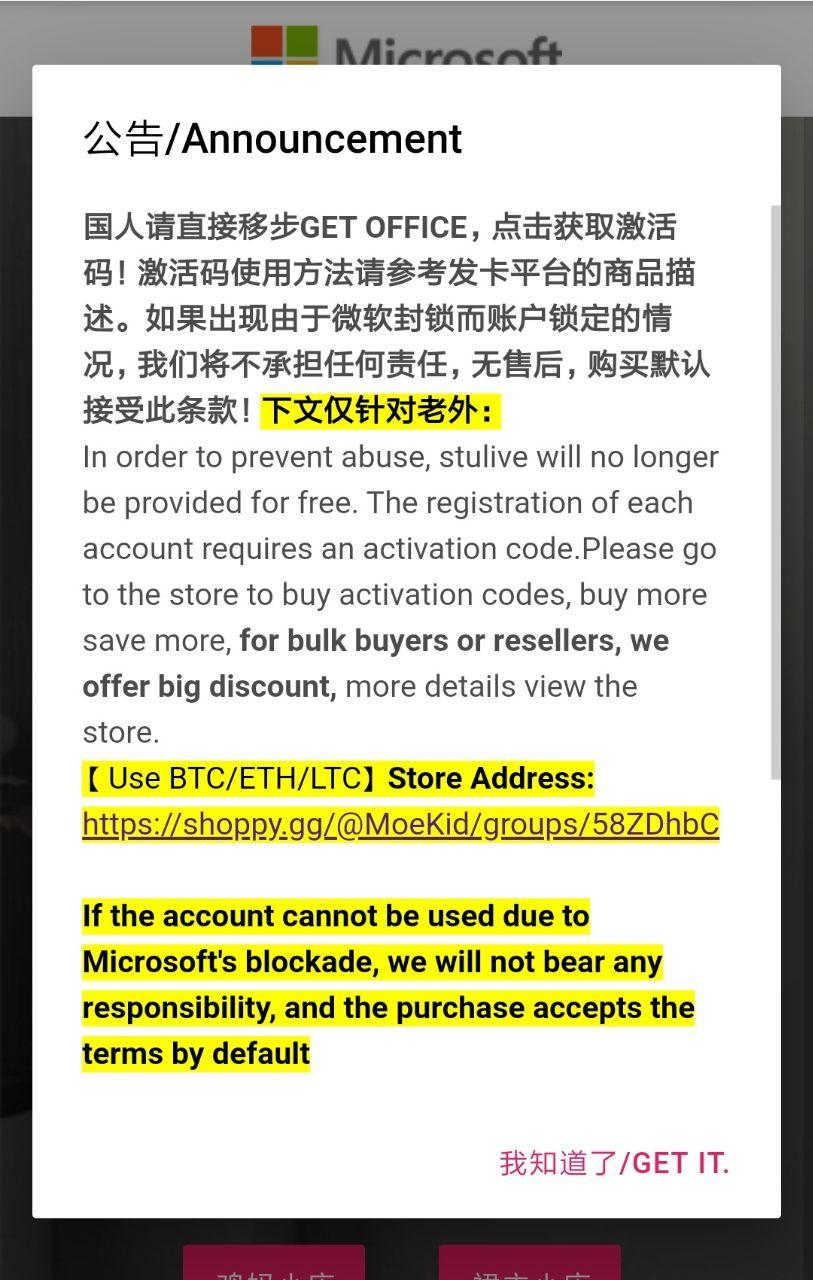
Hello guys. Today I will show you How to get Microsoft Office 365 A1 with 5TB OneDrive for FREE. I shared the initial post on how to get the office E3 from STULIVE. Unfortunately, it is no longer free and now requires payment of a token, less than USD2. A whistleblower reported the account providers domain, stulive, to Microsoft. Not to worry though, EduTechTainMent got you covered. I will show you another method to get these premium accounts.
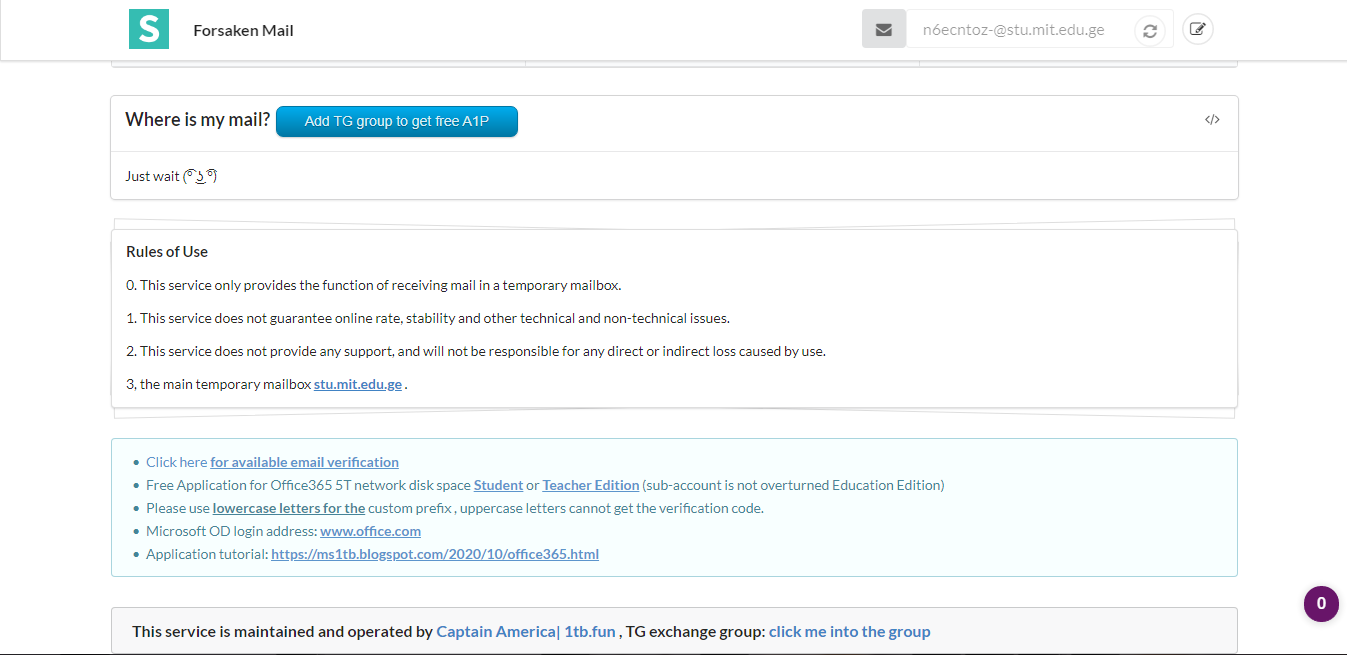
A disposable email account or your regular email (Yahoo, Gmail etc). I would advise you get the latter. For this guide I will be suing the disposable mail service provider on Telegram, ETLGR. Other disposable mail service providers can also be used.
A mobile or Desktop browser with auto-translate feature. I recommend Google Chrome.
[
How to get Microsoft Office 365 A1 with 5TB OneDrive
Follow the steps outlined below to learn How to get Microsoft Office 365 A1 with 5TB OneDrive.
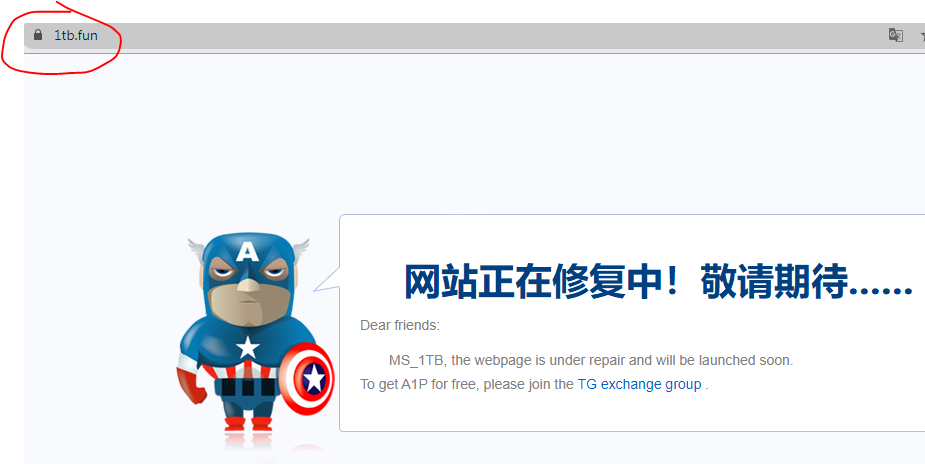
Visit this website using your Chrome browser either on mobile or PC.
The site automatically asks you to login as an anonymous user. You don’t need any password to log in. Just press on OK.
Provide any account name you wish in the first box. Leave the default domain set to ms.1tb.fun. If the bar at the end of the line turns green, it indicates the account name you chose is available. Proceed to the next step, otherwise, choose another account name.
Next, provide your first name and surname in the second line. You can use any random name you wish. These are mandatory.
On the next line, enter any nickname of your choice. This is also mandatory.
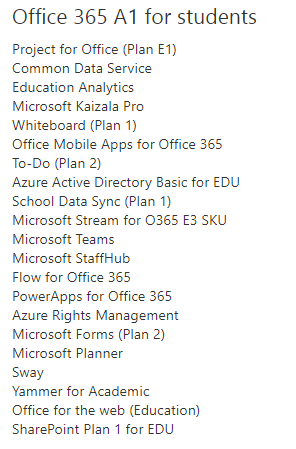
On the next line, select either an Office 365 A1 Student license or Office 365 A1 Teachers license.
Tick the checkbox to accept the terms of service.
Finally, click the submit button on the lower left.
You will be shown a pop up box showing you your temporary log in details with your temporary password.Click on the link shown in the box to visit the log in page of Microsoft Office. Use the details provided above to log in. Upon logging in, you will be prompted to provide a new unique password.
Thereafter, you will be logged in to the Microsoft site. Provide a valid email address in the next step to authenticate your account. Use the disposable email service account. A mail will be sent to your disposable mail. Verify the email and you are good to go.
Enjoy your Office 365 A1 account with OneDrive 5TB.
ETTM Video Guide
Conclusion
That’s it guys. Visit EduTechTainMent for more of such informative posts. Use the subscription box below to get notified whenever we publish such guides on here. Like and subscribe to our YouTube channel and join us on Telegram for real-time communication.
Cheers!!!
Over Every Possessor of Knowledge, There is (Some) One (Else) More Knowledgeable.
feedback :: this trick still working ::
get 1gb of one drive (that’s not the real problems here ) , but
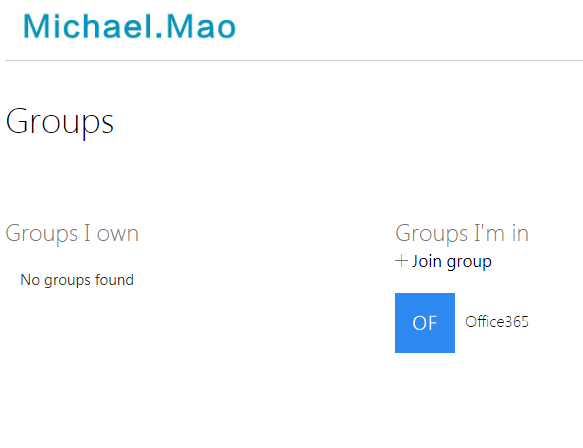
the problem is that can only send mail form this ,can’t receive mail from any where except the two mail after joining the groups…
any solution!!




 !
!