21+ Secret Windows 11 Tweaks to Instantly Boost Gaming Performance
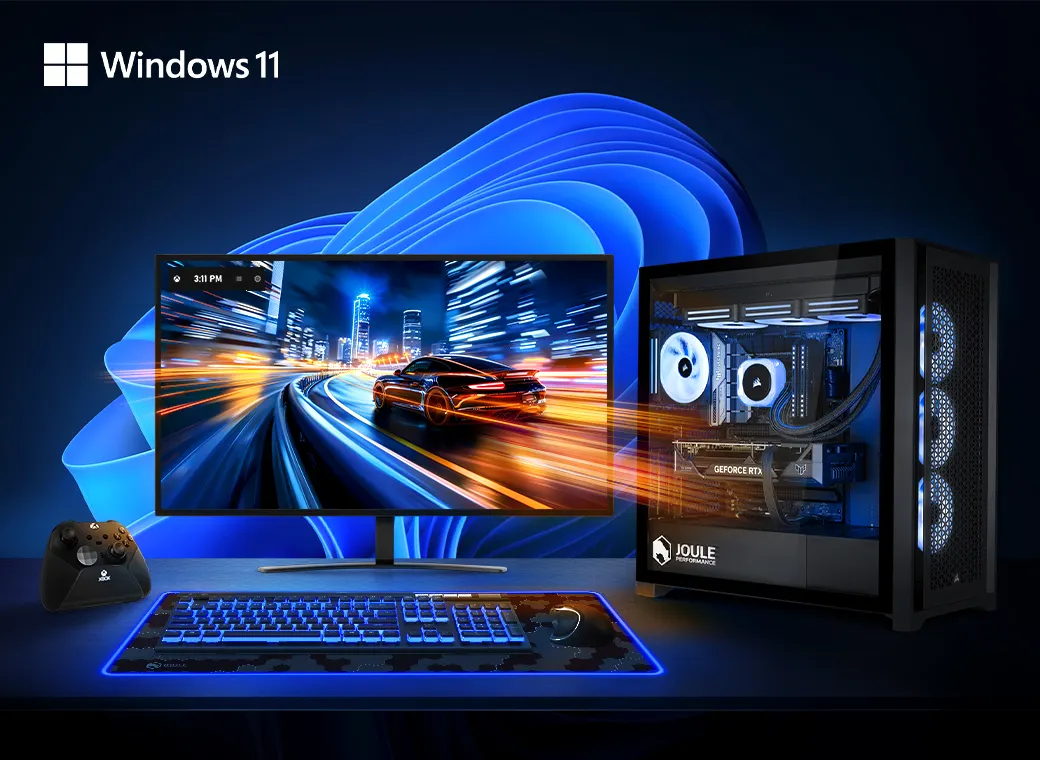
Discover an exclusive arsenal of pro-level system modifications that dramatically improve gaming performance in Windows 11—without needing new hardware. Originally buried in advanced settings, these powerful tweaks are now exposed. This expanded guide includes 30+ proven adjustments used by elite PC gamers and system tuners.
 Core Tweaks for Maximum Gains
-
 Enable Game Mode
Settings > Gaming > Game Mode → Turn On. -
 Disable Memory Integrity (Core Isolation)
Settings > Privacy & Security > Windows Security > Device Security → Turn Off “Memory Integrity.” -
 Turn Off Virtual Machine Platform & WSL
Control Panel > Programs > Turn Windows features on or off → Uncheck both. -
 Set Power Plan to Best Performance
Control Panel > Power Options → Use High Performance or create a Custom Power Plan. -
 Disable Fast Startup
Control Panel > Power Options > Choose what the power buttons do → Disable Fast Startup for better driver initialization. -
 Disable Battery Saver (on laptops)
Settings > System > Power & Battery → Disable when gaming.
 Display & Graphics Enhancements
-
 Enable Hardware-Accelerated GPU Scheduling
Settings > System > Display > Graphics Settings → Toggle on. -
 Enable Variable Refresh Rate (VRR)
Same Graphics Settings menu → Turn on VRR (if supported by monitor/GPU). -
 Enable Auto HDR
Settings > Display > HDR Settings → Toggle Auto HDR to On. -
 Assign Games to High-Performance GPU
Settings > Display > Graphics > Browse → Add .exe > Options > High performance. -
 Increase Monitor Refresh Rate
Settings > Display > Advanced display settings → Choose max supported Hz. -
 Enable Optimizations for Windowed Games
Settings > System > Display > Graphics → Toggle “Optimizations for windowed games.” -
Enable Automatic Super Resolution
Settings > Display > Graphics → Turn on if available. -
 Calibrate Display Color
Use Display Color Calibration Tool for optimal brightness/contrast in-game.
 Storage & System Optimization
-
 Move Games to SSD or Faster Drive
Use Xbox App, Microsoft Store, or Settings > Apps > Installed Apps > Move. -
 Enable Storage Sense
Settings > System > Storage > Storage Sense → Auto-delete temp files. -
 Use Third-Party Disk Cleaners
Apps like CCleaner remove junk without harming games. -
 Defragment HDDs (skip if SSD)
Start > Defragment and Optimize Drives → Optimize weekly. -
 Uninstall Bloatware
Manually uninstall unused pre-installed apps. -
 Reduce Background App Activity
Settings > Privacy > Background Apps → Disable for unnecessary apps. -
 Disable Indexing on Game Drives
Drive Properties > General > Uncheck “Allow files on this drive to have contents indexed.”
Driver & Update Optimization
-
 Keep System Fully Updated
Run Windows Update regularly. -
 Use Display Driver Uninstaller (DDU)
Download DDU > Boot into Safe Mode > Clean old GPU drivers. -
 Reinstall Clean GPU Drivers
Download latest drivers from:
-
Use Chipset Drivers from Motherboard Vendor
Check your motherboard’s official site—not Windows Update—for chipset drivers. -
 Install Latest DirectX & Visual C++ Runtimes
Update from:
 System Behavior Adjustments
-
 Disable Startup Programs
Task Manager > Startup Tab → Disable unused apps. -
Set Processor Scheduling to Background Services
System Properties > Advanced > Performance > Settings > Advanced → Use for workloads like OBS/streaming. -
 Disable Notifications During Games
Settings > System > Notifications > Focus Assist → Enable during full-screen. -
 Disable Animations & Visual Effects
System Properties > Performance Options → Choose “Adjust for best performance.” -
 Reset Windows Without Wiping Files
Settings > System > Recovery > Reset This PC → Choose “Keep my files.”
 Pro-Level Tools & Monitoring
-
Monitor FPS and Temps with Xbox Game Bar or MSI Afterburner
Track GPU/CPU usage and FPS in real time. -
 Use LatencyMon to Diagnose Stuttering
LatencyMon helps track latency spikes. -
 Disable Dynamic Ticks via CMD (Advanced)
bcdedit /set disabledynamictick yes
(Caution: advanced users only.) -
 Use Ultimate Performance Power Mode
Run in CMD:
powercfg -duplicatescheme e9a42b02-d5df-448d-aa00-03f14749eb61
Then activate in Power Options.
These hidden performance boosts turn Windows 11 into a lean, responsive gaming powerhouse. Stack them to experience smoother gameplay, faster load times, and improved stability—without ever opening your wallet.
 !
!