Azure Windows RDP - 7GB RAM | 2 Cores | 6 Hours Repeatable

This RDP works for 6 Hours. But its Repeatable So You Can Create New RDP Every Six Hours…

DON’t USE YOUR PERSONAL GITHUB ACCOUNT

Step 1 - Open Incognito Window in Browser.

Step 2 - Visit Github. and Signup Using (Outlook, Gmail, Yahoo,) [Don’t Use Temp Mail]

Step 3 - Open this GITHUB Repo Link and Click Fork in the right corner of the screen to save it to your GITHUB. - Windows Server 2019

Step 4 - Open newtab and Visit Ngrok to get NGROK_AUTH_TOKEN [ Login / Signup using Temp mail ]

Step 5 - Switch to previous GitHub tab, in GitHub go to Settings> Secrets> New repository secret

Step 6 - In Name section fill NGROK_AUTH_TOKEN and in value section NGROK Auth Copy and Paste Your AUTH token and Press Add secret

Step 7 - In GitHub repo Code Section Open folder .github/workflows click main.yml. Copy that main.yml Code Block and after copying delete that file from your repo.

Step 8 - Go to Actions > set up a workflow yourself > in Edit new file Section paste the Code from Prev Step. In line 26 - 28 Replace your Username

Example
Before - Invoke-WebRequest https://raw.githubusercontent.com/**docefio**/Windows2019RDP-Github/main/NGROK-US.bat -OutFile NGROK-US.bat
After - Invoke-WebRequest https://raw.githubusercontent.com/**LZE**/Windows2019RDP-Github/main/NGROK-US.bat -OutFile NGROK-US.bat

Step 9 - Go to Actions > CI > Run Workflow and Reload the page and press CI> build.

Step 10 - Press the down arrow on Connect to your RDP 2core-7GB Ram to get IP, User, Password.
ip : http://*.tcp.ngrok.io:Port
Username : administrator
Password : [email protected]

Step 11 - You Can use Windows Remote Desktop Connection / TurnoVNC or Similar apps to Connect RDP

19 إعجابًا

Thank man… :heart_eyes: :heart_eyes:
By the way.. After 6 hours. How to start the rdp again. Should i start from the forking repo or.. for the next time just build and run the Cl section..?

إعجابَين (2)

Just run CI section.

إعجابَين (2)

bro if i use rdp so i’m the only one who can use right ? its not going to share my files if i stored in rdb right ?

إعجاب واحد (1)

Yes. But only for that 6 Hrs session.

and will you provide steps how to re-run after 6 hrs ?

Repeat Step 9 - 11

إعجابَين (2)

you’re so cool bro

What’s all can you do in 6 hours? I mean how can you utilise this RDP?

I dont Use this RDP. I just Shared bcz maybe some ppl get benfit from this.

What is RDP? |Why hackers love it ? | How to get RDP for free | How to earn money using RDP

CI / build
Failed in 3 hours, 14 minutes, and 58 seconds

إعجاب واحد (1)

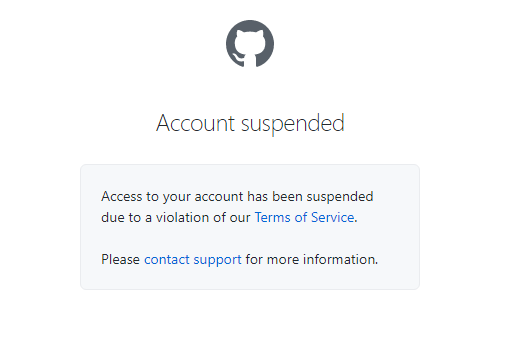
Don’t try this method. They will ban your account.

إعجابَين (2)

Dont Use it on your Personal Account. Just Create Temp Acc Using Outlook,Gmail,Yahoo (not temp mail). I tried using 4 diff acc. 2-TempMail, 2- Outlook. Two Temp mail acc got Flagged . Outlook Acc working fine

إعجابَين (2)

after seeing this i instantly deleted that repository from my main account :cold_face:

outlook flagged now how to use ?

i dnt knw why yur acc got flagged, if you follow the above steps it ll not get flagged

For me it worked full 5 hrs 39mins. [ i cancelled Workflow]

I made an account on the main email
the first run crashed IDK why i think because I ended something from the task manager
and after that whichever account I make gets flagged
and first created account was suspended

Thank you very much man. Working fine !!! May God bless you !

إعجاب واحد (1)

Working.. but I try 5 minutes, and I got banned. LoL

it worked. But the Remote connection got disconnected after 5Min, tried making another RDP but that too got disconnected after 5min. I guess they capped it due to overabuse