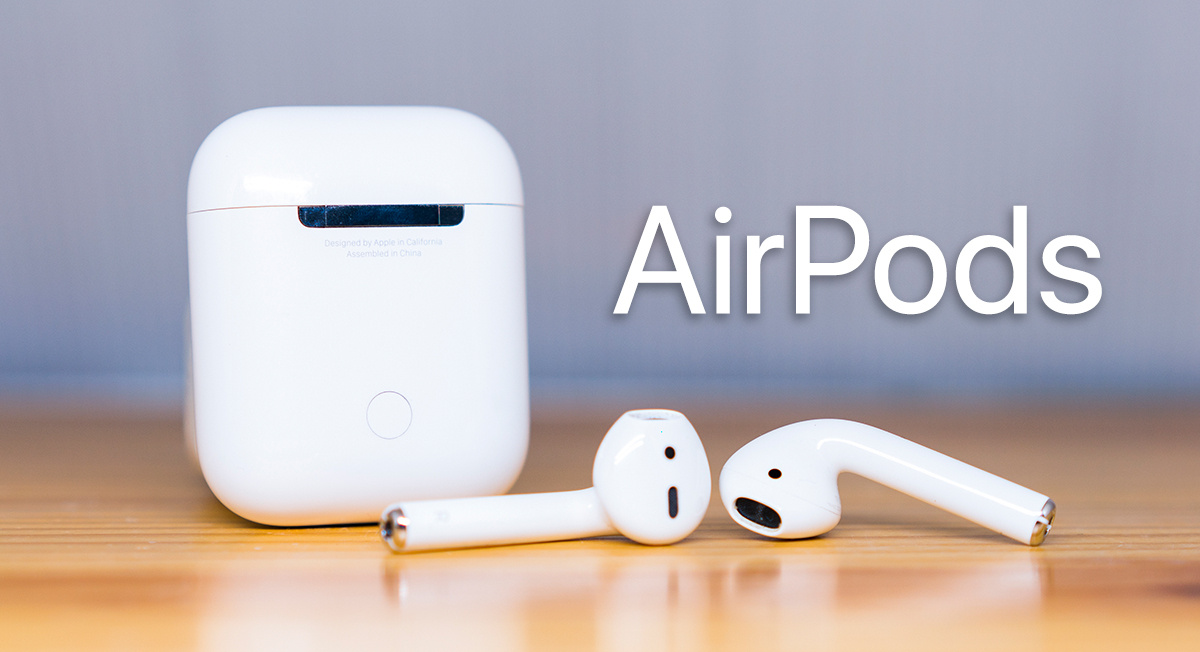
Apple AirPods is the amazing wireless earbuds which provide you with a clear, smooth and fantastic sound to your ears. There were more than 16 million AirPods sold in the past year. Besides it, there is Android which is the most famous operating system in the world. Today, there are various devices available in the market which are using the Android operating system. Even you might be reading this article on your Android phone as well. There is Android TV, Android Wear OS and many devices are available. What if you want to connect your Apple AirPods to your Android device such as Android phone, tablet, TV, etc.
Does AirPods Work With Android?
Definitely, the Apple AirPods work with the Android device such as Android phone, Android tablet, Android TV, and more. The connecting process is straightforward where you have to use the Bluetooth in order to connect your Android device to Apple AirPods. But, some of the features of AirPods will not work, if you use it on your Android device. Features like using Siri, AirPods battery indicator, and more features will not work in Android device. Basically, you can say that you can only listen to the music which you want using the AirPods when it is connected to your Android device.
How to Connect AirPods to Android
There is a simple and straightforward way which I have shared here with you guys. So that you can learn how to connect AirPods to Android. But, before you start connecting and using the Apple AirPods using your Android device, I would like to tell you something.
Generally, Apple products are made to work well with the other Apple products like Apple TV, Macbook, etc. So, if you will try to connect the AirPods to Android, then it is obvious that you will not be able to use every function of the Apple AirPods. Some features like using Siri, battery indicator, automatic pausing, and more will be unavailable on your Apple AirPods which is connected to your Android phone or Android device. Alright, let’s move on to the method and connect AirPods to Android.
- On your Android phone, go to the Settings .
- Now, click on the Bluetooth option.
- Then, hit the toggle of the Bluetooth to turn it on.
- After that, open the case of the AirPods.
- Tap the white button which is at the back of the AirPods.
- Now, hold the AirPods case near to your Android phone.
- You will see that the name of the AirPods has appeared on the Bluetooth page on your Android phone.
- Click on the name of the AirPods so it will be connected to your Android phone.
- That’s it. You have now successfully learned how to connect AirPods to Android.
Apple AirPods Won’t Connect to Android
It may be possible that after following every step listed above very carefully, you are still not able to connect your newly purchased Apple AirPods to your Android device. Let me tell you that this is all because of some mistake which your device has occurred. Some tweaks can help you in fixing this rear problem. Here, I have suggested some tips to you so that you can fix it within seconds.
- Make sure your Android device’s Bluetooth connectivity is turned on.
- Make sure that the Apple AirPods are outside the lid.
- Try to reset the AirPods by clicking the white button which is at the back side of the AirPods case.
- Unpair any other paired AirPods and then connect your one.
- Check that AirPods is working fine or not by connecting it to any Apple device.
- Reboot your Android device and try to connect the AirPods again.
Conclusion
This is how we can connect AirPods to Android. There is no other method available which can help you to connect AirPods to Android device. if it ever arrive it will get update here, Somehow, if you have followed the ways carefully and not able to connect AirPods to Android. Then, you can take that Apple AirPods to the Apple service center maybe the AirPods get damaged.

 !
!