How to Use Whisk: Subject, Scene & Style Method
Whisk (Google Labs) lets you mix three elements — Subject, Scene, and Style — to generate new AI portraits. It’s a simple workflow: upload one image for each slot, add a short text prompt if you like, and Whisk creates your output.
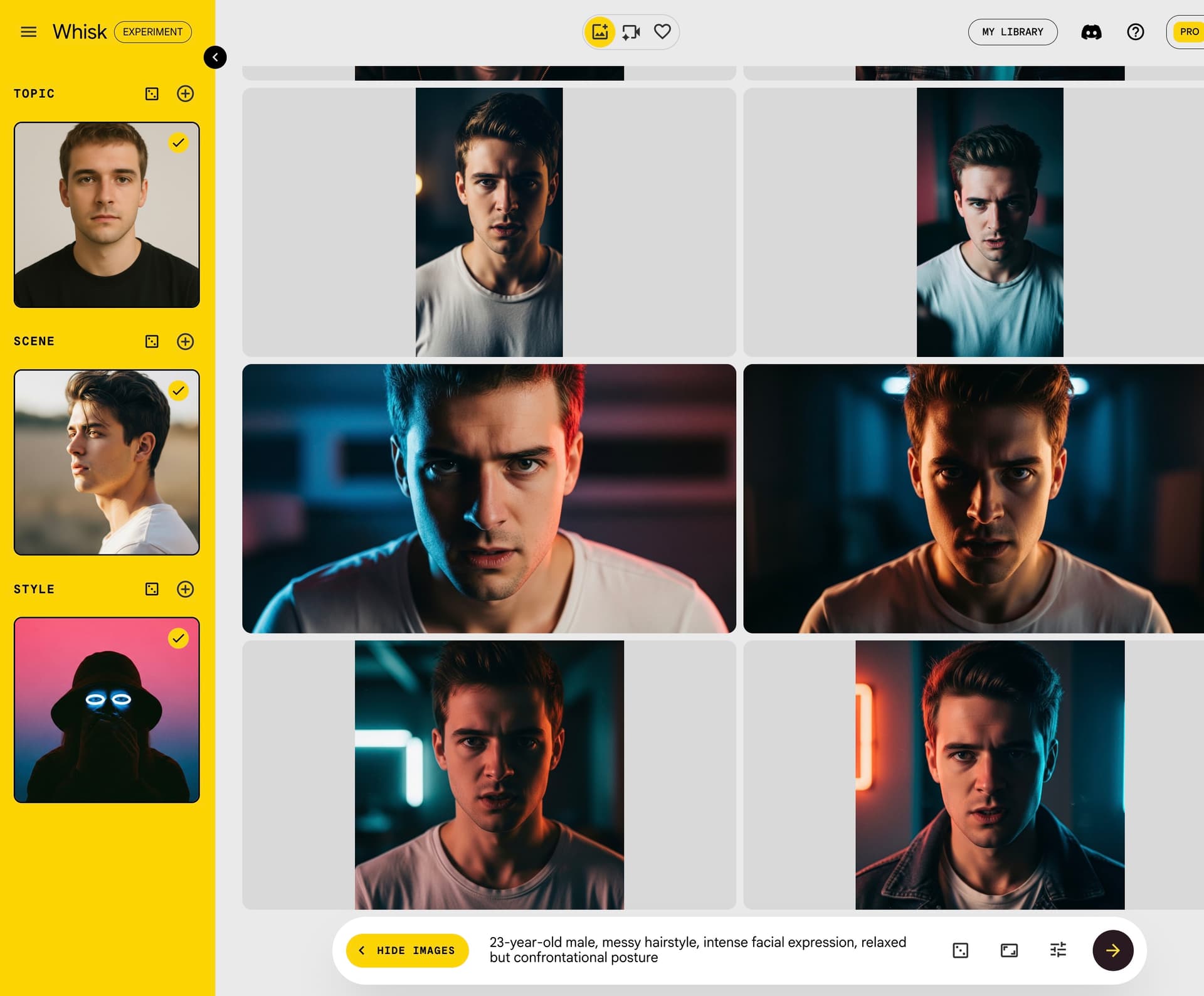
Step-by-Step with Example
1. Subject (Who)
Upload a clear photo of yourself — front-facing, neutral lighting, no heavy filters.
2. Scene (Pose)
Upload a reference photo that shows the pose you want.
Examples:
- Head tilted, standing
- Fingers holding a cigarette to the side of the head
- Sitting with arm resting
Prompt for Scene reference:
male, midshot portrait, left side standing
3. Style (Mood & Look)
Upload an image that sets the vibe:
- Lighting (e.g., cinematic studio light, blue gradient)
- Aesthetic (e.g., Y2K, analog photography, grainy film)
- Fashion/editorial examples
Prompt for Style reference:
Y2K aesthetic, analog film photography, high contrast, soft gradient background, moody cinematic lighting
4. Combine with Text Prompt (Optional)
You can reinforce details with a short description, e.g.:
23-year-old male, messy hairstyle, intense facial expression, relaxed but confrontational posture
Example Setup Recap
- Subject → Your clear portrait (like the example above).
- Scene → A photo showing the gesture/pose.
- Style → A reference with the desired aesthetic.
- Prompt → A short text tying it together.
Tips for Best Results
- Use sharp, high-res photos.
- You don’t need reference photos for every slot — you can type descriptions instead of images for Scene or Style.
- Make the Scene photo’s pose as close as possible to your target.
- Style images should show light & mood, not distracting details.
- Iterate: change one slot at a time and regenerate.
With this method, you can generate realistic portraits of yourself — in different moods, poses, and styles — while keeping your own identity.
 !
!