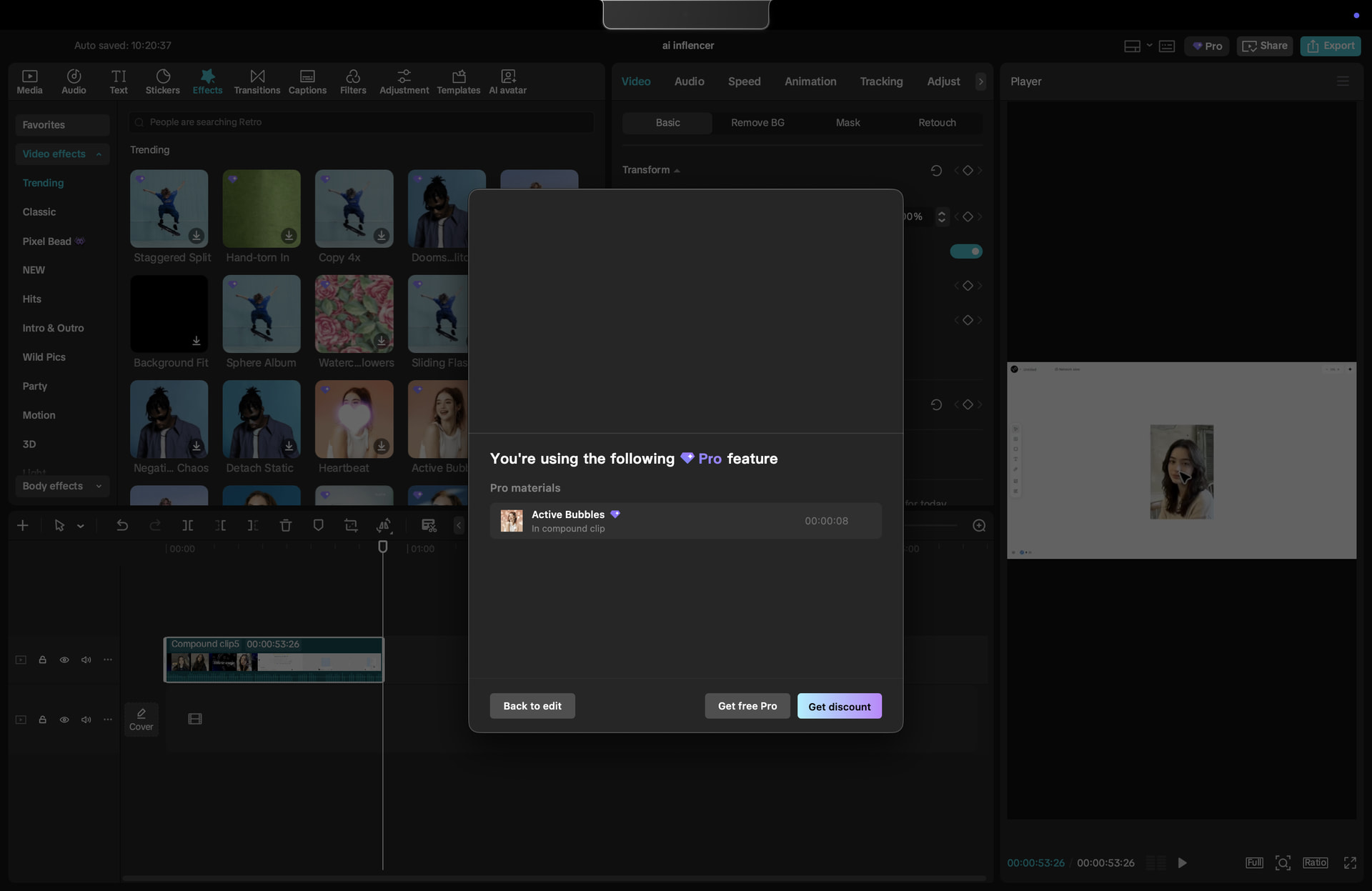
CapCut can let you preview Pro elements, then ask you to subscribe at export. This workaround uses the video CapCut renders while preprocessing a compound clip, imports it back into the normal desktop app, and tries to export that single clip. 
It is an unofficial workaround, not a Pro unlock, and it may stop working after an update.
 What to expect
 Guide tested on Guide tested on |
Windows desktop |
 Extra tools Extra tools |
File Explorer only |
 Result Result |
A single rendered clip |
 Editable layers Editable layers |
Keep your original project for these |
 Success Success |
Depends on the project and CapCut version |
Before starting: save your project. If CapCut offers a way to duplicate it, run these steps on the duplicate. Don’t count on Undo restoring your layers after closing and reopening the app.
 Step 1 — Preprocess the finished edit
- Click your timeline and press
Ctrl + Ato select the clips. - Right-click → Create compound clip.
- Right-click the compound clip → Preprocess compound clip.
- Wait until preprocessing reaches 100%. Keep CapCut open while it runs.
Step 2 — Find the rendered file
Open File Explorer and look inside your project’s Resources\combination folder. With CapCut’s usual Windows save location, start here:
%LOCALAPPDATA%\CapCut\User Data\Projects\com.lveditor.draft
Open your project folder, then Resources → combination. If you changed where CapCut saves projects, look in your chosen project location instead.
Find the regular .mp4 file. Do not use the one ending in .mp4.alpha.mp4. Leave File Explorer open.
 Step 3 — Close CapCut, then reimport
- Save and fully close CapCut—both the editor and its home window.
- Reopen CapCut and open the same project.
- Import the regular
.mp4you found, place it on the timeline, and remove the original compound clip from the working copy. - Try exporting. Watch the finished file and check the picture, sound, timing, and resolution before using it.
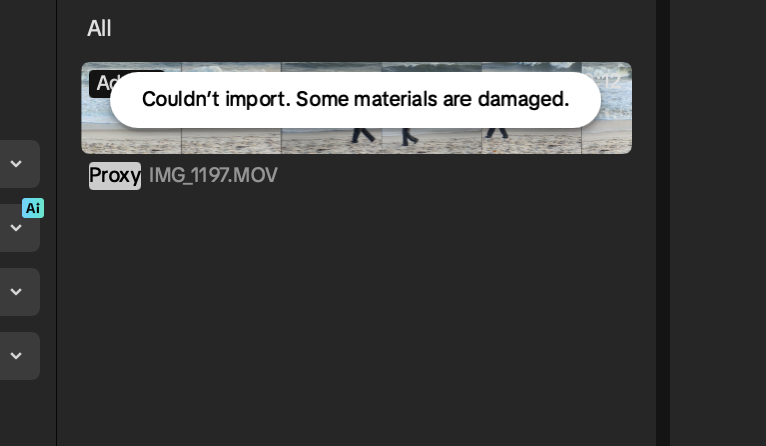
The close-and-reopen step matters: importing the cached file while CapCut is still open has produced a damaged-file error.
 Claims to ignore
 “Every Pro feature is guaranteed.” I haven’t verified every effect, audio item, or export setting.
- “It gives you CapCut Pro.” Your account’s subscription status does not change.
- “It works for everyone on Mac.” One Mac member reported success; another, using CapCut 9.4.0 on an M4 Pro, still could not import the
.mp4after following the steps and reinstalling. - “A successful export grants rights to paid assets.” Check the terms for any music or stock material you plan to publish.
alphain its name, and make sure CapCut was fully closed before reimporting. If the error remains, keep your editable project and assume this method does not work with that setup. Reinstalling did not fix it for the member who reported the Mac error.
Summary  Compound clip → preprocess to 100% → locate the regular
 .mp4 → fully close CapCut → reopen the same project → reimport → test export. Keep the original edit safe until you’ve checked the final video.
 brother, it is working.
 I was curious to try this app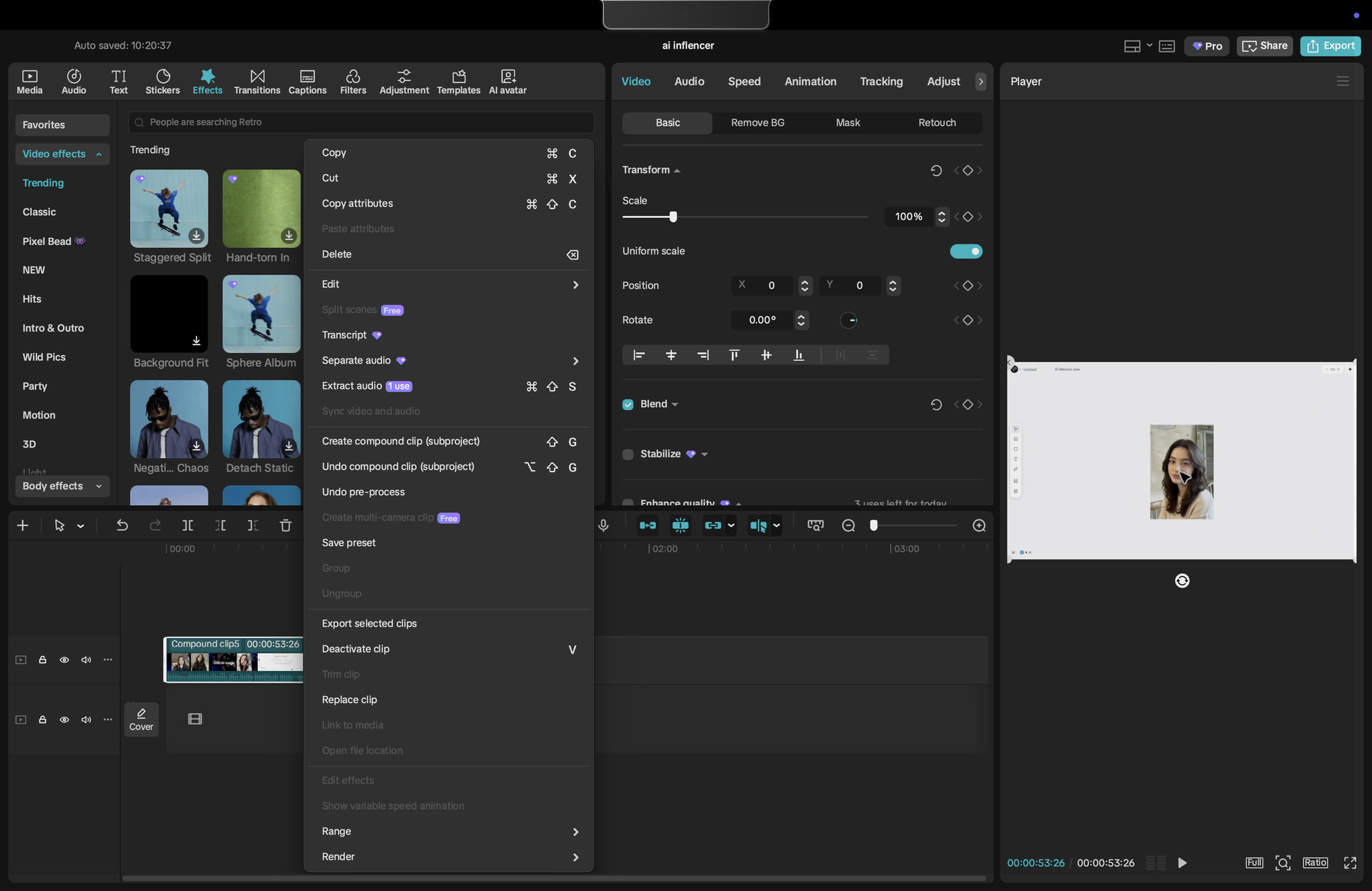

 !
!