Free Screen Recording Software Without Watermarks: OpenScreen & Open-Source Alternatives
One-Line Flow: Download OpenScreen, hit record, add some zooms, export. Done. No subscription, no watermark, no “upgrade to pro” popups ruining your life.

 What The Hell Is OpenScreen?
OpenScreen is basically a baby trying to be Screen Studio without charging you $29/month forever.
Here’s what you get:
- Free
- Open-source
- No watermark
- No subscription
- Works for commercial stuff too
The developer literally said “I’m new to open source, idk what I’m doing lol” on GitHub.
So yeah, it’s rough around the edges. But it works, it’s free, and it doesn’t treat you like a wallet with legs.
Reality check: This thing is 2 weeks old with ~1,100 GitHub stars. It’s not polished. It’s not perfect. But it’s honest, and that’s more than most screen recorders can say.
 Get It Here (The Only Links That Matter)
 Preview + screenshots: https://openscreen.vercel.app/
 GitHub (code, issues, downloads): https://github.com/siddharthvaddem/openscreen
 Direct downloads (macOS only): https://github.com/siddharthvaddem/openscreen/releases/
 What OpenScreen Actually Does

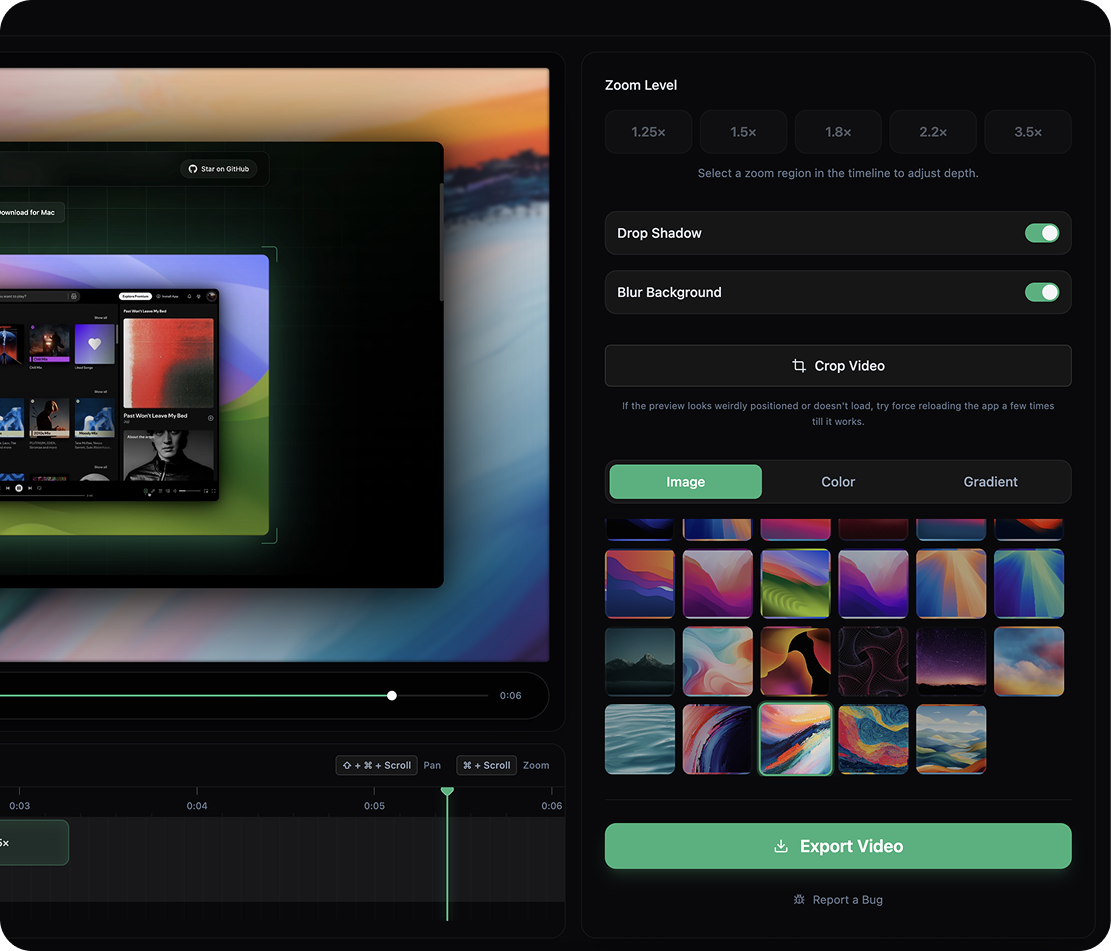

Right now, OpenScreen handles the basics without being a dick about it:
- Record your screen (full screen or specific apps)
- Add manual zooms with depth control
- Motion blur and smooth transitions that look decent
- Custom backgrounds (gradients, wallpapers, your own images)
- Crop and trim inside the app
- Export in different aspect ratios
It’s built on Electron + React + TypeScript + PixiJS (for the zoom effects).
Think of it as: Record → edit in one place → export → post. No round-trip through 4 other apps just to make it watchable.
 What It Can’t Do Yet (So You’re Not Surprised)
Let’s be real about what’s missing:
Compared to Screen Studio ($29/month):
 No auto-zoom that follows your clicks (this is Screen Studio’s killer feature)
- No fancy cursor smoothing or high-res cursor replacement
- No webcam overlay
- No system audio recording
- No auto-captions or transcription
- No export presets (4K, GIF, social media formats)
Platform stuff:
- macOS ONLY right now (Windows/Linux builds don’t exist yet)
- It’s an unsigned app, so macOS will throw a fit. Fix it once with:
xattr -rd com.apple.quarantine /Applications/Openscreen.app
Run that in Terminal, then you’re good.
The honest truth: OpenScreen fills a very specific gap. You want Screen Studio vibes without paying monthly rent, you’re on macOS, and you’re cool with doing zooms manually. That’s the lane.
 When OpenScreen Makes Sense
Use OpenScreen if:
- You’re on macOS
- You want clean recordings for YouTube, client demos, tutorials, social media
- You’re sick of watermarks, “free trials,” and subscription popups
- You’re fine trading auto-magic for zero cost and full control
What you’re actually getting:
- Record once
- Drop some manual zooms where you want focus
- Pick a nice background
- Export
- Done
No drama. No monthly bills. Your recordings, your rules.
 The Underground Alternatives Nobody Mentions
OpenScreen is the main character here, but there’s a whole family of open-source screen tools that go insanely hard in specific niches.
 GPU Screen Recorder (Linux Performance Beast)
URLs:
- Main project: https://git.dec05eba.com/gpu-screen-recorder/about/
- UI overlay: https://git.dec05eba.com/gpu-screen-recorder-ui/about/
This tool isn’t even on GitHub—it lives on the dev’s self-hosted Git server. That’s how underground it is.
What makes it special:
- Records directly from GPU memory using CUDA/VAAPI
- CPU usage stays near 0%
- OBS drops 4K recording from 30fps to 7fps. GPU Screen Recorder? Still 30fps.
- Has ShadowPlay-style instant replay buffers
- Supports H.264/HEVC/AV1, HDR, Wayland
If you’re on Linux and need buttery-smooth recordings with zero performance hit, this is your weapon.
 Cap (Open-Source Loom Killer)
URLs:
- GitHub: https://github.com/CapSoftware/Cap (~17,500 stars)
- Website: https://cap.so/
Built with Tauri/Rust + SolidStart. AGPL-3.0 licensed.
What it does:
- Record screen + camera + mic
- Add zoom effects and basic polish
- Instant sharing with links
- S3 bucket support + custom domains
- Self-host via Docker/Railway with MySQL
Real user quote: “I’ve uninstalled Loom and Screen Studio :)”
Great for:
- Remote teams sending constant “quick walkthrough” videos
- Anyone who wants control over where their recordings live
 The Linux Lineup (Wayland-Friendly)
Blue Recorder (Rust + GTK4)
- URL: https://github.com/xlmnxp/blue-recorder (~500 stars)
- Supports both X11 AND Wayland with PipeWire
- Has 40+ language translations
- Modern libadwaita interface
wl-screenrec (Hardware-Accelerated Wayland)
- URL: https://github.com/russelltg/wl-screenrec (~1,000 stars)
- Uses VAAPI GPU encoding by default
--no-damageflag for constant framerate- Works with Sway, Hyprland, other wlroots compositors
Wayfarer (Handles Permission Hell)
- URL: https://codeberg.org/stronnag/wayfarer (~150 stars)
- Remembers XDG Portal tokens between sessions
- Control-R resets portal token when permissions break
- GTK4 interface
 Terminal & Documentation Tools
VHS by Charmbracelet (Scripted Terminal Recordings)
- URL: https://github.com/charmbracelet/vhs (~17,500 stars)
Write recordings as code:
Output demo.gif
Set FontSize 46
Type "echo 'Hello World!'"
Enter
Sleep 2s
Run vhs demo.tape and get reproducible GIFs. Has SSH recording too.
t-rec (Rust Terminal Recorder)
- URL: https://github.com/sassman/t-rec-rs (~700 stars)
- Records ANY window (not just terminals) to GIF/APNG
--idle-pauseflag auto-removes frames where nothing happens- Zero dependencies
Antmicro Screen Recorder (ONE HTML File)
- URL: https://github.com/antmicro/screen-recorder (~100 stars)
- Download a single HTML file
- Open it offline
- Record your screen
- Perfect for air-gapped systems or paranoid workflows
menyoki (Swiss Army Knife CLI)
- URL: https://github.com/orhun/menyoki
- Screenshots AND screencasts AND image manipulation
- Outputs to GIF, APNG, PNG sequences, WebM
- One binary, no dependencies
termtosvg (Animated SVG Terminal Recordings)
- URL: https://github.com/nbedos/termtosvg (~10,000 stars)
- Output is infinitely scalable
- Much smaller than GIFs
- Embeds directly in web pages
 Helper Tools That Make Recordings Look Pro
gifski (Best-In-Class GIF Quality)
- URL: https://github.com/ImageOptim/gifski
- Uses cross-frame palette optimization
- Thousands of colors instead of usual 256
- Pipe from FFmpeg:
ffmpeg -i video.mp4 -f yuv4mpegpipe - | gifski -o output.gif -
Keyviz (Keystroke + Mouse Visualizer)
- URL: https://github.com/mulaRahul/keyviz
- Shows keyboard AND mouse input
- Cross-platform (Windows/Mac/Linux)
- Highly customizable
highlight-pointer (Cursor Highlighter)
- URL: https://github.com/swillner/highlight-pointer
- Different colors for pressed vs released:
highlight-pointer -c '#d62728' -p '#1f77b4' -r 10
ffscreencast (FFmpeg Wrapper with Webcam Overlay)
- URL: https://github.com/cytopia/ffscreencast (~600 stars)
- Auto-detects monitors, cameras, microphones
--dryflag shows FFmpeg command without executing-cflag overlays webcam on desktop
slop (Interactive Region Selection)
- URL: https://github.com/naelstrof/slop
- Combo with FFmpeg:
#!/bin/bash
geometry=$(slop -f "-video_size %wx%h -i :0.0+%x,%y")
ffmpeg -framerate 30 -f x11grab $geometry "$1"
 Windows Users: Your Closest Alternatives
Rapidemo (Auto-Zoom on Windows)
- URL: https://getrapidemo.com/
- Automatic zoom on clicks
- Smooth cursor motion
- Custom backgrounds
- Auto-captions
- Not fully open-source, but free-ish
FocuSee (Windows/Mac Auto-Tracking)
- URL: https://focusee.imobie.com/
- Automatic cursor tracking and zoom effects
- Free tier with watermark
- Chrome extension available
Manual Approach with Kdenlive (Fully Free)
- Record full-resolution video
- Add zoom/pan effects using keyframe animation
- Apply ease-in/ease-out
- Takes more work but completely free
 The Licensing Thing (Don’t Panic)
Short version:
- OpenScreen is MIT-licensed → free for personal AND commercial use
- For YouTube, client work, courses, tutorials? You’re fine.
The boring part (only if you care):
- H.264 codec has patents (MPEG-LA patent pool)
- At massive scale, big companies sometimes pay royalties
- If you’re not Netflix, you probably don’t need to worry
- Want to be extra safe? Use VP9/VP8 (WebM) or AV1 instead
FFmpeg gotcha:
- FFmpeg is LGPL 2.1 or GPL 2.0 (depends on build flags)
- If you compile with
--enable-gplor--enable-nonfree, copyleft kicks in
That’s it. No law degree required.
 macOS Permission Hell (Heads Up)
On Ventura, Sonoma, and Sequoia, there’s a recurring bug where permissions reset on reboot.
Apps keep asking for screen recording access even after you’ve granted it. Some users report entire Privacy & Security sections corrupting.
Sequoia 15.0 introduced monthly re-authorization requirements for some apps—you have to re-allow permissions monthly or after reboots.
Fix commands:
tccutil reset ScreenCapture
tccutil reset Accessibility
tccutil reset SystemPolicyAllFiles
Run those if permissions keep breaking. It’s annoying as hell but that’s Apple in 2025.
 Real-World Workflows (Pick What Fits)
Mac + no budget + want pretty zoom videos:
→ Install OpenScreen: https://github.com/siddharthvaddem/openscreen/releases/
→ Record → add zooms + backgrounds → export → upload
Remote work + constant video updates:
→ Use Cap: https://github.com/CapSoftware/Cap
→ Record screen+cam → share link → done
Linux + gaming or 4K workflows:
→ GPU Screen Recorder: https://git.dec05eba.com/gpu-screen-recorder/about/
→ Add Keyviz (https://github.com/mulaRahul/keyviz) + highlight-pointer (https://github.com/swillner/highlight-pointer) for overlays
Documentation and dev blogs:
→ VHS (https://github.com/charmbracelet/vhs) for scripted terminal demos
→ termtosvg (https://github.com/nbedos/termtosvg) for SVG embeds
→ gifski (https://github.com/ImageOptim/gifski) for final GIF output
Windows + need auto-zoom:
→ Rapidemo (https://getrapidemo.com/) or FocuSee (https://focusee.imobie.com/)
→ Not open-source but closer to Screen Studio without the monthly bill
 The Competitive Landscape (No Bullsh*t)
| Tool | Stars | Platform | Best For |
|---|---|---|---|
| OpenScreen | ~1.1k | macOS only | Manual zooms, free, new |
| Cap | ~17.5k | Mac/Win | Loom replacement, self-hosting |
| Kap | ~18.8k | macOS | Quick GIF/video (unmaintained 1yr) |
| OBS | ~66.5k | All | Streaming, complex setups |
| GPU Screen Recorder | N/A | Linux | Lowest performance impact |
| VHS | ~17.5k | All | Reproducible terminal demos |
The honest truth about Screen Studio:
Screen Studio records cursor position data separately from video. This lets them:
- Adjust cursor size AFTER recording
- Apply smooth interpolation to cursor paths
- Auto-hide cursor when static
- Replace low-res cursors with high-res vectors
- Enable 120fps burst mode for fast movements
OpenScreen uses PixiJS for zoom effects but doesn’t capture cursor metadata separately. The “smoothness” in Screen Studio comes from post-processing telemetry—not just video filters.
That’s why no free tool fully replicates it yet. The auto-zoom algorithm is genuinely hard to build.
 Bottom Line
- OpenScreen = free, open-source, no watermark, manual zooms, macOS-only, still growing
- The perfect free Screen Studio clone doesn’t exist yet
- But you can get 90% of the results for 0% of the cost by mixing:
- OpenScreen (Mac) or Cap/GPU Screen Recorder (elsewhere)
- A few helper tools from the list above
Start simple:
Install OpenScreen → record something today → if you need more, the underground toolbox is waiting.
The real question isn’t “is this perfect?”
The real question is: “Am I still paying $29/month to record my own f*cking screen?”
If yes, fix that.
Grab OpenScreen: https://github.com/siddharthvaddem/openscreen/releases/
Done.

 !
!