#  BREAKING: Microsoft Just Released FREE Lifetime Data Recovery Software! This Is HUGE!
 Microsoft’s Gift to Windows Users - Say Goodbye to Lost Files Forever!
Holy moly, everyone! 
I just discovered something **ABSOLUTELY INCREDIBLE** that I need to share with the entire Windows community RIGHT NOW!
Microsoft - yes, THE Microsoft - has officially released a **completely FREE, lifetime-usable data recovery tool** that every single Windows user needs to know about! 

If you’ve ever:
 Accidentally deleted precious family photos
 Lost important work documents
 Emptied the Recycle Bin and immediately regretted it
 Had files disappear after a system crash
 Paid expensive data recovery services
**Your prayers have been answered!** This is a legitimate game-changer from Microsoft themselves! 
 What Exactly Is This Magical Tool?
Microsoft has launched **Windows File Recovery** - an official, powerful data recovery solution that’s:
**100% FREE** - No trial periods, no subscriptions, no hidden costs
**LIFETIME USE** - Download once, use forever
**OFFICIAL MICROSOFT** - Not some sketchy third-party tool
**POWERFUL** - Recovers permanently deleted files
**COMPREHENSIVE** - Videos, photos, documents, and more
**SAFE & SECURE** - No malware, no data collection nonsense
**And here’s the kicker:** It can recover files even after you’ve **permanently deleted them** from the Recycle Bin! 
This is the kind of tool people have paid $50-$200 for from third-party companies. Microsoft is giving it away FOR FREE! 
The Two-Component Power System
Here’s what makes this solution brilliant - it’s actually a **two-part system** that combines Microsoft’s powerful recovery engine with a user-friendly interface:
 **Component #1: Windows File Recovery (The Engine)**
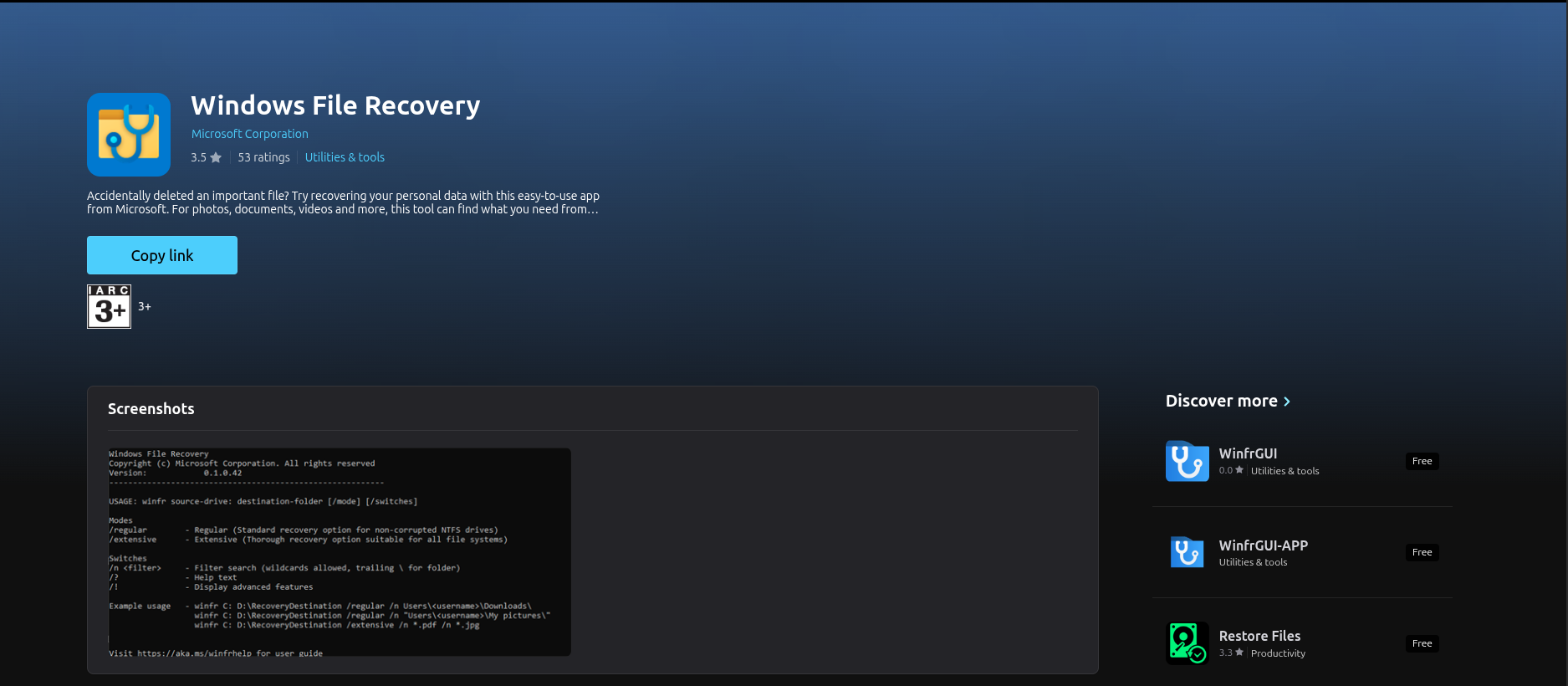
This is Microsoft’s **official command-line recovery tool** available directly from the Microsoft Store.
**What it does:**
 Powerful data recovery algorithms
 Deep scanning capabilities
- Supports NTFS, FAT, exFAT, and ReFS file systems
- Multiple recovery modes for different scenarios
 Enterprise-grade technology in a free package
**The catch?** It’s command-line based, which can be intimidating for regular users. 
 **Component #2: WinFRGUI (The User-Friendly Interface)**
This is where the magic happens! WinFRGUI is a **beautiful graphical interface** that makes Windows File Recovery accessible to everyone!
**What it does:**
 Click-and-recover simplicity
 Visual file browsing
- Easy selection of recovery options
 User-friendly design - no tech degree needed!
 Harnesses the full power of Windows File Recovery
**Together?** You get professional-grade data recovery with consumer-friendly ease! 
 Complete Step-by-Step Setup Guide (Super Easy!)
Don’t worry - setting this up is WAY easier than you think! Just follow these simple steps:
 **STEP 1: Install Windows File Recovery (2 minutes)**
**Action:** Head to the Microsoft Store
 **Direct Link:** https://apps.microsoft.com/detail/9n26s50ln705?hl=en-GB&gl=IN
**How to do it:**
- Click the link above (opens Microsoft Store)
- Sign in with your Windows/Microsoft account
- Click the **“Get”** or **“Install”** button
- Wait for the download and installation (it’s quick!)
**Why this step?** This installs the powerful recovery engine that does the actual work!
**Note:** This is Microsoft’s official tool - 100% safe and verified! 
**STEP 2: Download WinFRGUI (1 minute)**
**Action:** Get the user-friendly interface
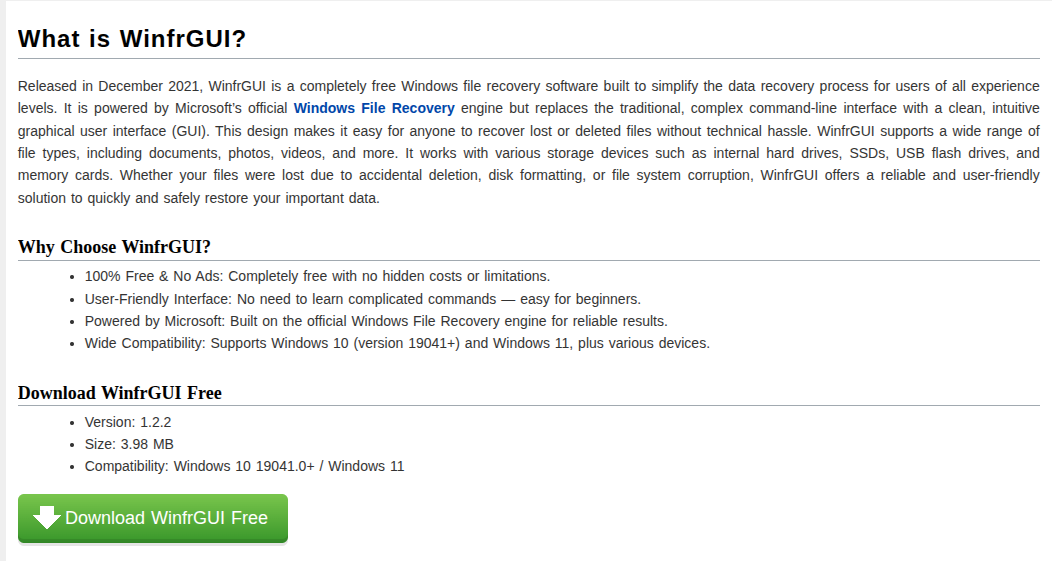
**Official Website:** https://www.winfr.org/
**How to do it:**
- Visit the WinFRGUI official website
- Download the GUI version for Windows
- Run the installer
- Follow the simple installation prompts
**Why this step?** This gives you the beautiful, easy-to-use interface that makes recovery a breeze!
**Security note:** WinFRGUI is a trusted, well-reviewed open-source project that simply provides a GUI for Microsoft’s tool! 
**STEP 3: Launch WinFRGUI (5 seconds)**
**Action:** Open your new recovery tool
**How to do it:**
- Press the **Windows key** on your keyboard
- Type **“WinFRGUI”** in the search bar
- Click to open the application
**First impression?** You’ll be amazed at how clean and professional it looks!
**STEP 4: Recover Your Lost Files! (Minutes to save your data!)**
**Action:** Bring back those precious deleted files
**How it works:**
 **Select the source drive** where files were deleted
 **Choose the destination** for recovered files (different drive recommended!)
- **Pick recovery mode** (the app suggests the best one)
- **Specify file types** if you want (or recover everything!)
- **Click “Start Recovery”** and watch the magic happen!
**Best part?** No license keys, no registration, no payment required - just pure recovery power!
 Why This Is Absolutely AWESOME
Let me break down exactly why this is such a big deal:
**It’s Official Microsoft Software**
This isn’t some random third-party tool with questionable origins. This is **straight from Microsoft** - the same company that makes Windows!
**What this means:**
 Complete security and trust
 Regular updates and support
 Compatibility with Windows
 Integration with the Microsoft ecosystem
- No malware, spyware, or bloatware
**Peace of mind:** You’re using enterprise-grade software from the source!
**Recovers Multiple File Types**
This tool isn’t limited to just one type of data. It handles **everything**:
 **Photos & Images:**
- JPEG, PNG, GIF, RAW, TIFF
- Camera photos, screenshots, digital art
- Even corrupted image files!
 **Videos:**
- MP4, AVI, MOV, MKV, WMV
- Phone videos, recordings, downloads
- Large video files (GBs!)
 **Documents:**
- Word, Excel, PowerPoint
- PDF files
- Text documents, spreadsheets
- Presentations and reports
 **Audio Files:**
- MP3, WAV, FLAC
- Music, recordings, podcasts
 **Archives & Programs:**
- ZIP, RAR files
- Executable files
- Installation packages
**Basically:** If it was on your computer, this can recover it!
**Safe and Secure**
In a world full of sketchy “free recovery tools” that are actually malware in disguise, this is **refreshingly safe**:
**No data collection** - Your files stay YOUR files
**No cloud upload** - Everything stays local
**No backdoors** - Microsoft’s reputation on the line
**No adware** - Clean, professional software
**No registration required** - Just download and use
**Privacy protected:** Your recovered family photos aren’t going to some server somewhere! 
 **100% Free for Lifetime Use**
Let me emphasize this because it’s SO important:
 **NO trial period** - It doesn’t expire after 30 days
**NO feature limitations** - All recovery modes available
**NO file size caps** - Recover files of any size
**NO recovery limits** - Use it as many times as you need
**NO upgrade upsells** - What you get is complete
**Compare to alternatives:**
- Recuva Pro: $24.95
- EaseUS Data Recovery: $69.95
- Stellar Data Recovery: $79.99
- R-Studio: $79.99
**Microsoft’s price?** $0.00 forever!
**Works on Modern Windows Versions**
Compatible with:
- Windows 10 (version 2004 and later)
- Windows 11 (all versions)
- Windows Server 2019 and later
**If you’re running a reasonably current Windows version, you’re good to go!** 
 Real-World Scenarios Where This Saves the Day
Let me paint some pictures where this tool is an absolute **lifesaver**:
**Scenario 1: The Wedding Photo Disaster**
**The nightmare:** You’re cleaning up your drive, see a folder called “Old Camera Files,” delete it, empty Recycle Bin, then realize… those were the RAW photos from your wedding. 
**The rescue:** Fire up WinFRGUI, scan the drive, recover those precious memories! Crisis averted, marriage saved! 
**Actual cost to hire a pro?** $200-$500
**Your cost with this?** $0
**Scenario 2: The Work Presentation Vanishes**
**The nightmare:** Your important client presentation due tomorrow just… disappeared. System crash? Accidental deletion? Who knows - but it’s GONE. 
**The rescue:** Quick recovery scan, find the PowerPoint file from earlier today, restore it. Meeting saved, promotion secured! 
**Value to your career?** Priceless!
**Cost?** Free!
**Scenario 3: The Family Video Emergency**
**The nightmare:** Videos of your kid’s first steps, accidentally deleted while cleaning up phone sync folders. Years of memories - GONE. 
**The rescue:** Deep scan recovery finds the video files, restores them perfectly. Memories preserved forever! 
**Emotional value?** Immeasurable!
**Software cost?** Zero!
Pro Tips for Maximum Recovery Success
Want to get the BEST results? Follow these expert tips:
**TIP #2: Recover to a Different Drive**
**When recovering files:**
 **DON’T** recover to the same drive where files were deleted
**DO** recover to an external drive, USB stick, or different partition
**Why?** Recovering to the same location can overwrite other recoverable files!
**TIP #3: Use the Right Recovery Mode**
**WinFRGUI offers different modes:**
**Default mode** - Quick recovery for recent deletions
**Segment mode** - For drives formatted with NTFS
**Signature mode** - Deep scan for older deletions
**Pro move:** Start with Default mode (fastest), escalate if needed!
**TIP #4: Be Patient with Large Drives**
**Scanning a 1TB drive?** Could take several hours! 
Let it run overnight
Don’t interrupt the process
The wait is worth it!
**Think of it this way:** Hours of waiting vs. permanent loss? Easy choice!
**TIP #5: Keep This Tool Ready BEFORE Disaster Strikes**
**Don’t wait until you need it!**
Install both components NOW
Test it with an intentionally deleted test file
Know how to use it before emergency strikes
**Prevention is great, but being PREPARED is genius!** 
Important Things to Know
 **Recovery Isn’t Always 100% Guaranteed**
**Reality check:** While this tool is AMAZING, it can’t perform miracles.
**Success depends on:**
- How long ago files were deleted
- How much new data has been written since
 Type of deletion (normal vs. secure wipe)
 Condition of the drive (physical damage affects recovery)
**Best chances:** Recent deletions on drives that haven’t been heavily used since!
 **It’s a Command-Line Tool at Heart**
**Windows File Recovery itself uses command-line**, which is why WinFRGUI is so valuable!
**Without GUI:** You’d be typing commands like:
```
winfr C: D: /n \Users\Username\Documents\
```
**With WinFRGUI:** Just click buttons!
**Takeaway:** Appreciate the GUI - it makes everything SO much easier!
**Works Best on NTFS Drives**
**File system matters:**
**NTFS** - Full support, best results
**FAT/FAT32** - Good support
**exFAT** - Supported
**ReFS** - Supported
**Most Windows drives are NTFS, so you’re probably good!** 
 How Does This Compare to Other Recovery Tools?
Let me put this in perspective:
 **Microsoft Windows File Recovery vs. Paid Alternatives**
| Feature | Microsoft WFR | Recuva Pro | EaseUS | Stellar |
|---|---|---|---|---|
| **Price** | FREE |
$24.95 | $69.95 | $79.99 |
| **Lifetime Use** | Yes |
Yes |
No |
No |
| **File Types** | All |
All |
All |
All |
| **Deep Scan** | Yes |
Yes |
Yes |
Yes |
| **Official/Trusted** | Microsoft |
3rd Party |
3rd Party |
3rd Party |
| **No Ads** | Yes |
No |
No |
No |
**Winner?** Pretty obvious!
**The value proposition:**
**Pay $70-200** for third-party recovery tools
**Pay $200-500** for professional recovery services
**Lose files forever** because you had no solution
** QUICK LINKS RECAP:**
**Windows File Recovery (Microsoft Store):**
**WinFRGUI (Official Website):**
** Stay Safe, Stay Backed Up, Stay Ready!**
**Your files are counting on you!**
**See you in the comments, fellow data protectors!** 

Hit Like
 !
!