 Best Free File Copy Tools Tested — FastCopy vs Robocopy vs Everything Else
Best Free File Copy Tools Tested — FastCopy vs Robocopy vs Everything Else Move Huge Files Without the Wait — Tier List of Every Tool Worth Using
One-Line Flow: Turn your 10-minute file transfers into 81-second flex sessions using tools Windows doesn’t want you to know about.
 Why This Exists (Read This First)
You’re copying 100GB. Windows says “4 hours remaining.” You alt-tab. You forget. You check back. “6 hours remaining.” What.
This guide makes that never happen again. Zero coding skills needed. Just copy commands, paste, feel like a hacker. Your files move at the actual speed your $200 NVMe is capable of — not the speed Microsoft’s 1998 copy dialog allows.
Real result from this guide: 115GB moved in 81 seconds. That’s 1,445 MB/s. That’s insane. That’s yours now.
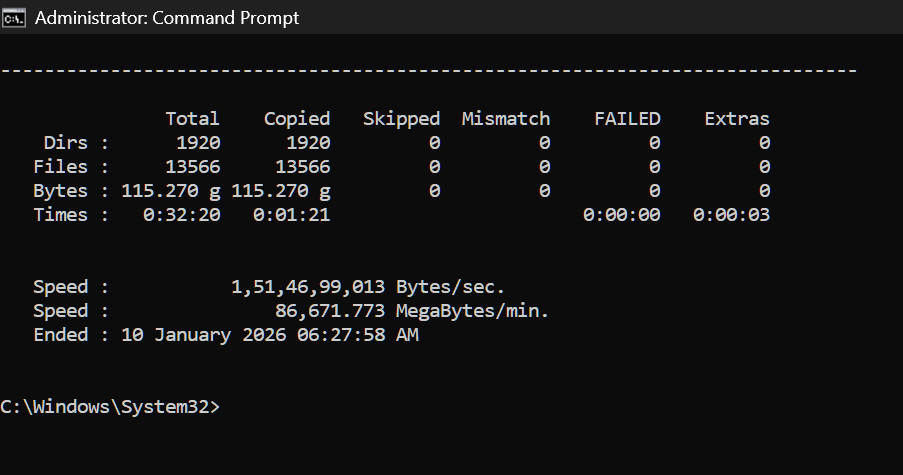
⚡ THE CHEAT CODE (Start Here If You're Impatient)
Open Command Prompt as Admin and run this:
robocopy "C:\Your\Source\Folder" "Z:\Your\Destination" /MOVE /E /MT:32 /R:1 /W:1
That’s it. You just unlocked multi-threaded file transfers that Windows has hidden since Vista.
What each flag does:
| Flag | Translation |
|---|---|
/MOVE |
Move files (deletes source after copy) |
/E |
Include all subfolders |
/MT:32 |
Use 32 parallel threads (the magic) |
/R:1 /W:1 |
Don’t waste time retrying errors |
For NVMe-to-NVMe? Push it: /MT:64 or /MT:128
Want to copy instead of move? Remove /MOVE
You’re welcome.
🏆 TIER LIST: Every Tool Ranked (Updated January 2026)
S-TIER: The Untouchables
1. FastCopy — THE Speed King 
Link: https://fastcopy.jp/
Why it’s broken (in a good way):
- Bypasses Windows API completely → talks directly to your drive
- Zero OS cache usage → other apps stay fast while copying
- Built-in SHA verification → know your files aren’t corrupted
- Paths longer than 260 characters? No problem.
Latest Version: 5.11.2 (December 2025)
FastCopy.exe /cmd=move /speed=full /verify /auto_close "C:\source" /to="Z:\dest\"
Shell Integration: Settings → Shell Extension → Install
Now you get “Copy (FastCopy)” in your right-click menu. Chef’s kiss.
License: Free for personal use. Pro for workplace.
2. Robocopy — Already On Your PC
Built into Windows. You’ve had this the whole time.
Best command for speed:
robocopy source dest /E /MT:128 /R:1 /W:0 /NP /NDL /NFL /LOG:NUL
Translation:
/MT:128— 128 threads (adjust to your CPU)/NP /NDL /NFL /LOG:NUL— shut up and copy faster
For network transfers with resume:
robocopy "\\server\share" "D:\Local" /E /Z /MT:16 /R:5 /W:10
The /Z flag = restartable mode. Survives network drops like a cockroach.
3. rclone — The Swiss Army Nuke
Link: https://rclone.org/downloads/
Not just for cloud. Works local too. Multi-threaded. Verifies checksums automatically.
rclone copy C:\source Z:\dest --progress --transfers=32 --checkers=16
Jeff Geerling got 4x faster transfers using --multi-thread-streams=32 vs rsync. That’s not a typo.
A-TIER: Excellent Choices
4. TeraCopy — For Normal Humans
Link: https://www.codesector.com/teracopy
Pretty GUI. Drag and drop. Pause/resume. Skips bad files. Your mom could use this.
Slightly slower than FastCopy. Much easier to use. Free version is fully functional.
5. Ultracopier — Open Source Champion
Link: https://ultracopier.first-world.info/
Version: 3.0.1.5 | License: GPL3 (100% free forever)
Completely replaces Windows copy dialog. Pause/resume. Speed limiting. Error handling. No catch.
6. FreeFileSync — Best For Sync/Backup
Link: https://freefilesync.org/
Version: 14.6
Not just copying — intelligent sync. Compares folders first, only copies what changed. Multi-threaded in donation version. Cross-platform.
B-TIER: Specialized Tools
7. ExtremeCopy — The Underdog
GitHub: https://github.com/kevinwu1024/ExtremeCopy
Open source C++. Auto-optimizes for your hardware. 20-120% faster than Explorer. Pause on locked files, resume later.
8. BITS (Built into Windows)
Import-Module BitsTransfer
Start-BitsTransfer -Source "\\server\file.iso" -Destination "C:\local\" -Asynchronous
Survives reboots. Best for network transfers.
AVOID THESE 
| Tool | Why |
|---|---|
| RichCopy | Dead since 2009 |
| Kill Copy | Abandoned |
| Copy Handler | Last update 2016 |
| SuperCopier2 | Just use Ultracopier |
| GS RichCopy 360 | $$$$ enterprise only |
🧠 HIDDEN DISCOVERY: Windows 11 Dev Drive (Up to 94% Faster Copies)
Microsoft quietly added ReFS Block Cloning to Windows 11 24H2. This is Windows Server tech that nobody told consumers about.
What Block Cloning Actually Does
Instead of copying every byte:
- Creates a metadata pointer to original data
- Both files share the same physical blocks
- Only creates new blocks when you modify one file
- Result: Copies become nearly instant
Microsoft’s Own Numbers
| Operation | NTFS | ReFS Block Cloning | Improvement |
|---|---|---|---|
| 10GB file copy | X seconds | X/10 seconds | Up to 94% |
| Code builds | baseline | -28% | 28% faster |
| Delete node_modules | 24.5s | 9.2s | 62% faster |
How To Create One
Settings → System → Storage → Advanced storage settings → Disks & volumes → Create new VHD → Format as Dev Drive (ReFS)
Requirements:
- Windows 11 24H2+
- Cannot be boot drive
- 50GB minimum recommended
- 16GB RAM recommended
Best for: Source code, node_modules, build outputs, working copies of large files
Caveat: No compression, no encryption, no quotas. Use for specific workflows, not general storage.
🛡️ Windows Defender: The Silent Speed Killer
Every. Single. File. Operation. Gets. Scanned.
For thousands of small files, this adds up to… pain.
Check If It’s Affecting You
Get-MpComputerStatus | Select RealTimeProtectionEnabled, IoavProtectionEnabled
Add Exclusions (Run As Admin)
# Exclude folders:
Add-MpPreference -ExclusionPath "Z:\MyWorkFolder"
Add-MpPreference -ExclusionPath "C:\Dev"

# Exclude tools:
Add-MpPreference -ExclusionProcess "fastcopy.exe"
Add-MpPreference -ExclusionProcess "robocopy.exe"

# Check what you've excluded:
Get-MpPreference | Select ExclusionPath, ExclusionProcess
Dev Drive Bonus
Dev Drives automatically get Defender Performance Mode — async scanning that doesn’t block file operations. Free 30%+ speed boost.
💾 RAM Disks: When NVMe Isn't Fast Enough
Yes, this is a real thing. Yes, it’s ridiculous. Yes, it works.
Speed Reality Check
| Storage | Read | Write | 4K Random |
|---|---|---|---|
| SATA SSD | ~550 MB/s | ~520 MB/s | ~50K IOPS |
| NVMe Gen3 | ~3,500 MB/s | ~3,000 MB/s | ~500K IOPS |
| NVMe Gen4 | ~7,000 MB/s | ~5,000 MB/s | ~1M IOPS |
| RAM Disk | ~15,000+ MB/s | ~15,000+ MB/s | ~3M+ IOPS |
Best Free RAM Disk Tools (Benchmarked)
 OSFMount — Best Overall
https://www.osforensics.com/tools/mount-disk-images.html
Free, unlimited size, consistent speeds.
 ImDisk Toolkit — Best Features
https://sourceforge.net/projects/imdisk-toolkit/
Dynamic memory allocation. Save on shutdown. 100% free, open source.
 SoftPerfect RAM Disk — Best 4K Performance
https://www.softperfect.com/products/ramdisk/
Older version free (4GB limit). Excellent for small file operations.
Perfect Use Cases
- Redirect Windows TEMP folder → instant temp file operations
- Browser cache → actually fast browsing
- Build artifacts → compiler goes brrr
- Photoshop scratch disk → no more disk bottleneck
Redirect TEMP to RAM Disk
setx TEMP R:\Temp
setx TMP R:\Temp
(Where R: is your RAM disk)
🔧 NVMe Optimization: Why Your Fast Drive Feels Slow
Problem 1: SLC Cache Exhaustion
Most SSDs have a small fast cache (~10-50GB). After that fills, speed drops 50-80%.
Fix: Keep 10-20% free. Let drive idle between large transfers.
Problem 2: Thermal Throttling
NVMe controllers get HOT. They slow down to survive.
Check temps: CrystalDiskInfo or your vendor’s tool
| State | Healthy |
|---|---|
| Idle | <45°C |
| Load | <70°C |
Fix: Add heatsink. Improve airflow.
Problem 3: TRIM Not Running
# Check status:
fsutil behavior query DisableDeleteNotify
# 0 = enabled (good)
# 1 = disabled (fix this)

# Force optimize now:
defrag C: /O
Problem 4: Write Cache Disabled
Device Manager → Disk drives → Your NVMe → Properties → Policies →  Enable write caching
Vendor Tools (Use These)
| Brand | Tool |
|---|---|
| Samsung | Samsung Magician |
| WD | WD Dashboard |
| Crucial | Storage Executive |
| Intel | Intel Memory and Storage Tool |
🐧 Sector-Level Tools: Raw Power
dd (via WSL or Linux USB)
Bit-perfect copies. No filesystem overhead. Pure speed.
# Clone entire drive (DESTRUCTIVE to target):
sudo dd if=/dev/nvme0n1 of=/dev/nvme0n2 bs=64K status=progress conv=noerror,sync

# Create disk image:
sudo dd if=/dev/nvme0n1 of=/path/to/image.img bs=64K status=progress
Block size tuning:
bs=64K— balancedbs=1M— faster for large sequentialbs=4K— better error recovery
Clonezilla — Enterprise-Grade Free Cloning
Link: https://clonezilla.org/
Boot from USB. Sector-level or filesystem-aware. Compression on-the-fly. Used by actual IT departments.
HDClone Free Edition
Link: https://www.miray.de/products/sat.hdclone.html
Supports NVMe, M.2, SATA. SmartCopy skips empty sectors. Bootable for offline cloning.
⚡ Advanced Robocopy Commands (Copy-Paste Ready)
Maximum NVMe Speed
robocopy "C:\Source" "Z:\Dest" /E /MT:128 /R:1 /W:0 /NP /NDL /NFL /NS /NC /LOG:NUL
Network With Resume
robocopy "\\server\share" "D:\Local" /E /Z /MT:16 /R:5 /W:10 /LOG:transfer.log
Mirror Mode (Make Destination = Source)
robocopy "C:\Source" "Z:\Mirror" /MIR /MT:32 /R:1 /W:1

/MIR deletes files in destination that don’t exist in source
Copy + Progress Only
robocopy "C:\Source" "Z:\Dest" /E /MT:32 /ETA
📊 Quick Decision Matrix
| Situation | Use This |
|---|---|
| Just need fast copy, don’t care how | FastCopy with shell integration |
| Already know command line | robocopy /MT:64 |
| Thousands of tiny files | RAM Disk → FastCopy |
| Development/builds | Dev Drive (ReFS) |
| Regular backups/sync | FreeFileSync |
| Full drive clone | Clonezilla or vendor tool |
| Network transfers | rclone --transfers=16 |
| Don’t want to think | TeraCopy |
🧪 Benchmark Your Setup
CrystalDiskMark
https://crystalmark.info/en/software/crystaldiskmark/
Tests sequential and random I/O. Compare to your drive’s specs.
DiskSpd (Microsoft’s Tool)
# Sequential read:
diskspd -b1M -d30 -o4 -t4 -W0 -r -L -w0 C:\testfile.dat

# Sequential write:
diskspd -b1M -d30 -o4 -t4 -W0 -r -L -w100 C:\testfile.dat
Measure Your Copy Speed
Measure-Command { robocopy "C:\Test" "Z:\Test" /E /MT:32 }
🏁 The Ultimate Setup (If You're Extra)
- Boot Drive: NVMe Gen4+ with good sustained writes
- Dev Drive: Second NVMe as ReFS Dev Drive
- RAM Disk: 16GB ImDisk for temp/cache
- Defender Exclusions: Dev folders, RAM disk, tool executables
- Tools:
- FastCopy (shell integration) for manual copies
- Robocopy scripts for scheduled copies
- rclone for cloud/network
- FreeFileSync for sync workflows
Each layer removes a bottleneck. Stack them all = basically instant.
 Quick Links
| Tool | Link |
|---|---|
| FastCopy | https://fastcopy.jp/ |
| TeraCopy | https://www.codesector.com/teracopy |
| Ultracopier | https://ultracopier.first-world.info/ |
| FreeFileSync | https://freefilesync.org/ |
| rclone | https://rclone.org/downloads/ |
| ImDisk Toolkit | https://sourceforge.net/projects/imdisk-toolkit/ |
| OSFMount | https://www.osforensics.com/tools/mount-disk-images.html |
| Clonezilla | https://clonezilla.org/ |
| CrystalDiskMark | https://crystalmark.info/en/software/crystaldiskmark/ |
Windows Explorer copy dialog is just a progress bar for your patience dying.
Robocopy has been free since 2008. You’re 17 years late. Start now.
robocopy /MT:32 — shorter than your WiFi password, saves more time.
Your NVMe cost $200. Make it act like it.

 !
!