While Android is truly great at customization, it also opens a lot of doors for apps to deceptively acquire permissions and exploit them for pushing ads. It’s one of the reasons why you see full-screen pop-up ads on Android devices. However, there are some easy ways you can disable these kinds of intrusive ads. In this article, I have shared some simple and straightforward steps to block pop-up ads on Android. Along with that, I have also mentioned ways to minimize intrusive ads on Chrome. That being said, let’s begin the article.
Block Pop-up Ads on Android
The steps mentioned below will work on all Android versions including Lollipop, Marshmallow, Nougat, Oreo and the latest OS versions. Also, by following these steps, you will be able to stop redirects to spammy websites, remove deceptive links and overall improve Chrome’s security. Now having said that, let’s go through the steps.
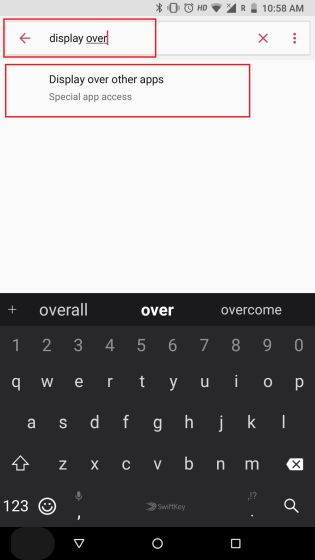
- If you are getting full-screen pop-up ads out of nowhere then it must be some rogue apps using the special Android permission to push full-screen ads on your screen. To find the culprit, open the Settings page and search for “Display over other apps” . Now, open it. If your device is on Nougat or later, search for “Appear on top” or “Display overlay”.
- On the next page, tap on the same menu and you will get a list of apps having this special permission. It allows the apps to appear or display a pop-up window on top of other apps.
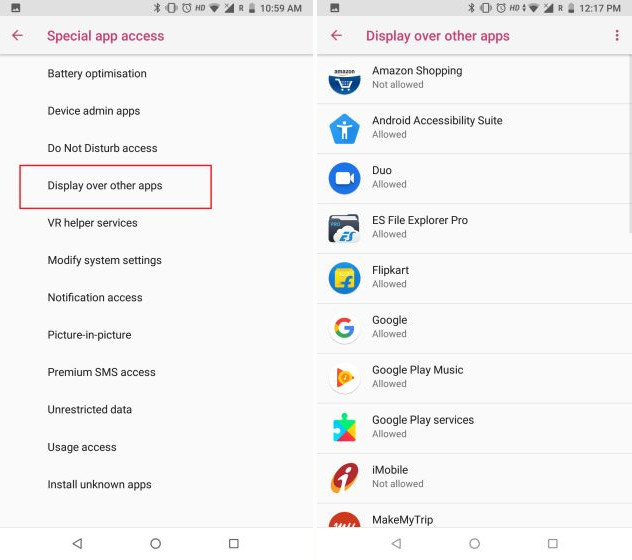
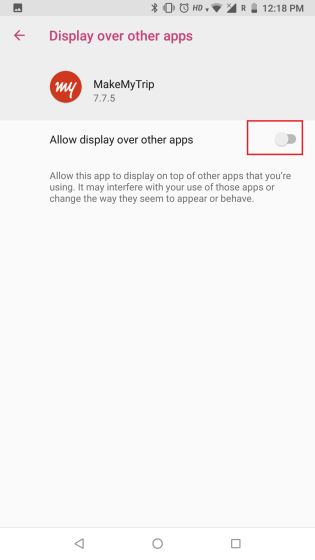
- Now, go through the app list and disable the suspecting apps . If you are unable to catch the culprit app then disable all the apps at once and start granting permission one by one beginning with the trusted ones. Once you find the culprit app, uninstall it altogether or keep the permission disabled if the app is essential to you.
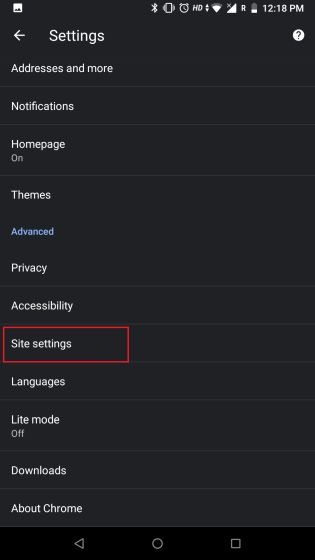
- If you use Chrome on Android then you might encounter full-screen and intrusive ads while browsing the internet. To block these kinds of pop-up ads, open Chrome, and head over to Settings. Here scroll down and open “Site Settings” .
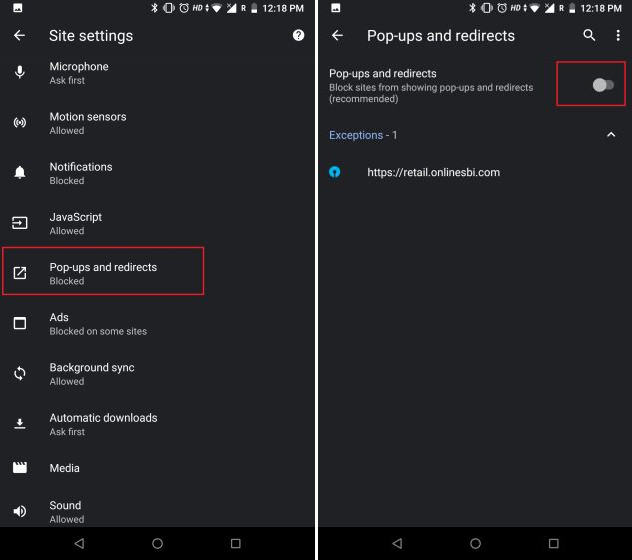
- Next, open “Pop-ups and redirects” and make sure the toggle is disabled.
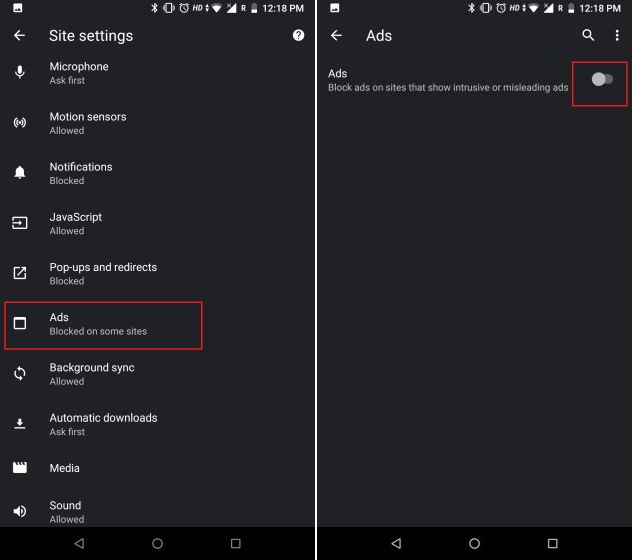
- Again, go back and open “Ads” and disable the toggle. This will block the intrusive or deceptive ads.
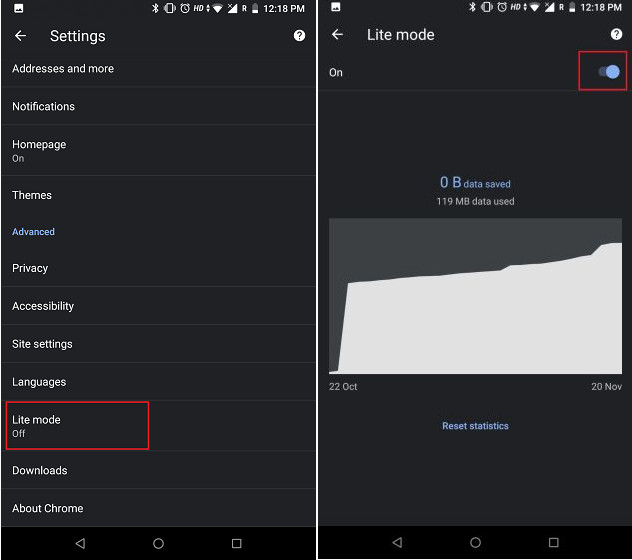
- In addition, you can also enable “Lite Mode” or “Data Saver” mode from the Settings page. It loads the web pages from Google’s servers so it removes all the unnecessary elements like pop-up ads, heavy ad banners, and misleading links.
Stop Full-screen Pop-up Ads on Android Completely
So that is how you can block pop-up ads on Android and Chrome. As I said above, most of the time, it’s some apps that exploit the special permission and display intrusive ads on the screen. However, you can configure the settings easily and disable the permission altogether. So that is all from us.


 !
!