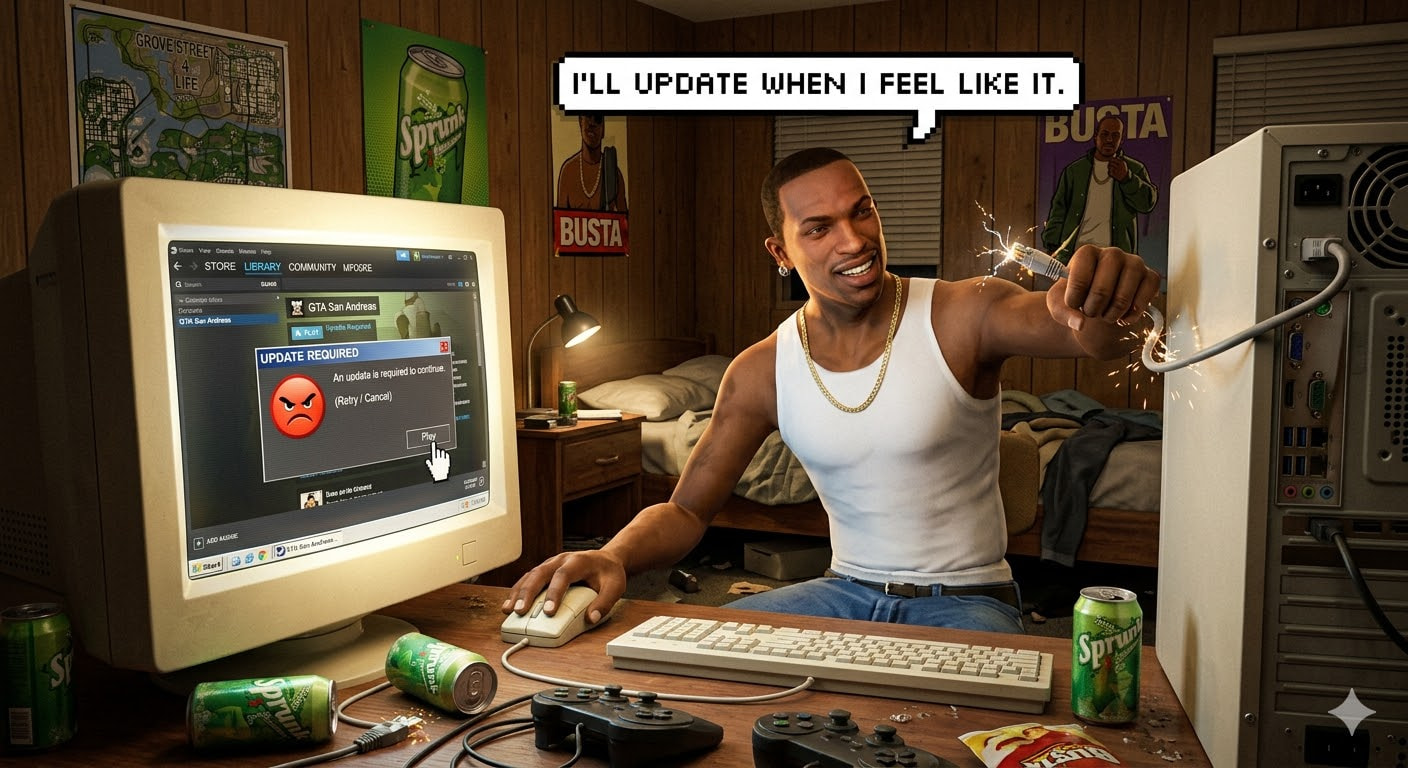
when i tried to open the game, it gave me this pop up. it’s a preinstalled game. typical game that used too never been like this before.

That “An update is required to continue” popup means Steam compared your game files against its servers and found a version mismatch. Your game works fine — Steam’s tracking file just doesn’t match the latest version number. Here’s how to fix it, from easiest to most thorough.
⚡ Fix 1 — Go Offline and Play (30 seconds, works right now)
This is the fastest way to get back into the game.
- Click CANCEL on that popup
- Go to Steam → Go Offline
- Launch the game again
Steam can’t check for updates when it’s offline, so it just runs whatever you already have installed. This has worked since mid-2022 — no file editing needed.
The catch: you lose achievements, cloud saves, and friend visibility while offline. If you’re playing single-player and don’t care about that stuff, this is all you need. Done.
🛠️ Fix 2 — Edit the ACF File (Permanent Fix, 5 Minutes)
This is the real fix. You’re editing Steam’s tracking file so it thinks your game is already up to date.
What’s an ACF file? Every installed game has a small text file called appmanifest_[number].acf in your steamapps folder. This file tells Steam what version you have. If the version doesn’t match what Steam expects, you get that popup. We’re going to make it match.
Step 1 — Find your game’s App ID
Go to SteamDB, search your game name. The number in the URL is the App ID. Write it down.
Step 2 — Close Steam completely
Right-click the Steam icon in your system tray (bottom-right of your screen, near the clock) → Exit Steam. Not minimize — actually close it. If Steam is running while you edit the file, it instantly overwrites your changes.
Step 3 — Find the ACF file
Open File Explorer and go to:
C:\Program Files (x86)\Steam\steamapps\
If your game is on a different drive, look in:
D:\SteamLibrary\steamapps\
Find a file named appmanifest_[YOUR APP ID].acf. Right-click it → Open with → Notepad.
Step 4 — Change these values
Look through the file. Find these lines and change the numbers:
| Find this line | Change the number to | What this does |
|---|---|---|
"StateFlags" "6" |
"4" |
Changes “update needed” to “fully installed” |
"ScheduledAutoUpdate" |
"0" |
Stops Steam from auto-scheduling an update check |
"UpdateResult" |
"0" |
Clears any pending update flag |
"TargetBuildID" |
"0" |
Removes the version Steam was trying to update to |
Step 5 — Update the ManifestIDs (this is the step most people skip)
This is why fixes from other guides sometimes fail after a day. If you don’t do this, Steam re-detects the mismatch the next time it goes online.
- In SteamDB, go to your game’s page → click Depots
- In your ACF file, scroll down to the
"InstalledDepots"section — you’ll see depot numbers with long"manifest"values - For each depot number in your file, click that depot on SteamDB → go to Manifests → copy the newest Manifest ID (the very first one in the list)
- Paste it into your ACF file, replacing the old number
Also update the "buildid" line — find the latest Build ID on SteamDB under Patchnotes or the main info page, and paste it in.
Step 6 — Save, protect, and relaunch
- Save the file in Notepad (Ctrl+S)
- Right-click the ACF file → Properties → check Read-only → OK
- Open Steam
Your game should now show as up to date with a working Play button. The Read-only flag stops Steam from overwriting your edit. You’ll see “disk write error” in the Downloads page — that’s normal and means it’s working.
If you have DLC: every DLC depot in the InstalledDepots section also needs its ManifestID updated. One outdated DLC manifest will re-trigger the whole update. Check each depot on SteamDB.
🖥️ Fix 3 — Run the .exe Directly (Skip Steam Completely)
For single-player games that don’t need Steam’s DRM to launch:
- Right-click the game in Steam → Manage → Browse Local Files
- Find the
.exefile for the game (usually in the root of the folder, or in aBinariessubfolder) - Double-click it to run — or right-click → Create shortcut and put it on your desktop
No Steam overlay, no achievements, no playtime tracking. But the game runs. Works on most single-player titles without online requirements.
🤖 Fix 4 — Use a Tool to Do It Automatically
If editing text files isn’t your thing, these tools do the ACF patching for you:
| Tool | What It Does | Where to Get It |
|---|---|---|
| Please Do Not Update Me | Reads your installed depots, fetches latest ManifestIDs automatically, patches the ACF — closest thing to a one-click fix | Steam Group |
| SteamDepotDownloaderGUI | Downloads any specific version of a game with a graphical interface — useful if you need to grab the exact files for a particular version | GitHub |
Start with “Please Do Not Update Me” — it handles the ACF edit in a few clicks. If the game itself needs to be a different version (not just the ACF), SteamDepotDownloaderGUI lets you download older builds.
🔒 Bonus — Lock the ACF Permanently (Windows Power Move)
The regular Read-only checkbox works, but Steam retries the write every few seconds and creates temp files. For a harder lock, open Command Prompt as Administrator and run:
icacls "C:\Program Files (x86)\Steam\steamapps\appmanifest_[APPID].acf" /deny %USERNAME%:(W)
Replace [APPID] with your game’s App ID. This uses Windows file permissions to deny write access — Steam gets an instant “access denied” instead of retrying. No temp file spam.
To undo it later:
icacls "C:\Program Files (x86)\Steam\steamapps\appmanifest_[APPID].acf" /remove:d %USERNAME%
🚫 Things That Will Break Your Fix
| Don’t Do This | What Happens |
|---|---|
| Edit the ACF while Steam is open | Steam immediately overwrites your changes |
| Click “Verify Integrity of Game Files” | Steam compares everything to the server version and re-flags your game for update |
Only change StateFlags without updating ManifestIDs |
Works for a few hours, then Steam re-detects the mismatch on next online check |
| Delete the ACF file | Steam thinks the game is uninstalled |
| Set update to “Only update when I launch” then launch while online | It literally updates when you launch — the name isn’t lying |
What this is actually useful for beyond just playing:
- Modded games — keep your mod-compatible version locked while Steam wants to push an update that breaks all your mods (this is exactly what the entire Fallout 4 modding community did when Bethesda pushed the Next-Gen update)
- Slow internet — skip a 15GB update on a 2Mbps connection just to play a single-player game you already have
- Preserving older versions — some game updates remove features, change balance, or break things. Speedrunners lock versions constantly using these methods
- LAN parties — lock all machines to the same game version without needing internet access
Short answer for skimmers: Go Offline → launch game. That’s it. For a permanent fix, edit the ACF file (Fix 2 above).
Bypassing Steam auto-updates on a preinstalled game is achieved by preventing Steam from modifying the game’s manifest file, which holds installation and version information. The most reliable method is making the appmanifest file read-only, coupled with launching the game directly via its executable.
Method 1: The appmanifest Read-Only Method (Most Reliable)
This method tricks Steam into believing the game cannot be updated, causing a “Disk Write Error” in the download manager rather than downloading the update.
Locate the Game’s App ID: Open your Steam library, right-click the game, select Properties > Updates. The App ID is listed at the bottom.
Find the Manifest File: Navigate to your steamapps folder (usually C:\Program Files (x86)\Steam\steamapps).
Set to Read-Only: Find the file named appmanifest_[AppID].acf corresponding to your game. Right-click it, select Properties, check the Read-only box, and click Apply.
Launch the Game: Launch the game directly from its executable (.exe) in the steamapps\common folder, not through the Steam Library button.
Note: If you want to update the game later, you must uncheck “Read-only” on this file.
Method 2: Offline Mode
If you do not need to play online, switching to offline mode prevents Steam from checking for updates.
Click Steam in the top-left corner of the client.
Select Go Offline… and confirm.
Launch the game.
Method 3: Move Game Outside Steam Folder
Copy the entire game folder from steamapps\common to a different location on your computer (e.g., to your Desktop or a dedicated “NoUpdate” folder).
Launch the game using the .exe file in the new location.
Steam will not be able to update this copy because it is not in the recognized library path.
Key Considerations
“Only update when I launch” setting: Set this in Properties > Updates to prevent background downloads, but note that clicking “Play” in Steam will still trigger the update.
DRM-Free Games: Many games (like Cyberpunk 2077 or older games) can run directly from the .exe without Steam running at all.
Workshop Mods: If you have mods, you may also need to set the appworkshop_[AppID].acf file in steamapps\workshop to Read-only.
Multiplayer Restrictions: If the game requires matchmaking via Steam, an outdated version will likely not work online
 !
!