One of the pre-requisites for Windows 11 is TPM 2.0, the Trusted Platform Module according to Microsoft. While Windows 11 will install on devices with TPM 1.2, some functionality may not be available in this case.
Microsoft revealed at the time that all new PCs would need to support TPM 2.0 and have it enabled. Existing devices were not affected by the decision back then.
Now, with Windows 11 comes another push to enforcing TPM 2.0 on Windows devices. Microsoft claims that most devices sold in the past 5 years support TPM 2.0, and reiterates that TPM 2.0 is required because it is powering security features such as Bitlocker or Windows Hello.
Microsoft acknowledges that TPM 2.0 may not be enabled on devices even if the feature is supported. Windows 11 may not install on these devices, even if all other system requirements are met.
Find out if your PC supports TPM 2.0
The company published a guide that explains how to find out if TPM is enabled, and how to enable it on devices if it is supported.
Windows users who run Windows 10, the only version of Windows with a direct upgrade path to Windows 11, may check TPM support in the following two ways:
- Open the Settings application, for instance by selecting Start > Settings, or with the keyboard shortcut Windows-I.
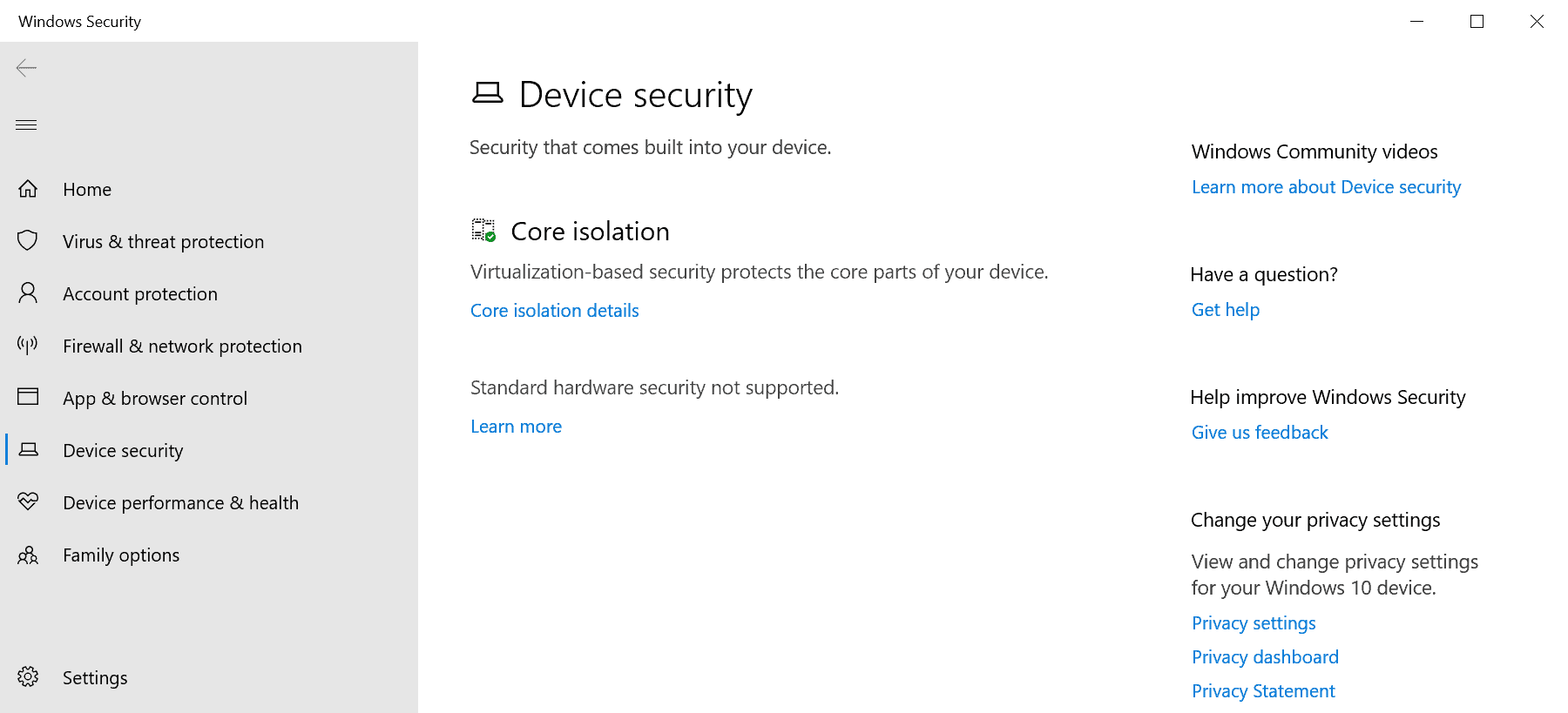
- Go to Update & Security > Windows Security > Device Security.
- TPM is not available if Security Processor is not displayed on the page that opens.
- TPM is available if Security Processor is displayed. In that case, select Security Processor to verify the specification version and find out if it is TPM 1.2 or TPM 2.0.
The second method uses the Microsoft Management Console:
- Use Windows-R to open the run box.
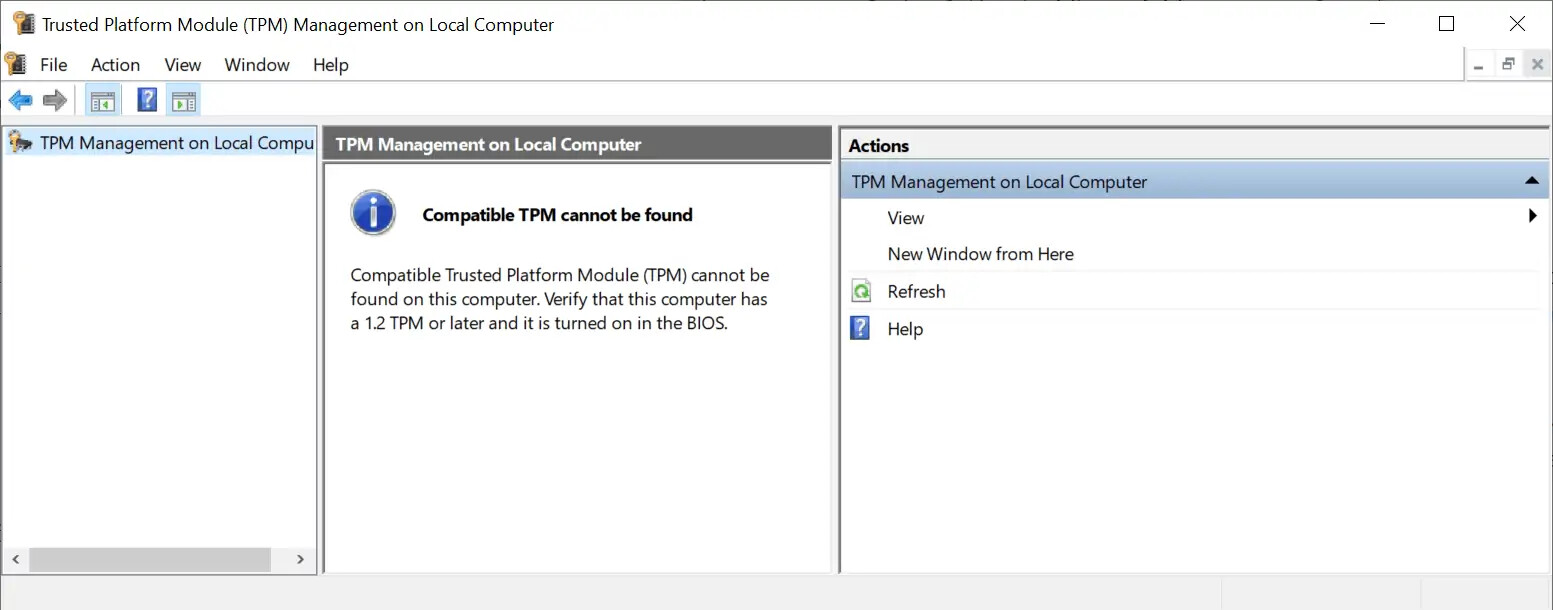
- Type tpm.msc.
- The window that opens reveals if TPM is supported or not, including the version if it is supported.
How to activate TPM 2.0
TPM can still be supported by the device, even if Windows can’t find a TPM module. TPM can be disabled or enabled in the BIOS of the device, and if it is disabled, Windows won’t be able to discover it or make use of it.
Microsoft suggests that users go to Settings > Update & Security > Recovery > Restart now to check the UEFI Bios. The restart option displays a menu on the next restart. Visit Troubleshoot > Advanced options > UEFI Firmware Settings > Restart to have the device load the UEFI settings on the next restart.
The next steps depend on the make and model of the motherboard. Sometimes, settings may be found under Advanced, Security or Trusted Computing. The option to enable TPM is equally unstandardized, as it may be labeled Security Device, Security Device Support, TPM State, AMD fTPM switch, AMD PSP fTPM, Intel PTT, or Intel Platform Trust Technology.
Closing Words
Not all Windows devices are compatible with Windows 11, Microsoft’s upcoming operating system. Some, because they don’t meet the system requirements, others, because of a disabled feature in the BIOS. The implementation of TPM in the BIOS is chaotic and not standardized. Users with little experience will have a hard time finding out of TPM is supported and whether it can be enabled in the system’s BIOS.
Happy learning!
 !
!