Change USB drive letter and run CHKDSK to repair USB errors
- Change USB drive letter
- Right-click on Computer, select manage and enter Disk Management in Device Manager.
- Right-click on the USB flash drive which shows no media there and selects Change Drive Letter and Paths…
- Click Change and click Assign the following drive letter: to set a new drive letter to your USB flash drive which shows any error.
- Click OK to confirm the operation.
- Run CHKDSK to repair USB errors
- Right-click on Windows icon and select Command Prompt (Admin).
- Click Yes if the system asks you to sign in as administrator. And sign in with your Administrator account.
- Type: chkdsk E: /R and hit Enter. (Replace E: with the drive letter of your USB flash drive.)
You can also repair/delete/create the USB volume from the same window.
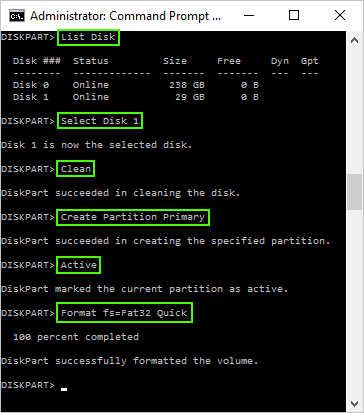
Manual Method via Diskpart – Windows :
- Open a Command Prompt as administrator ( cmd.exe )
- Type Diskpart and press Enter
- Type List Disk and press Enter
- Type Select Disk X (where X is the disk number of your USB drive) and press Enter
- Type Clean and press Enter
- Type Create Partition Primary and press Enter
- Type Active and press Enter
- Type Format fs=Fat32 Quick and press Enter
- Type Exit and press Enter
Lastly. you can use EaseUS Data Recovery Wizard or SD Formatter Tool to reformat and restore a USB Drive both of these will do the deed if you know how to use them. Cheers 
 !
!