How To Make Your Own Lightweight Windows ISO Image
Like most other pieces of software, Windows has consistently grown over the years, adding more features that ultimately result in a larger size. Windows 10 was originally supported on devices with as little as 20GB of storage, but now, you need at least 64GB for Windows 11. And that goes for the installation files, too. A few years ago, a 4GB flash drive was enough to contain a Windows ISO (and it used to be even less), but these days, 8GB is the minimum Microsoft requires.
But what if we told you that you can make your own Windows ISO that is much smaller and removes all the things you don’t need? Thanks to Jenneh, it’s relatively easy to create a lightweight Windows ISO that’s more tailored to you. The developer has put a lot of work into making the experience less daunting for new users, and it’ll hopefully make it easier for anyone to create their own Windows ISO.
What you’ll need
There are only a couple of things you really need to make your own Windows 11 ISO:
- A standard Windows 11 ISO: You need an existing Windows 11 ISO file that’s going to be the basis for the modifications you’re going to make. You can download it from Microsoft’s website.
- MODWIN: A program developed by jenneh to make it easier to modify a Windows ISO. While not technically required, this will take most of the pain out of this process, so we highly recommend it.
How to make your own Windows ISO
We’ve broken this process down into multiple sections. For our example, we’re using a standard multi-edition Windows 11 version 22H2 ISO, but this should work on Windows 10 as well.
Sourcing and mounting a WIM file
First, you’ll need to mount a WIM file to modify. The WIM file contains all the necessary Windows installation files, and it’s contained within the ISO. It may also be an ESD file depending on the ISO you have, but MODWIN will work with either one.
- Download Modwin from GitHub and run the installer. You may see a Windows SmartScreen prompt, so click More info and then Run anyway.
- Files will be extracted to C:\MODWIN.
- Take your existing ISO and double-click it to mount it as a virtual drive, which should open automatically.
- Copy the contents of this virtual drive into the C:\MODWIN\ISO folder.
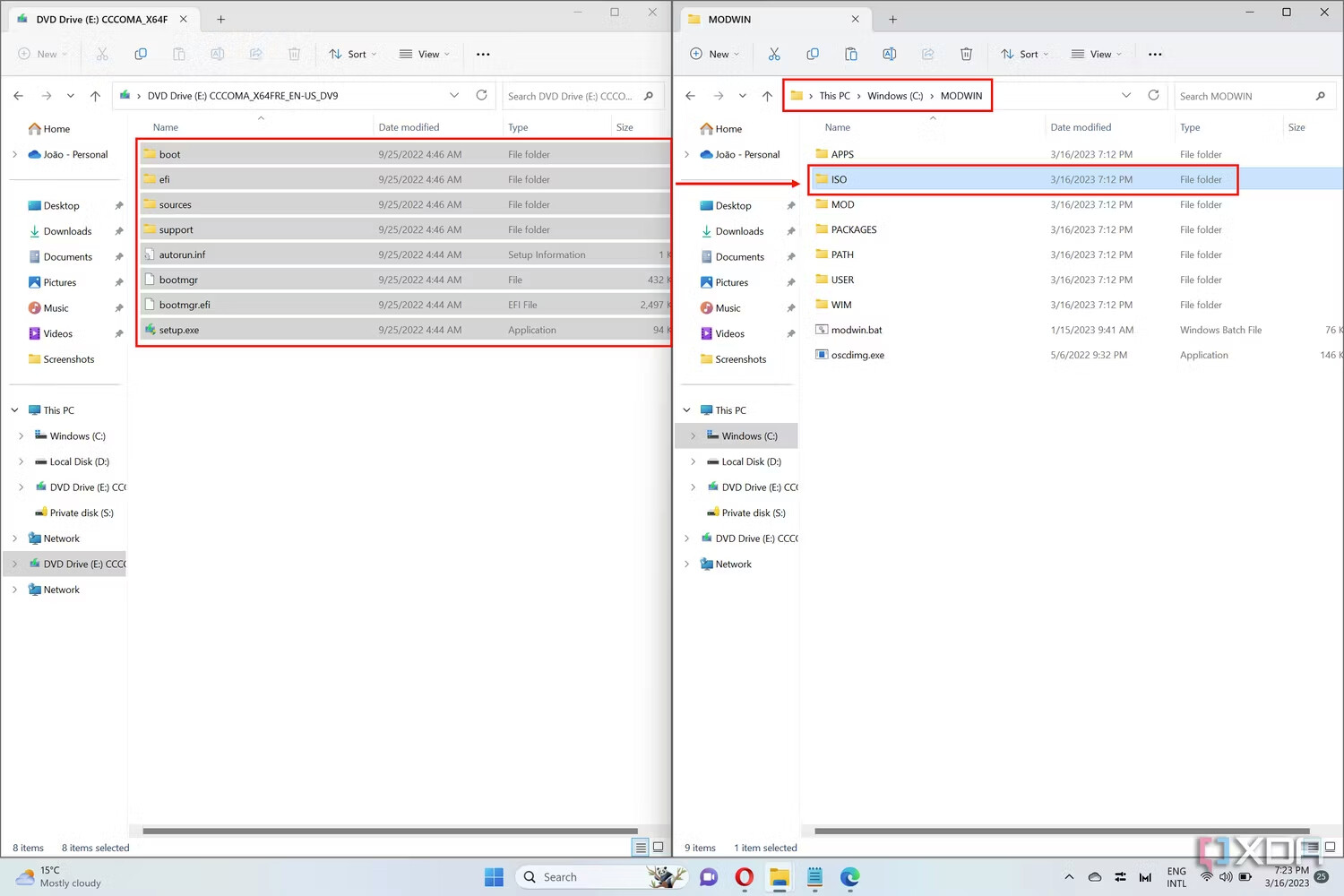
- Go to the main C:\MODWIN folder and run modwin.bat.
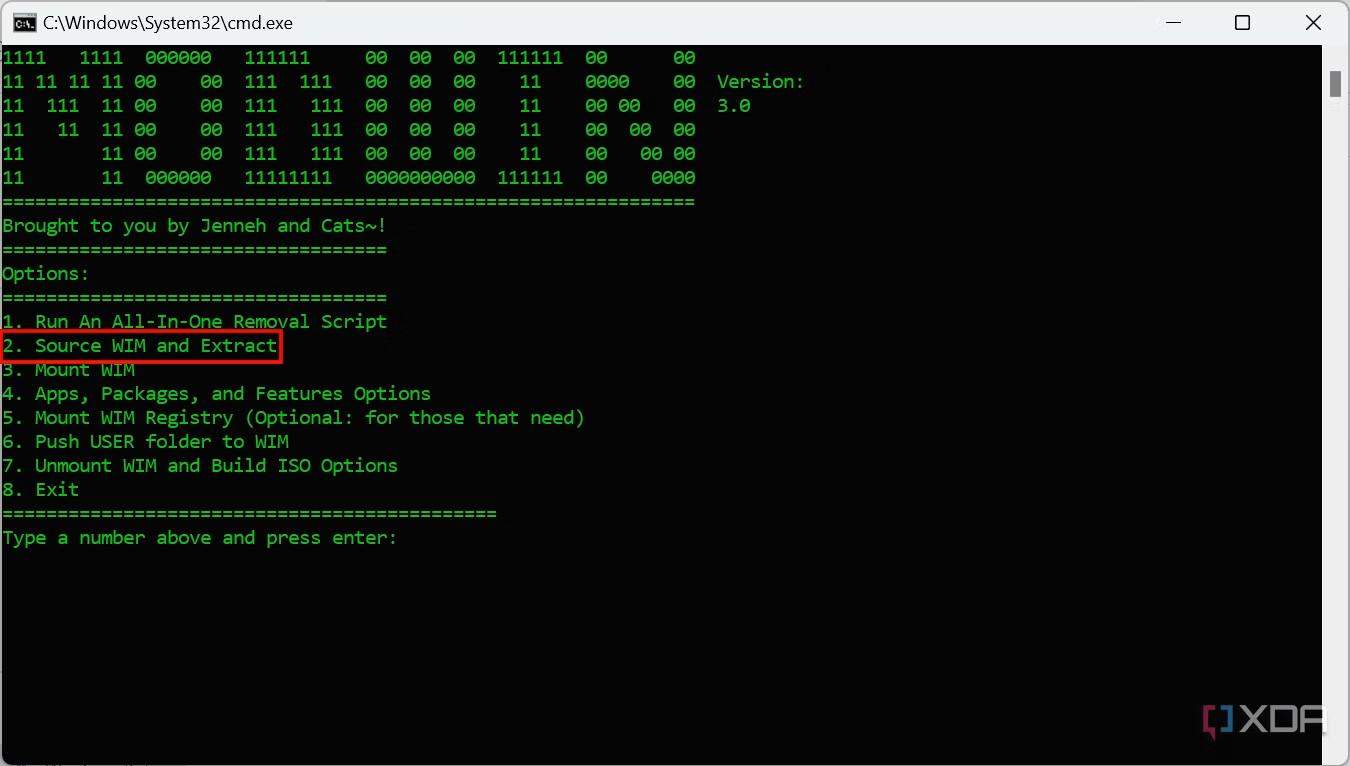
- This will open the Command Prompt with a few options to choose from. There are two main ones:
- Option 1 is an all-in-one removal script, which means it will remove all the apps, packages, and features that aren’t necessary for Windows to function on a basic level. This option isn’t recommended for most people.
- Option 2 lets you modify an ISO to remove the apps and features of your choice. The remaining options are actually steps in the same process. This is the option we recommend choosing.
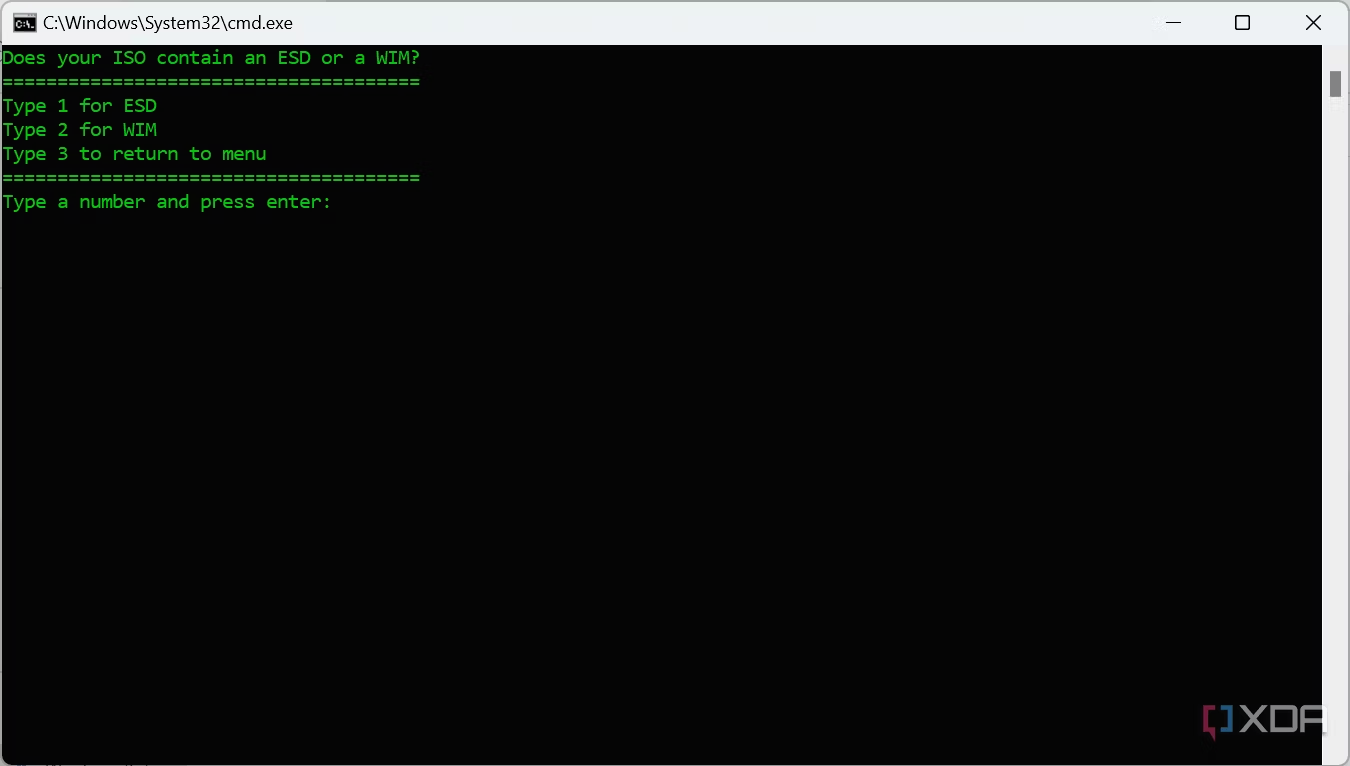
- The program will ask you to choose whether your ISO file has a WIM file or ESD file
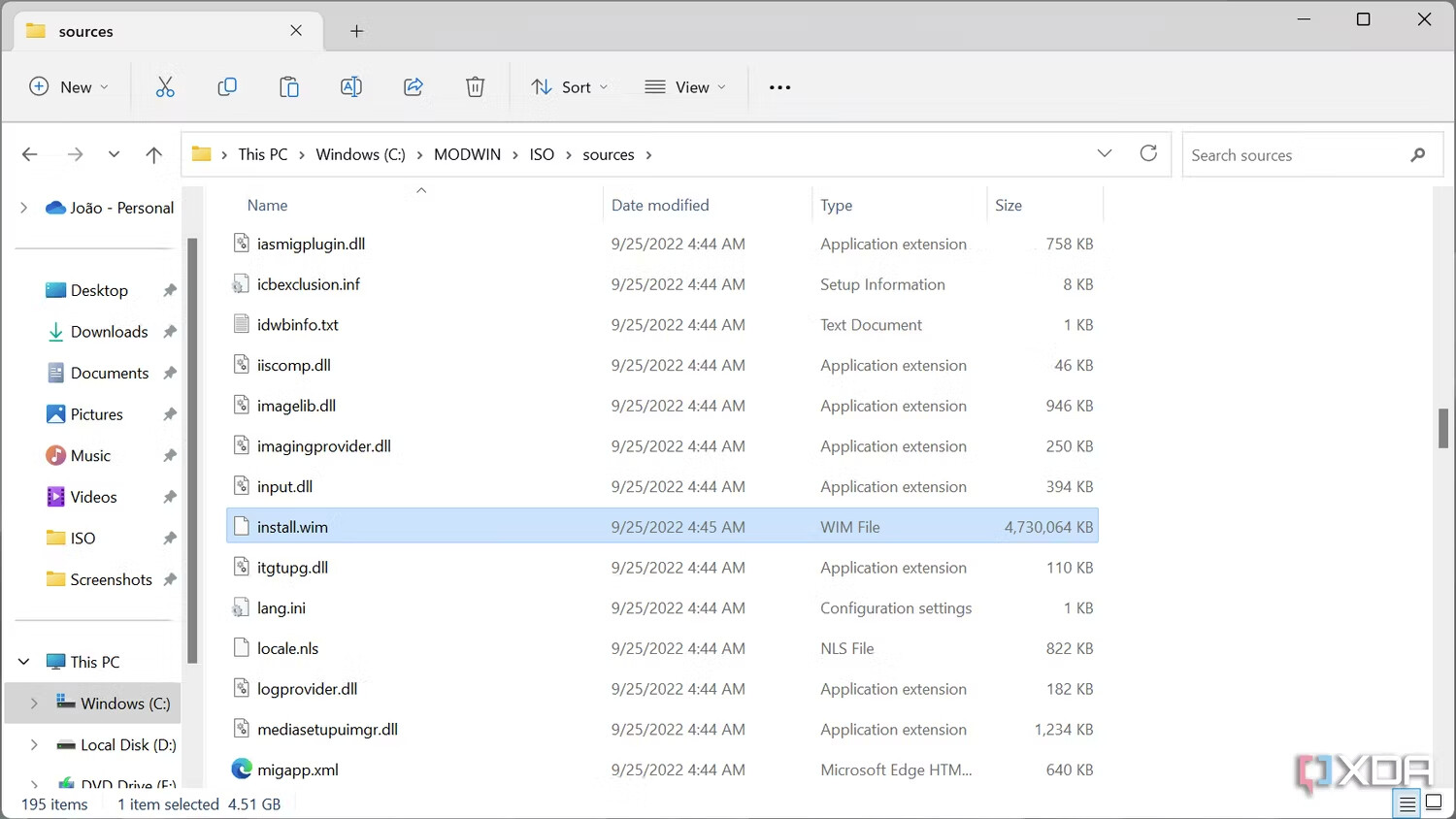
- Use File Explorer to navigate to C:\MODWIN\ISO\sources and look for a file called install.wim or install.esd . Note : Modern versions of Windows should have an install.wim file if you’re using an official ISO from Microsoft as the base.
- Go back to the Command Prompt window and enter the corresponding number for the file format you see.
- You’ll see a list of all the editions of Windows contained in the file you selected.
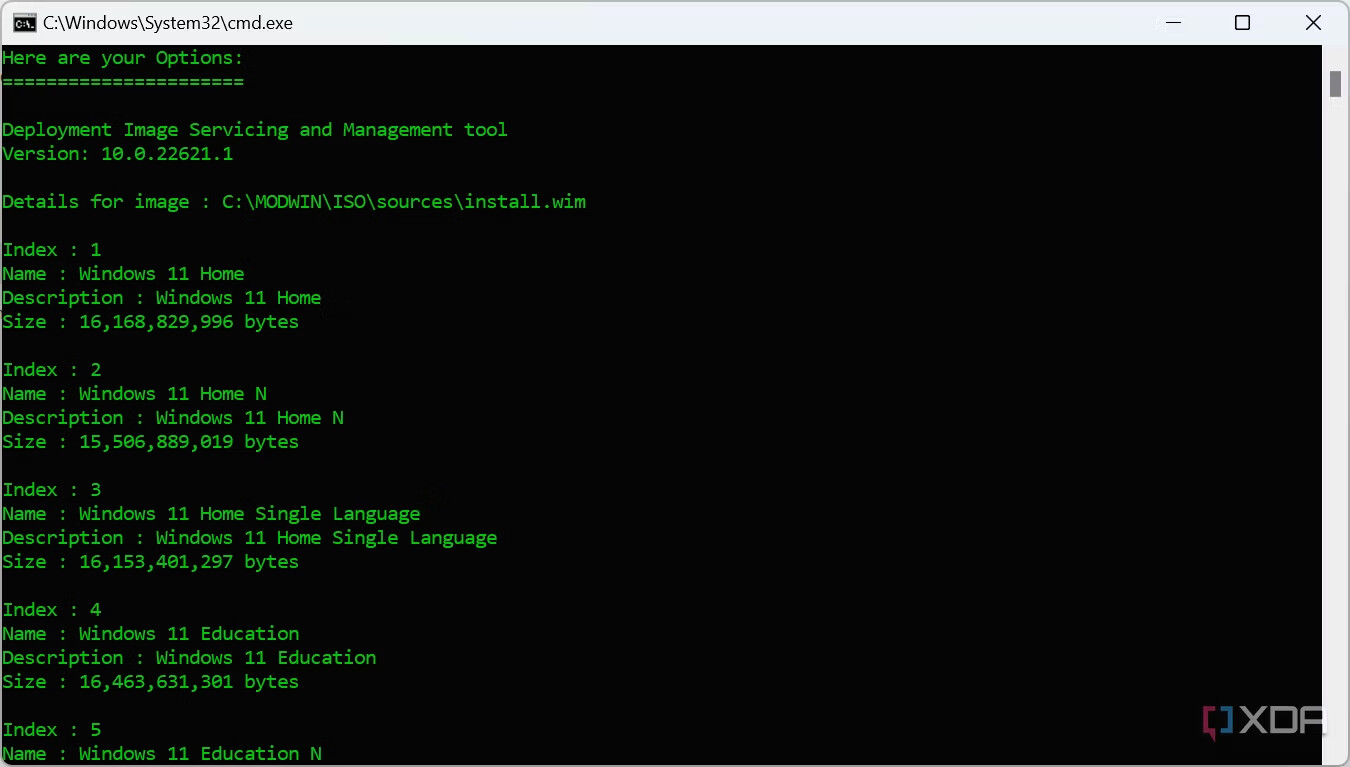
- Enter the Index number corresponding to the edition of Windows you want (you’ll need a license for it) and press Enter twice.
- The program will begin extracting the WIM file.
- When the process finishes, you’ll see a confirmation message.
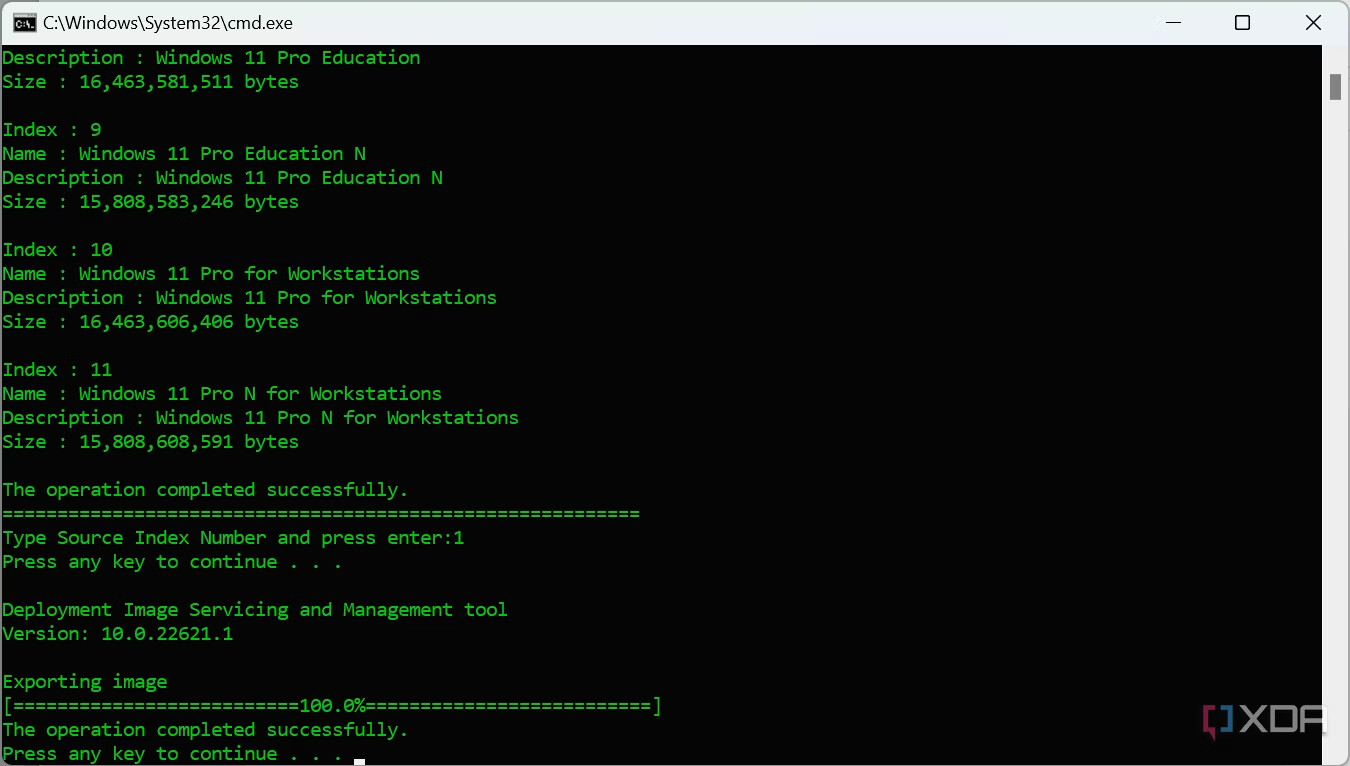
- Press Enter to return to the main menu screen.
- Now, we’re going to select option 3. Mount WIM. Enter 3 and press Enter
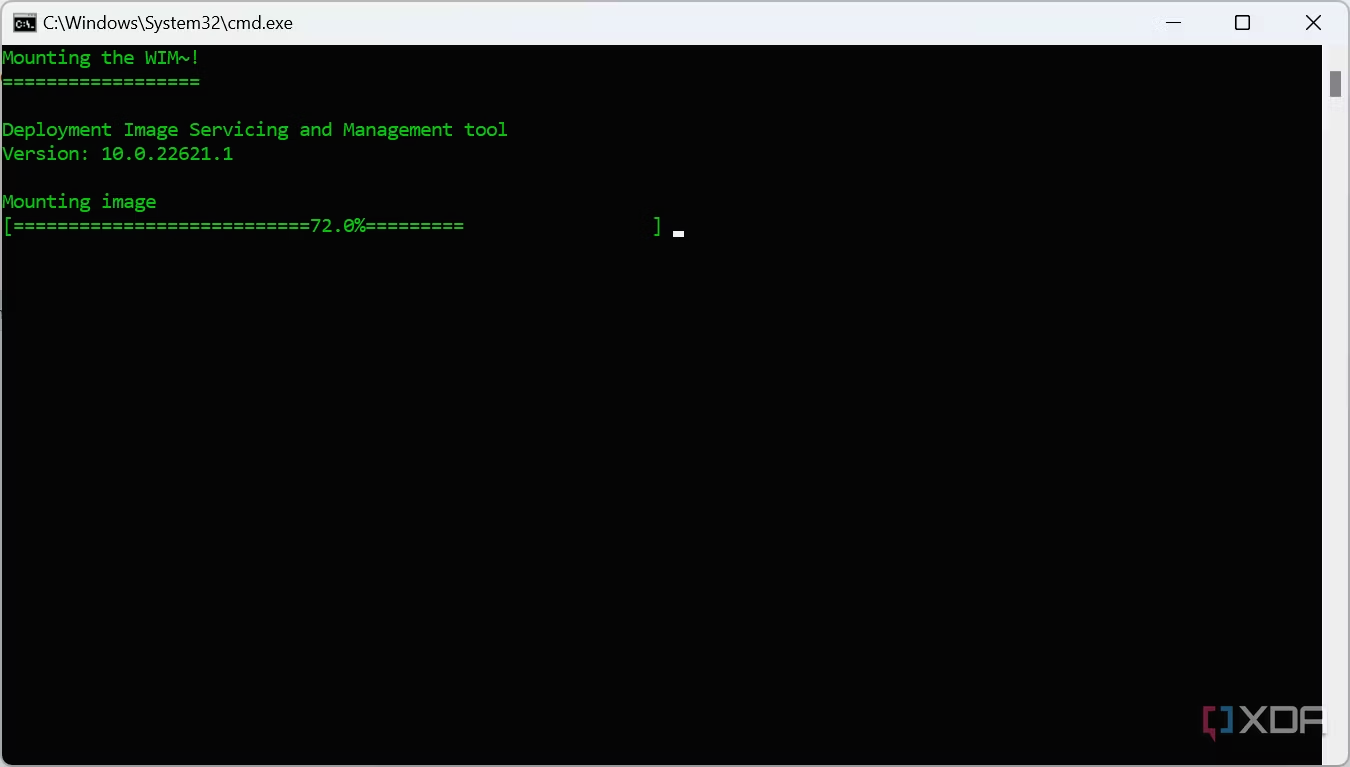
- Wait for the process to finish and you’ll be returned to the main menu. Keep the app open.
Removing apps and features from the ISO
Now that the WIM is mounted, it’s ready to be modified. You should see all the files inside the C:\MODWIN\PATH folder. Don’t touch the files! The next step is choosing what apps you want to remove from the Windows installation. For that, follow these steps:
- From the main menu of MODWIN, select option 4. Apps, Packages, and Features options.
- You have a few options for things you can remove or modify:
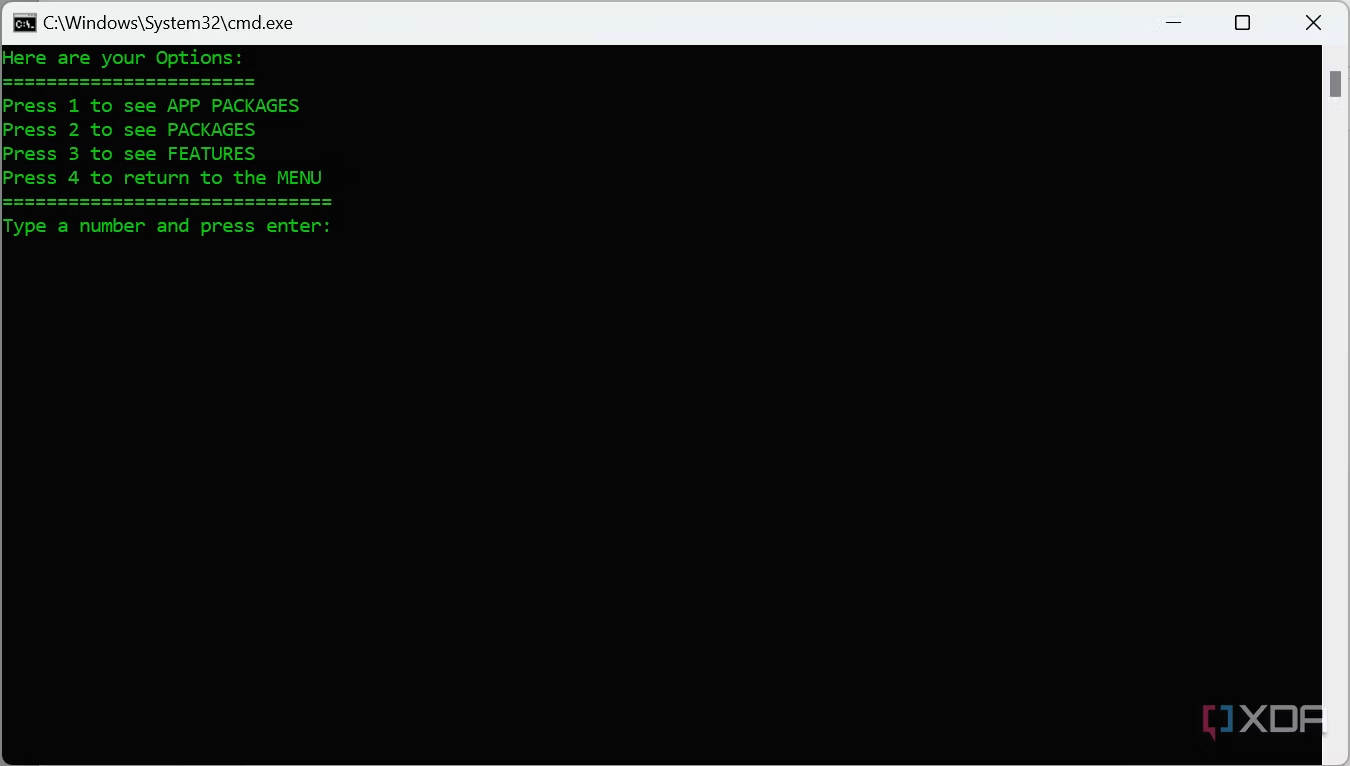
- a. App packages: Refers to parts of Windows that are apps on the Microsoft Store, such as the Weather app, Xbox, Phone Link, and so on.
- b. Packages: Includes some basic drivers for essential functionality (such as networking) and certain Windows features like WordPad.
- c. Features: Includes optional Windows features, such as Hyper-V.
- If you’d like to see what apps you want to disable, press 1 and hit Enter.
- You’ll see a list of app packages included in the Windows installation. Some of the names may not be completely accurate to the user-friendly name, such as the microsoft.windowscommunicationsapps package, which refers to the Mail, Calendar, and People apps. However, most apps should be easy to identify.
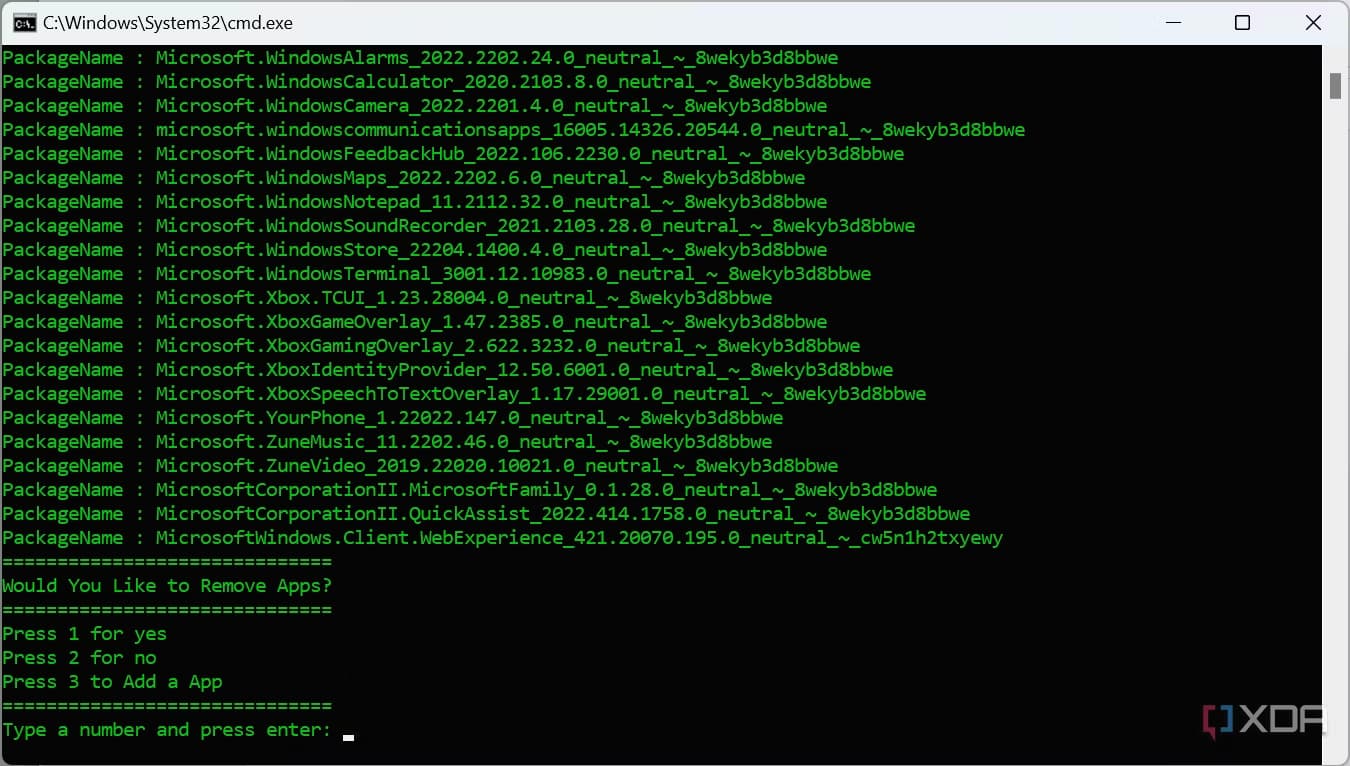
- If you’d like to remove any of the apps, press 1 and hit Enter.
- Copy the name of the app or package you want to remove, paste it into the command field, and press Enter. You can double-click the name to select it more quickly.
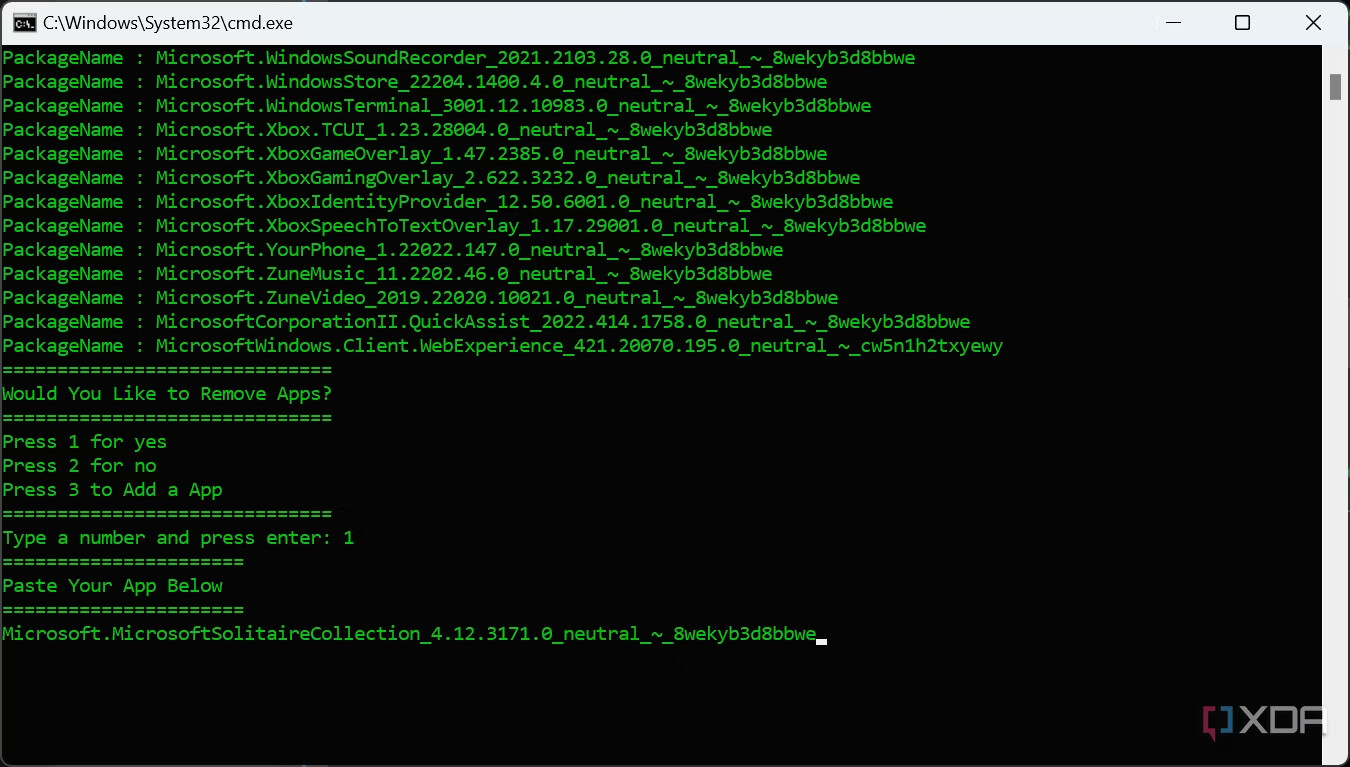
Warning: Not every app is necessarily safe to remove. Make sure you know which apps you’re removing before you do this.
- Press Enter, and you’ll be back in step 5. Repeat for any other apps you want to remove.
- If you’ve removed all the apps you want, press 2 and hit Enter to go back to the main menu.
- To remove packages as well, choose option 4 again, and then option 2 (see step 2 above).
- This functions the same way as removing app packages. Press 1 if you want to remove a package you see on the list. Again, some of these may not be safe to remove. Only remove things you know for certain you don’t need.
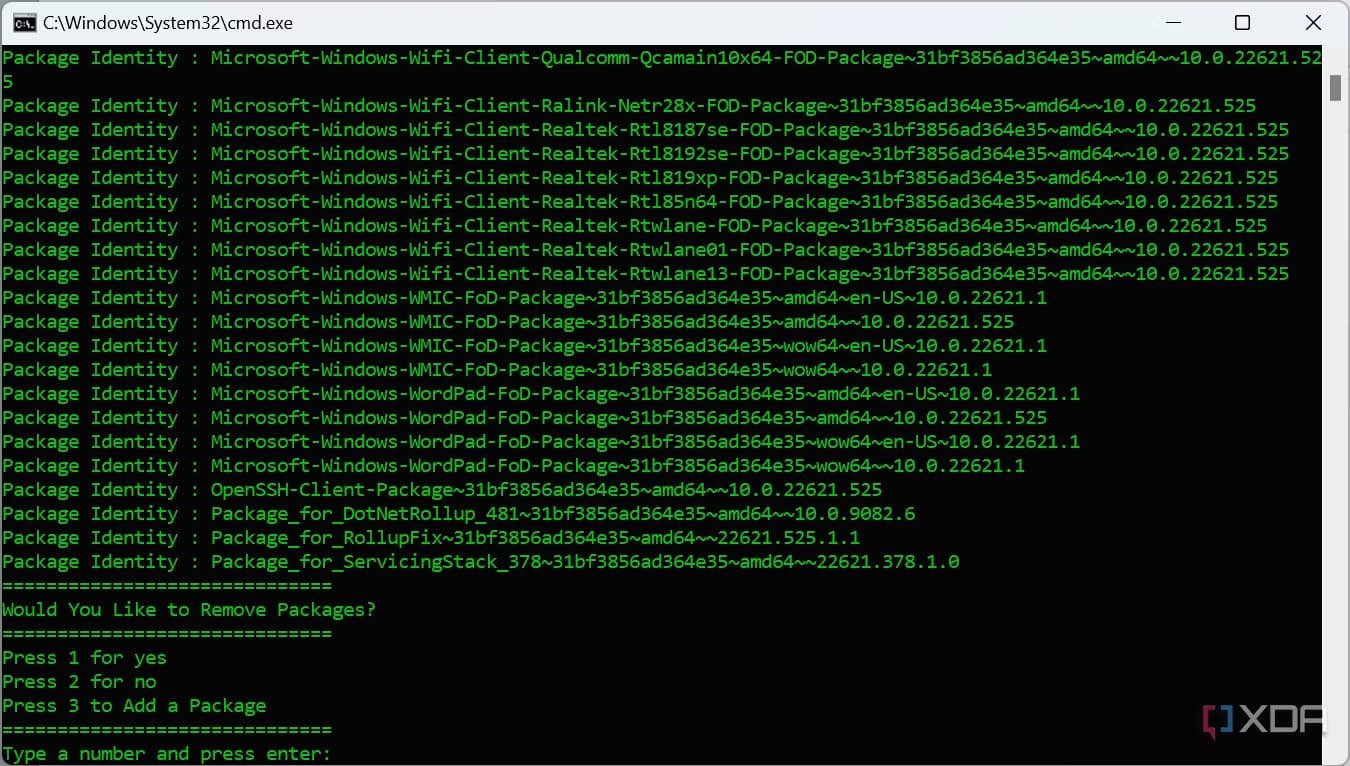
- Copy the name of a package you want to remove, paste it into the input field, and press Enter.
- Repeat the process if you want to remove more packages, or 2 to go back to the main menu.
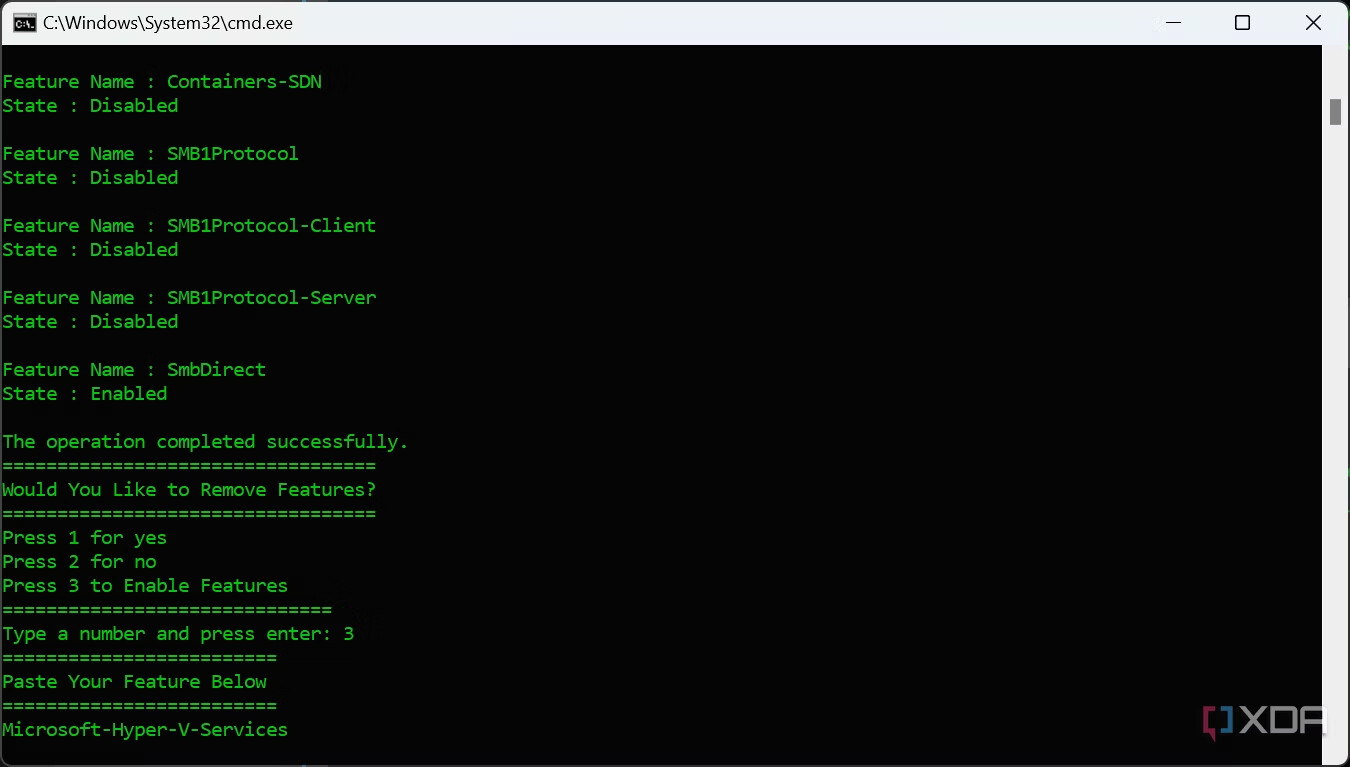
- Finally, you can repeat the process for features. Choose 4 from the main menu and then press 3 to see the list of optional features.
- This time, you’ll see a list that includes some features that are enabled and some that are disabled.
- Again, you can press 1 to remove a feature or 2 to go back. You can also enable features that are disabled by pressing 3. This can be useful if you want features like Hyper-V enabled out of the box.
- Once you’ve made the changes you want, press Enter to go back to the main menu.
Now, you’re ready to export your ISO. There are a couple more options here that aren’t necessary. Option 5 mounts the WIM registry (only for users who really need it), and option 6 lets you push files from the USER folder in C:\MODWIN into the ISO, so your Windows installation will include any files you might need. We’ll be skipping over that and going straight to exporting the new ISO.
Exporting the ISO
Now that you’ve made your modifications, simply follow these steps to export your new ISO:
- From the main menu, choose option 7. Unmount WIM and Build ISO Options.
- The simplest way to do this is to choose option 1, which will save your changes, clean up all the temporary files, and build a new ISO.
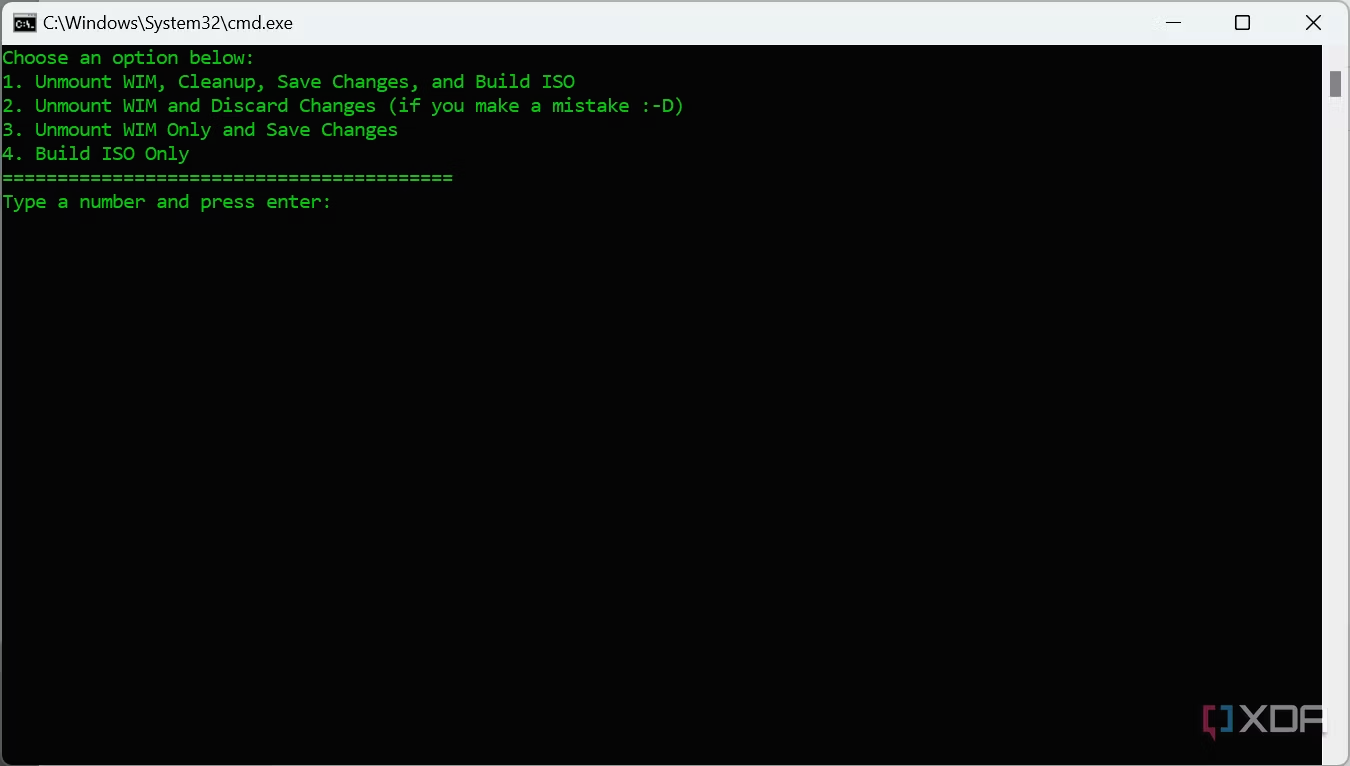
Note: You can also use option 2 to discard any changes you’ve made in case you made any mistakes in the process. Then you can start over with the modifications.
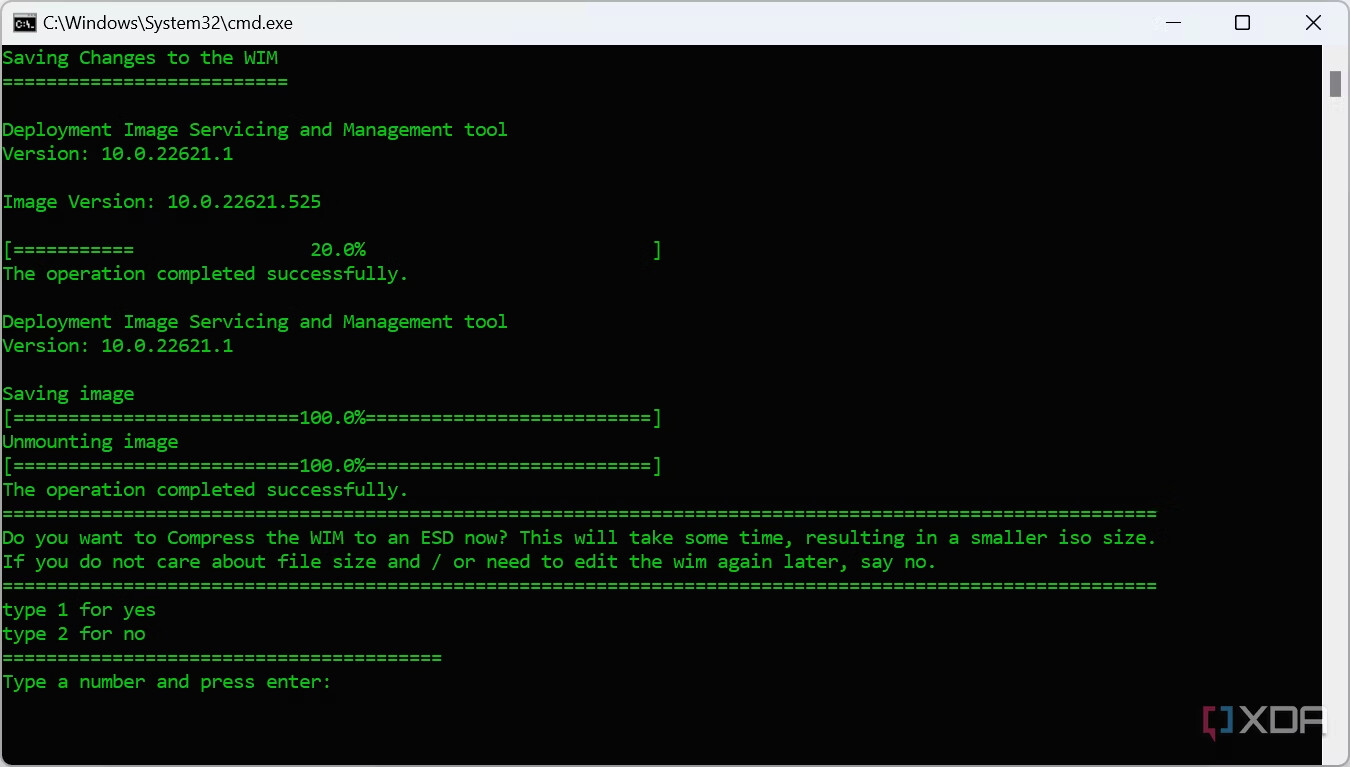
- MODWIN will start by saving your changes and unmounting the WIM file.
- Choose whether you want to compress the WIM file into the ESD format. This will result in a smaller ISO file, but take more time. Press 1 to compress the file or 2 to leave it as a standard WIM file.
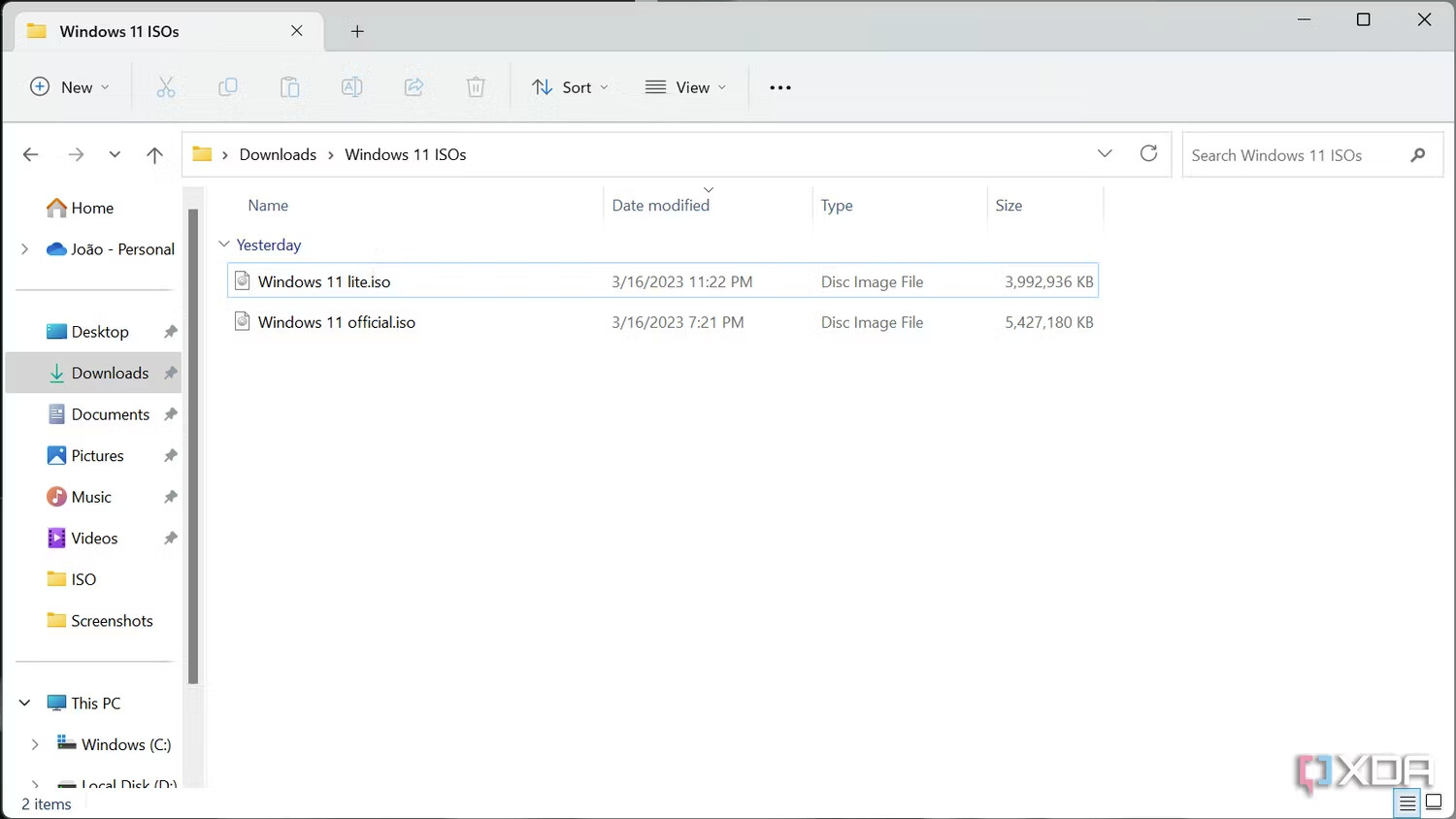
- Wait for the process to finish, and your new ISO will show up in the C:\MODWIN\MOD folder. If you compare it to the official ISO, you’ll see it’s noticeably smaller. We chose to compress the WIM file into the ESD format here and only disabled one app package; the final size will vary depending on the changes you make.
You’re now ready to install Windows 11 using your new ISO. Keep in mind that your computer can’t be connected to the internet when you run the Windows installer, otherwise, it will download updates from Microsoft and undo your changes.
You can use a program like Rufus to mount the ISO onto a flash drive and perform a clean installation of Windows. (Source: xda-developers)
Happy learning!
 !
!