Ever since Apple embraced HEIF as their new file format for images and videos, multiple tech companies including Microsoft and Google started working on it to maintain compatibility on their platform. It’s claimed that a HEIF image can store the same information as a JPEG image in half the amount of memory space. iPhones are already taking advantage of the new file format, but if you use a Windows PC to import HEIF photos then you can’t access those files in a straightforward manner. So, in this article, I have shared some easy ways to open HEIC, HEIF and HEVC files on Windows 10 and without much hassle. Now having said that, let’s go ahead and learn about the steps in detail.
Enable Support for HEIC, HEIF and HEVC Files on Windows 10
Before we begin, let me clarify some key points. HEIC and HEIF are image file formats and are almost similar . Technically, there are some differences, but for general consumers, it’s almost the same thing so don’t worry if you encounter a slightly different file extension. On the other hand, HEVC is a video compression standard and not a file format. So, mostly you will find images with HEIC or HEIF file extension and videos with MKV format but compressed with HEVC standard. As a side note, all these file formats are developed by the MPEG Group and not Apple, as is the popular misconception.
Now, coming back to Windows 10. If you open a HEIF image on Windows 10, it will ask you to install an additional codec and will take you to the Microsoft Store. It will ask you to pay $0.99 for installing the additional codec and I don’t know why.
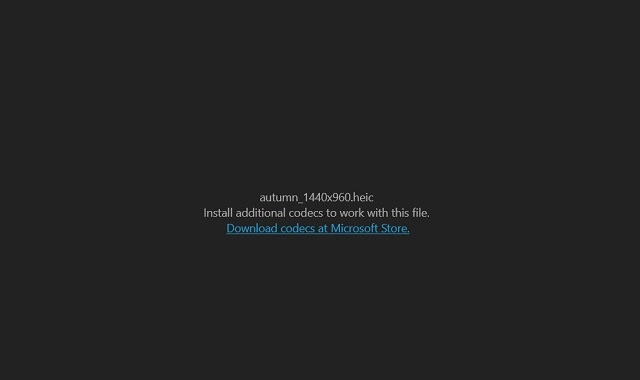
Nevertheless, Microsoft is also offering another extension that does the same thing and it’s surprisingly free . So, in this article, I am going to show you how to install that particular codec so you can play HEIC, HEIF or HEVC files without paying a dime. That being said, let’s get started.
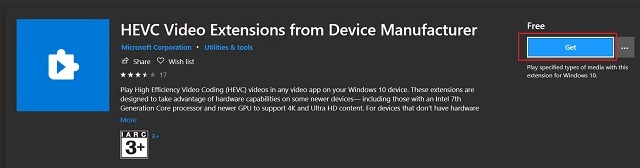
- First of all, open this link and install “HEVC Video Extensions from Device Manufacturer” from Microsoft Store. You can also manually search for it on the Microsoft Store, but make sure to include “Device Manufacturer” in your search query.
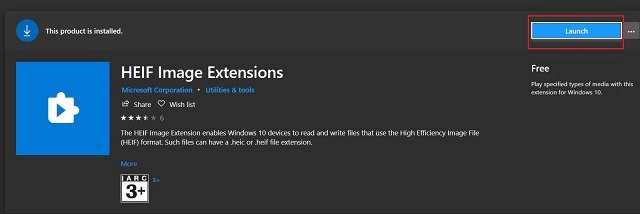
- After that, open this link and make sure “HEIF Image Extensions” is installed. After April 2018 Update, Microsoft started installing this extension by default.
- Now, go back to your media folder and you will be able to play HEIC, HEIF and HEVC files without a hitch. The files will also start showing thumbnails properly.
This slideshow requires JavaScript.

HEIC Support Enabled

- In case, you are still facing any problem , open Windows Settings and then open the “Apps” menu. Now, scroll down and look for “HEVC Video Extension..” and “HEIF Image Extension”. Click on both the apps and open “Advanced Options”.
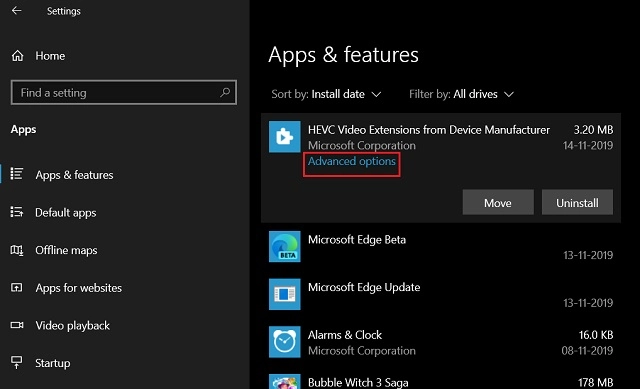
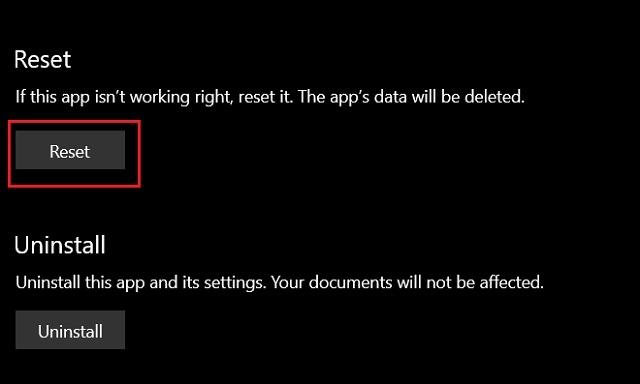
- Now, scroll down and click on the “Reset” button . That’s it. Now, the HEIF media files should display properly.
Open HEIF, HEIC and HEVC Files on Windows 10 for Free
So that was our guide on how to enable support for HEIF and related file formats on Windows 10. While Microsoft did start enabling the support by default in April last year, they may have run into licensing issues with the MPEG group. Hence, the asking price for the additional codec. Thankfully, there is a workaround and you can get it for free. Anyway, that is all by me. If you found the article helpful, do feedback.

 !
!