Kodi is a popular media server application that can not only help you manage your offline media library but also stream online content. What’s surprising to me is that despite being so useful, apart from its dedicated core users, no one seems to know what it does. I mean people who use Kodi sing paeans about it and those who don’t use it, well know nothing about it. We want to change that with this article. Kodi is a great free and open-source resource that can organize local media files into a single, cohesive interface. Among many things, Kodi has a powerful media player that can stream a wide range of media formats. And in this article, we are going to tell you everything about it and help you get started with this awesome app.
What Exactly is Kodi?
About 10 years back when internet speed was abysmal and online streaming platforms were close to naught, there was a culture of owning physical copies of movies, music, etc. Users preferred to download media content over the internet instead of streaming it because the internet speed sucked. This meant that they had to maintain a large media collection and organizing and maintaining large libraries of media content like movies, music or images in separate directories was a tiresome exercise.
You had to run through hoops to find the content you wanted to play. Sometimes, the native media player wouldn’t even play it because it didn’t support the media format. Kodi came as a solution to all these problems. It streamlined every single thing and brought the entire media-consumption experience under one roof. You could just open Kodi and all your local media files were right there, ready to be played in a sleek and accessible interface. So, Kodi basically is a media server application that can not only help you organize and manage your media but also access and play it from any device on your home network.
The State of Kodi in 2019
Kodi has become a powerful media center app. Kodi has gone through many iterations of development and by now, it has amassed many useful features including the ability to stream content, support for different add-ons and repositories, themes support, and more. Of course, you can still connect your local media library to Kodi and it will organize everything with proper categorization, album art, metadata, synopsis, etc. Further, you can enable subtitles, track your movie and show progress with Trakt, record Live TV, and much more.
Kodi is an open-source app with huge community support . It’s available on all major platforms including Windows, macOS, Android, Linux, iOS, and host of other devices. There is so much more about Kodi that I can’t fit it in a single paragraph here. Anyway, if you want to use Kodi then you will have to start with the installation first and that is where we will begin.
Installing Kodi
Kodi is available on a multitude of devices including Android, iOS, macOS, Windows, Linux, Fire TV, and more. Since we have already published Kodi installation guides for all these platforms, you can just click on the links below to see how you can install Kodi on your device.
- Install Kodi on Windows and macOS
- Install Kodi on iOS
- Install Kodi on Chromebook
- Install Kodi on Linux
- Install Kodi on Amazon Fire TV Stick
How to Use Kodi
Now that you have gone through Kodi’s installation process, let us proceed with some basic level stuff on how to use Kodi. In this section, I will start with the interface and then go deep into settings and add-ons to explain Kodi’s useful features . I am using Kodi on a Windows laptop, but the Kodi UI and overall settings are identical on all other platforms. So you can go through the same setup on any of your devices.
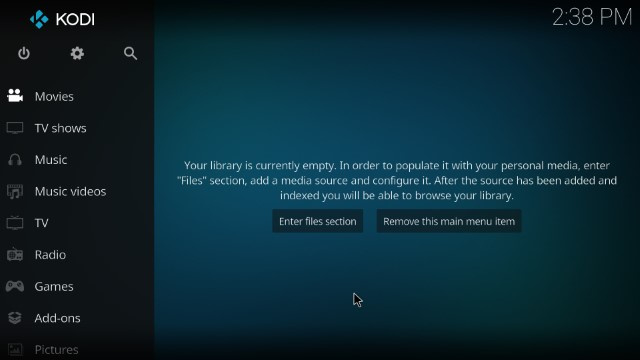
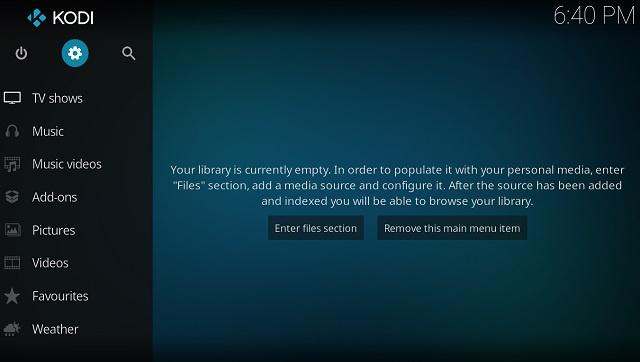
To use Kodi, you will have to understand its user interface first. Thankfully, the default Kodi interface is pretty basic and clean. The latest Kodi version is 18.2 (codenamed Leia) and the below screenshots are grabbed from the same version. You have multiple menus on the left side which are categorized based on the type of content. You can switch between them and access all your local media content with just a click. Initially, you will have to share your local media library with Kodi by clicking on the “Enter Files section” under every category. But once you set it up, you will be able to access all your media from Kodi itself.
Note: To go back on Kodi, right-click anywhere on Kodi’s interface or press the Esc key.
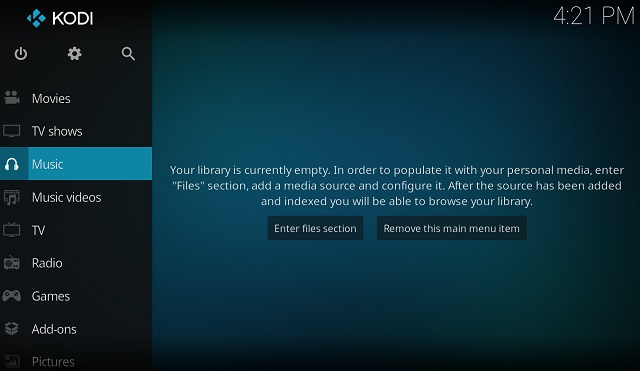
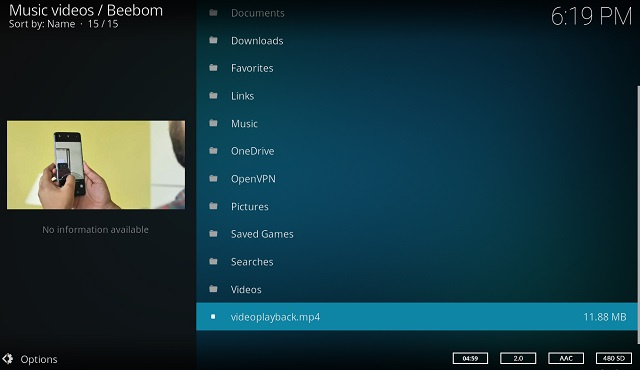
Once you have added all the local sources, you can easily play your local media content just like shown in the picture below.
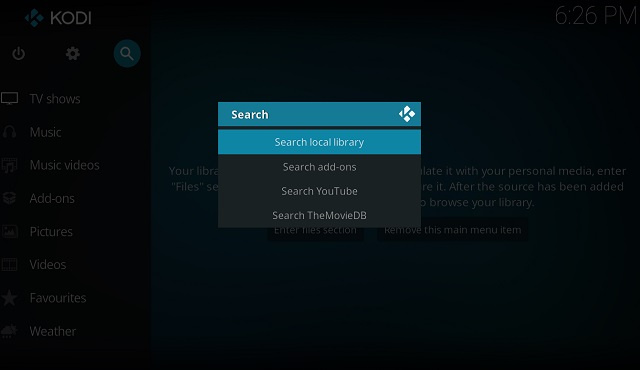
There is a search button on the top which lets you search your local content, add-ons, and directly into streaming services like YouTube.
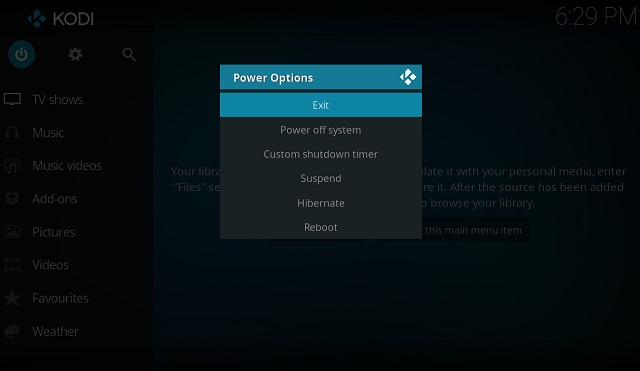
The power button on the left side lets you exit Kodi , reboot and offers other similar functions.
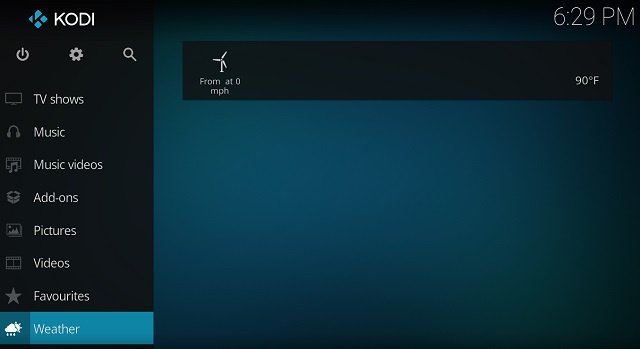
To make your Kodi home screen visually pleasing, you can add weather information or you can use different Kodi skins which basically overhaul Kodi’s UI.
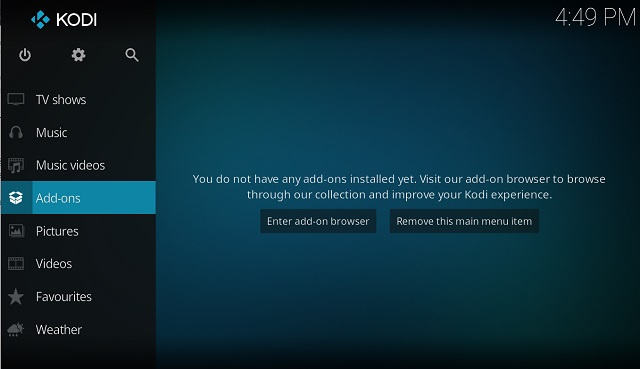
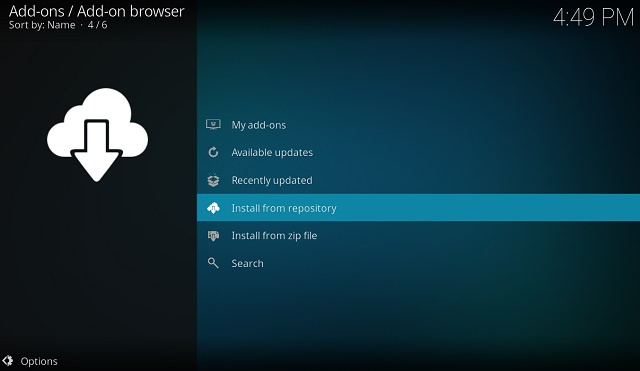
Kodi has something called Kodi Add-ons which are basically apps built for Kodi. They are very similar to Android or iOS apps which can be installed on top of Kodi to bring extra functionality, content, and features. Just like App Store or Play Store, Kodi has an in-built, official repository which hosts thousands of add-ons.
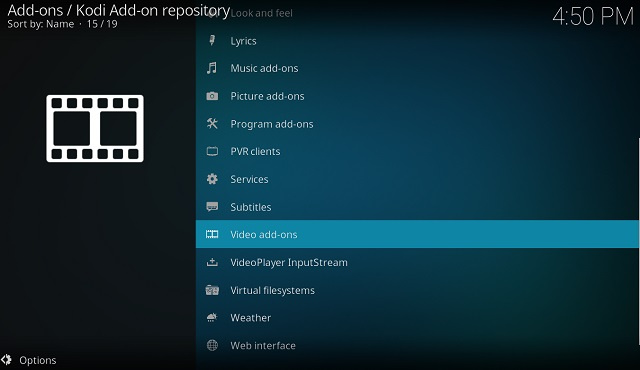
If you don’t have much local content then you can install video add-ons from the official Kodi repository and access cloud-based streaming services . Keep in mind, there are instances where certain contents are geo-restricted so you will need a VPN to get around it. .
There are also third-party add-ons that are massively popular among the Kodi community .
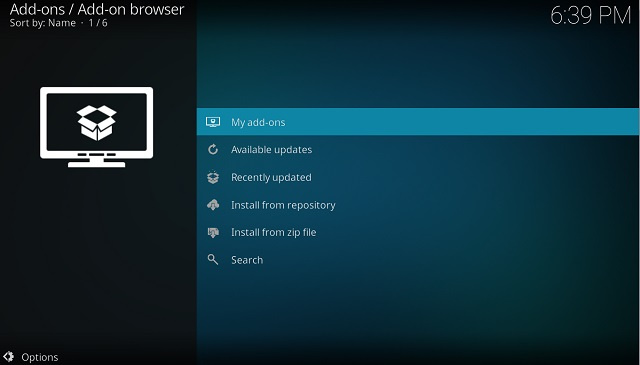
If you are not satisfied with the official repo, you can also install third-party repositories as well.
Note: Many of the third-party Kodi add-ons and repositories stream copyrighted content. Streaming protected content is illegal and amounts to piracy. We do not encourage online piracy in any way or form.
You will seldom need to visit the Settings page. However, if you want to become a pro-Kodi user, you must be acquainted with it. You can access the Settings tab from the gear icon on top.
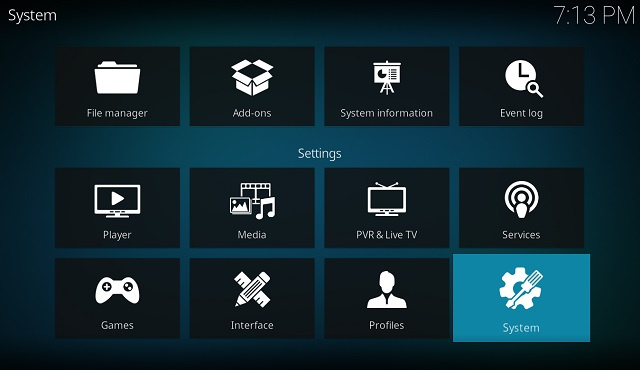
You can open the “System” menu to customize the display and audio settings. Under the Subtitles tab, you can configure subtitles to your preference. Keep in mind that there are different levels of setting available on Kodi based on the user’s expertise. Just click on the “Standard” label at the bottom-left corner to switch between different levels of settings.
While I have mentioned the major features of Kodi, there are still a few useful hacks you should know about. Talking about usefulness, keyboard shortcuts make things a hell lot easier on Kodi. For example, you can play a video by just pressing “P” key, stop the playback by pressing the “X” key, and so on. It’s just so easy and effortless. To know all the shortcuts available on Kodi, you can check our top 25 Kodi shortcuts here.
Learn to Use Kodi and Never Look Back
So that was our beginner’s guide for Kodi. When everyone is moving to cloud-based streaming services like Netflix and Amazon Prime, Kodi still has its own dedicated base of audience. I believe it’s a far more powerful app if you want to manage content locally on your own. If you have collected years of downloaded content then you should definitely use Kodi to organize everything seamlessly. It’s going to make your experience so much better with powerful media players, subtitles, add-ons and a lot more. I hope that this article was able to help you get started with Kodi.


 !
!