Hello all
I’m having a problem in my laptop. Application File explorer, or anything to read and write in my ‘D’ ‘E’ & ‘F’ drive it’s takes to much time. It’s suddenly happen today otherwise it’s was okay. From task manager i see ‘D’ ‘E’ & ‘F’ drive being 100% used in background. At that time i open no other applications. So this is possible ? However i didn’t face this kind of problem before.
So is there any solution or suggestion for me ?
there you will find your drives try to relocate of refresh them
if still having issue then format the drive from there (Note you will lose data)
if still facing issue try to clean
temp file+ prefetch from run command or using Ccleaner app.
if still issue not get resolved try to reinstall windows 10
(note you should have atleast 4gb ram for running win 10 if you have less ram then disk will always show 100% cz they use it as a swap file. then in that case install Linux )
I think your pc got hacked by backdore or ransomeware.First turn off` legacy support for your pc,Radomise mac address and use mcafee live sefe or you can also use kaspersky total security(1 month free trial).
Seems you are already using good antivirus but will suggest you to give a scan via Bootable rescue CD/environment by antivirus manufacturers like Kaspesky etc. This is better than safe mode scans.
You can also try process explorer to check the unknown process running and consuming resources.
Nothing much but do me a favor and try these 3 first:
Open Windows Explorer > Right-click on the drive and select Properties > Tools > Optimize and Defragment drive > Click on Optimize > Click on Analyze for every drive you have in your system.
Right-click on Taskbar > Task Manager > Click > More Details if your task window popping into under fewer details. Click on tab > Startup > Disable all the unnecessary apps that start while bootup.
Skype & Google chrome, Disable them and make sure they are not running in the background. For proper steps check this out: Chrome and Skype running
Restart the laptop and see the changes.
If the above mention hasn’t resolved it, then here the maximum fixes that do works 100%:
Disable SuperFetch service
Update your device drivers
Perform a diskcheck
Reset Virtual Memory
Disable Antivirus Software temporarily
Fix your StorAHCI.sys driver
Disable SuperFetch service
On your keyboard, press Windows key and X at the same time, then choose Command Prompt (Admin) .
Click Yes at the User Account Control prompt.
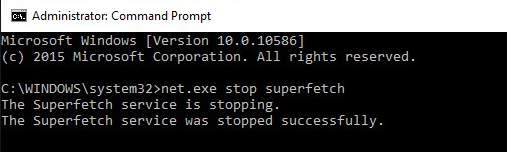
The command prompt will once again display. Type in the following command:
If the command above isn’t valid, try the following one instead:
net.exe stop sysmain
Wait for a few minutes to see if your computer starts performing better. Or check your computer’s disk usage: Type “task manager” in the Windows search bar and select Task Manager , then in the Processes tab, look at the % at the top of the Disk column. If it’s no longer 100%, you’ve fixed the problem!
Perform a diskcheck
On your keyboard, press Windows key and X at the same time, then choose Command Prompt (Admin) .
Click Yes at the User Account Control prompt.
The command prompt will once again display. Type in the following command:
chkdsk.exe /f /r
Follow screen description and let it check.
IMPORTANT: Disk check will start the next time you boot your PC and it might take some time to complete (could be a day for some). If, when you restart, you don’t have time to wait for the disk check to complete, you can skip it. You’ll need to reschedule it again, as described above, though.
Drivers update
Obviously, go to manufactured site and check the latest drivers. for windows 10 just update OS first then go to device manager and right-click on each device and update driver online.
Reset Virtual Memory
On your keyboard, press Windows key and Pause/ Break key at the same time. Then choose Advanced System Settings on the left panel.
Go to the Advanced tab, then click Settings .
Go to the Advanced tab again, and choose Change… in the Virtual memory section.
Ensure the Automatically manage paging file size for all drives checkbox is NOT ticked.
Select your windows drive (the hard drive or partition that has Windows installed on it – usually C: ) , and enter an Initial size and Maximum size for your virtual memory:
Initial size – This value varies, depending on your computer. If you’re not sure what value to use, just enter whatever the number is in the Recommended category.
Maximum size – Don’t set this value too high. It should be about 1.5 times the size of your physical RAM. e.g. A PC with 4 GB (4096 MB) of RAM should have no more than about 6,144 MB virtual memory (4096 MB x 1.5).
Once you’ve entered your virtual memory values, click Set , then click OK to continue.
Clear all your computer’s ‘temp’ files. On your keyboard, press Windows key and R at the same time, then in the Run form, type temp and hit Enter . This will invoke Windows Explorer with your Temp folder open, showing you all the temp files on your computer.
Select all the files in the Temp folder and delete them.
Check your computer’s disk usage: Type “task manager” in the Windows search bar and select Task Manager , then in the Processes tab, look at the % at the top of the Disk column. If it’s no longer 100%, you’ve fixed the problem!
Disable Antivirus program
If you are using any alternate program, disable it or remove it properly. restart and see the changes.
StorAHCI.sys driver
Open Device Manager by pressing Windows logo key and X at the same time to choose Device Manager .
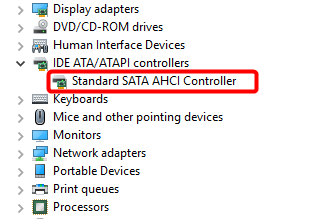
Expand the IDE ATA/ATAPI Controllers category, and double-click the AHCI controller .
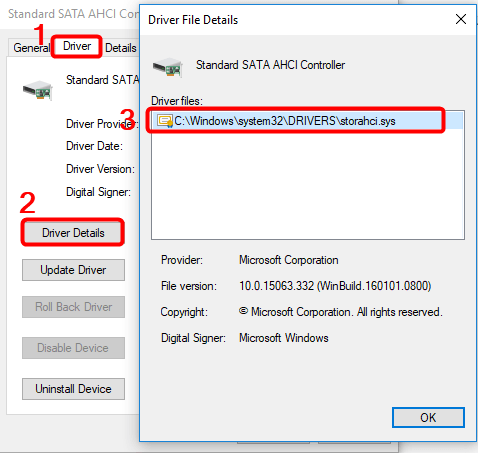
Go to the Driver tab and click Driver Details . If you can see storahci.sys stored in a path of system32 folder, then you are running the inbox AHCI driver.
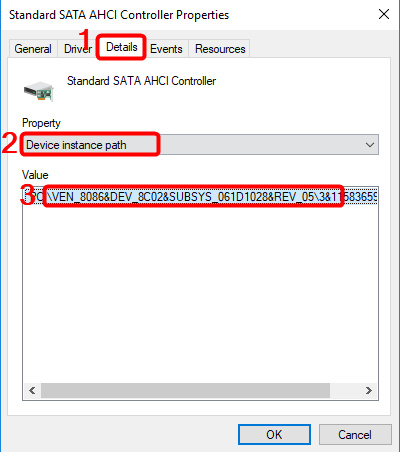
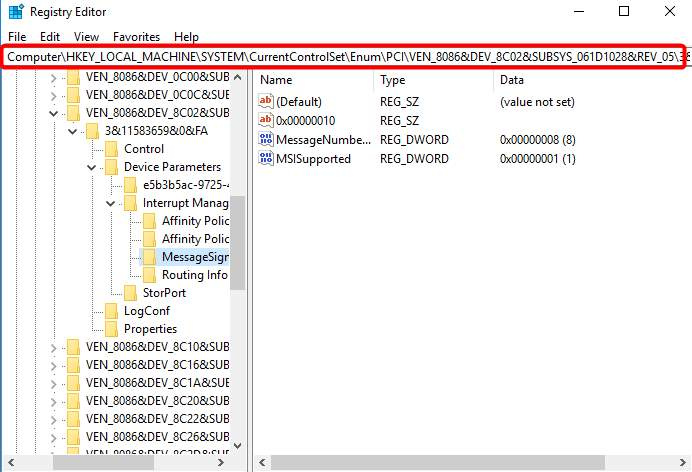
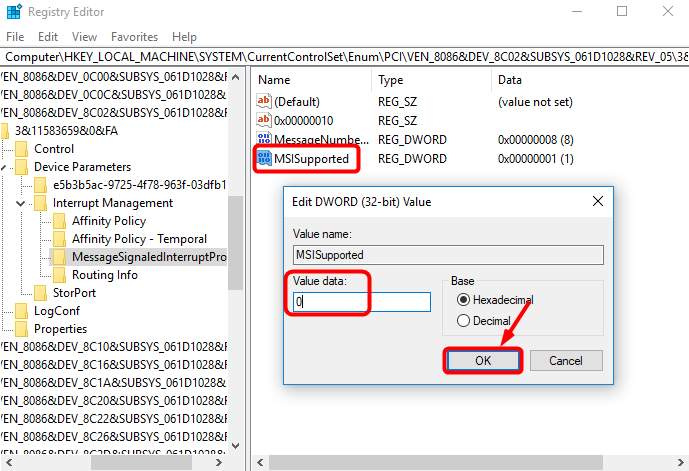
Close the Driver Details window and go to Details tab. From the drop-down menu, select Device Instance Path . Make note of the path, starting from VEN_ .
Restart your computer after the change, then check your computer’s disk usage: Type “task manager” in the Windows search bar and select Task Manager , then in the Processes tab, look at the % at the top of the Disk column. If it’s no longer 100%, you’ve fixed the problem!
I hope these solutions will definitely resolve the issue. I remember, some of these solution available at Microsoft help desk and drivereasy help desk.
Thank you @Aina and all…! For amazing support and suggestions.. Finally I’m able to figure out the was the problem. If anyone facing problem like me. Firstly
Search in Windows search box CMD. Run it and type a simple command
wmic diskdrive get status, model
It will show up the disk status. If the driver is okay… Then it’ll show “Ok”, if not then I’ll show “pred failed”. Pred Fail means Predicted Fail. It’s showing that hard drive is not working As usual.
2)If it’s okay and still facing the problem or any doubt then install a program call Crystaldriveinfo. It will show your drive health good or bad. If bad the immediately backup and prepare for replace the drive. If it’s showing your drive health is good then follow the @Aina’s instructions it will completely solve the problem. In my case i had dual storage, C drive (SSD) is completely fine but D, E, F(HDD) having problem. From software and CMD showing Bad health and pred failed.
 ?
?

 !
!