 What you get: Instant file previews in Windows Explorer simply by hovering, without launching heavy applications.
 Start here:
 Also useful:
 Watch out:
Your Explorer already draws a thumbnail. Hover the file and it can show you the actual thing.
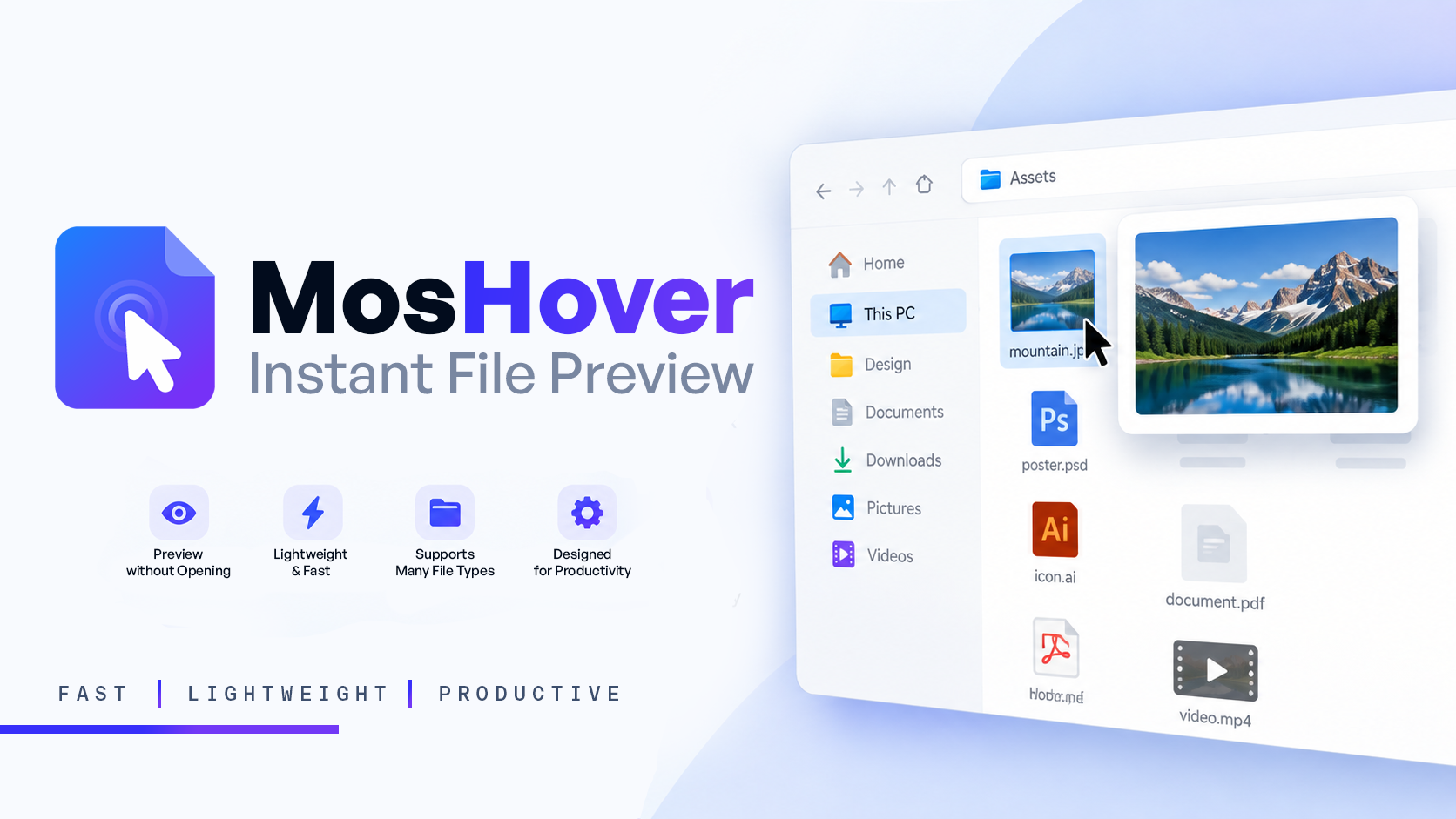
I built MosHover while sorting hundreds of assets: the slow part is never the editing, it is opening files just to find out which one you are looking at. Now it is hover, look, move on — nothing launches, nothing to close.
 What it previews
| Type | Formats |
|---|---|
 Images Images |
PNG · JPG · GIF · WebP · TIFF · BMP · ICO |
 Design Design |
PSD · PSB · AI · SVG · EPS · PS |
 Documents Documents |
PDF · DOCX · PPTX · XLSX · TXT |
 Media Media |
MP4 · MKV · MOV · WebM · MP3 · WAV · FLAC |
 Folders Folders |
what is inside, before you open it |
 The three that actually buy you time
- PDFs are readable, not page one — scroll the pages and copy from any of them
- Design files open by hovering — no Photoshop round-trip for a five-second look
- Pin a preview — it stays on top while you work in another window
 Install
Download → run it (it lives in the tray) → hover anything. Delay, theme and per-type preview size sit in the tray menu.
 Two honest notes
- It’s my own tool and not open source, so SmartScreen may warn about a fresh unsigned binary — normal for indie apps, just check the publisher name before clicking through.
- Windows’ own PowerToys Peek previews images, Office, video and text too — but you select a file and press Space. MosHover’s edge is hover-only, plus PSD/AI/EPS/PS and per-type sizes, in one tray app instead of a suite.
 Get it
 Download MosHover — free for Windows
I’m Moshiur (@moshclusive) — a working graphic designer, so the format list above is what I actually open every day. If it saves you an afternoon, there’s a coffee link on the download page 
 !
!