 Move Your ENTIRE Google Drive to Another Account — Without Downloading Anything
Move Your ENTIRE Google Drive to Another Account — Without Downloading Anything
One-Line Flow: You click a few buttons. Google copies everything for you. Your internet does nothing. That’s it. That’s the whole trick.

 Wait, This Is Actually Possible?
Yeah. And nobody talks about it.
You know how when you want to move files between two Google accounts, you normally have to:
- Download everything to your computer
- Wait 47 hours
- Upload it all again
- Watch your internet bill cry
Fuck all that.
There’s a way to make Google’s own servers do the copying. Internally. Behind the scenes. While you’re watching Netflix or touching grass.
Your files teleport from Account A to Account B.
Your bandwidth? Untouched.
Your data cap? Safe.
Your sanity? Preserved.
This is the cheat code nobody told you about.
 Why Would I Even Need This?
Oh, you sweet summer child. Here’s when this saves your ass:
- Your school/work email is getting deleted and you’ve got years of stuff in there
- You made your Gmail in 2009 and your email is something like
[email protected]and you’re finally ready to be an adult - You’ve got two accounts and want everything in one place
- Your internet is slower than a government website and downloading 200GB would take until 2027
- You’re a data hoarder and proud of it
Basically: if you’ve ever thought “I wish I could just… move all this shit without the hassle” — this is your moment.
 What You’re Actually Getting Here
This guide gives you 6 different ways to do the same magic trick.
From “my grandma could do this” easy… all the way to “I am become data, destroyer of storage limits.”
Pick your comfort level:
| Difficulty | Method | Perfect For |
|---|---|---|
 Braindead Easy Braindead Easy |
Google’s Hidden Button | Anyone with a pulse |
| Still Easy |
Browser Extension | Small transfers, lazy people |
 Medium Medium |
Free Google Tool + Copy-Paste | Bigger transfers, still free |
| Medium |
Phone Bots | Controlling transfers from bed |
 Nerd Mode Nerd Mode |
Power Tools | Moving terabytes like a psychopath |
| God Mode |
Account Rotation | 75TB/day. Yes, really. |
You don’t need to understand all of them. Just pick the green one and you’re golden.
The “I Don’t Want to Learn Anything” Method
Google has a secret transfer tool built right in. No apps. No downloads. No commands. Just clicking.
Here’s the link: https://takeout.google.com/transfer
What you do:
- Open that link
- Type in your other Google account’s email
- Check your other email for a code, type it in
- Pick what to move (Drive, Gmail, or both)
- Click the button
- Walk away
Google handles everything. Could take a few hours or a few days depending on how much stuff you have. But you don’t have to do shit.
The catches (because nothing is perfect):
- Only moves files YOU own — not stuff others shared with you
- Sharing settings don’t transfer
- Might take a while for big accounts
But for most people? This is the answer. Bookmark it. Tell your friends. Be the hero.
The “Click a Chrome Button” Method
If you just need to move a few folders and want zero thinking:
Install this: https://chrome.google.com/webstore/detail/ghfcnokfiggoglnikomdhhbhhlkmoelb
It’s a Chrome extension. You click, you pick source and destination, it copies.
Free tier = 5GB/month. Which is plenty for casual use.
The beautiful part? It copies server-side. You can close your browser and it keeps going.
The “Free Unlimited Power” Method
Okay, here’s where it gets fun.
Google has this thing called Colab — it’s basically a free computer in the cloud that Google lets you use. Originally meant for coding and AI stuff.
But we’re going to use it to copy files between accounts.
The irony? We’re using Google’s free servers to move files between Google accounts. They’re paying for the electricity. You’re paying nothing.
Show Me How (It's Easier Than It Looks)
Step 1: Go to https://colab.research.google.com
Step 2: Make a new notebook (it’s like a document but for code)
Step 3: Paste this in a box and click the play button:
!curl https://rclone.org/install.sh | sudo bash
This installs the tool. Takes 30 seconds.
Step 4: Paste this and run it:
!rclone config
This asks you to connect your Google accounts. Follow the prompts. It’ll open Google login pages. Just sign in.
Step 5: Once both accounts are connected, run:
!rclone copy source: dest: --drive-server-side-across-configs -v
Replace source and dest with whatever you named your accounts.
Step 6: Watch it go. Or don’t. Close the tab. Go live your life.
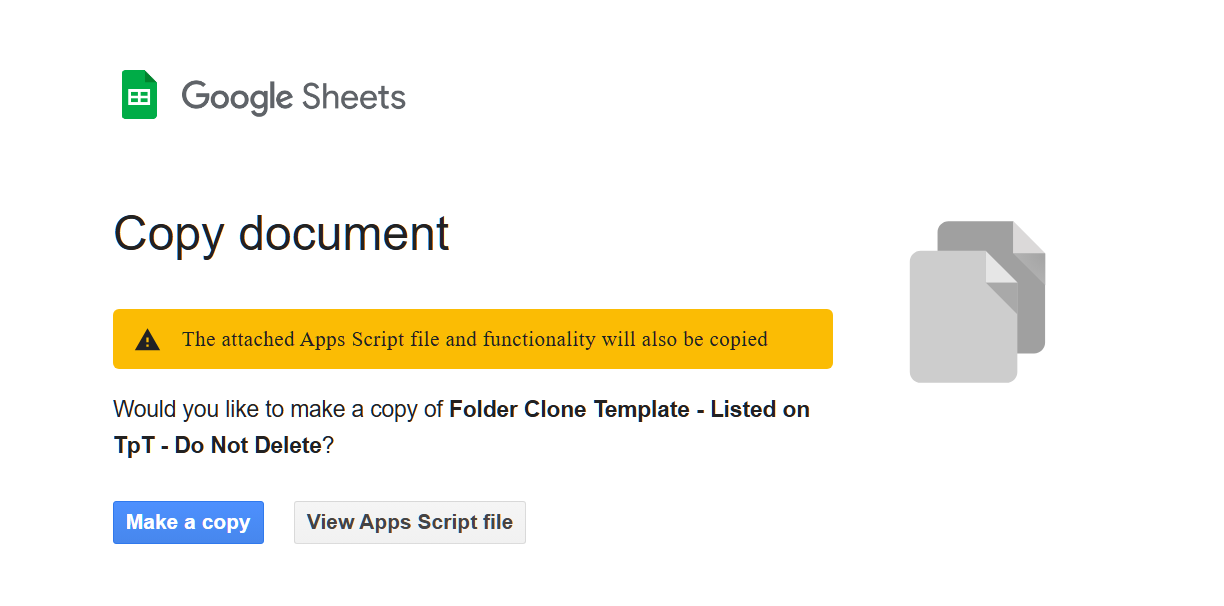
Don’t want to set it up yourself? Someone already made a ready-to-go version:
People have moved 200+ terabytes with this method. For free. While sleeping.
The “Do It From My Phone” Method
Why sit at a computer when robots can do your bidding?
There are bots for Telegram and Discord that let you send a Google Drive link, and they’ll copy it to your account automatically.
Telegram:
- https://github.com/TheCaduceus/CloneBot_V2 — Send a link, it clones. Simple.
- https://github.com/anasty17/mirror-leech-telegram-bot — The Swiss Army knife. Does everything.
Discord:
- https://github.com/jsmsj/GdriveCloneBot — Same idea, Discord flavor.
You set these up once (or find a public one), and then you just… text a link. The bot does the rest.
It’s like having a personal assistant who works for free and never complains.
The “I Have Terabytes and No Patience” Method
Skip this if you have normal human amounts of data.
But if you’re sitting on a mountain of files and Google’s 750GB/day limit is cramping your style…
There’s a way to create multiple “helper accounts” that each get their own limit. Stack 100 of them and suddenly you can move 75TB per day.
The tools:
- https://github.com/l3v11/gclone — Automatically switches accounts when one hits the limit
- https://github.com/88lex/sasync — Industrial-strength parallel transfers
This is what the serious data hoarding community uses. It’s legal. It’s free. It’s absolutely unnecessary for 99% of people.
But if you need it, now you know it exists.
 Shit That Might Trip You Up
Real talk on limitations:
- “Shared with me” files — You can’t copy these because you don’t own them. Ask the owner to transfer ownership first, or make a copy manually.
- Google Docs/Sheets/Slides — They convert during transfer and might look slightly different
- Sharing permissions — Don’t transfer. You’ll need to re-share stuff.
- It’s not instant — Big accounts take time, even with server-side copying
 Every Link From This Guide
| What | Where |
|---|---|
| Google’s secret transfer tool | https://takeout.google.com/transfer |
| Chrome extension | https://chrome.google.com/webstore/detail/ghfcnokfiggoglnikomdhhbhhlkmoelb |
| Ready-made Colab notebook | https://github.com/nguyenanhtuan1008/c2c-transfer |
| Telegram bot (simple) | https://github.com/TheCaduceus/CloneBot_V2 |
| Telegram bot (advanced) | https://github.com/anasty17/mirror-leech-telegram-bot |
| Discord bot | https://github.com/jsmsj/GdriveCloneBot |
| Power tool (gclone) | https://github.com/l3v11/gclone |
| Power tool (sasync) | https://github.com/88lex/sasync |
| Web-based option | https://www.multcloud.com |
| Rclone guide for Colab | https://forum.rclone.org/t/psa-use-google-colab-for-cloud-to-cloud-data-transfers/40636 |
 Simple-Pimple For The Impatient
Got 5 minutes and zero energy?
→ https://takeout.google.com/transfer
Got slightly more time?
→ Colab method. Free. Unlimited. Chef’s kiss.
Want it on your phone?
→ Telegram/Discord bots.
Got ungodly amounts of data?
→ gclone with service accounts.
The fact that this is all free feels like a bug Google hasn’t patched yet. Use it before they notice.



 !
!