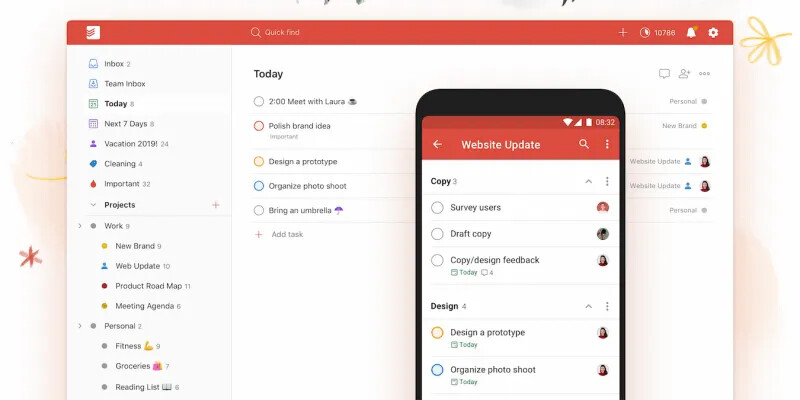
Productivity is a hot topic of conversation. As such, choosing the right tool for the job is crucial. Todoist is a popular and robust app that we’ve talked about here. It’s great for simple shopping lists, or more complex projects – including managing professional ones.
Here we’ll give you a helping hand to harness all of Todoist’s functionality. Over the following few minutes, we’ll provide all of the dedicated keyboard shortcuts found in Todoist, so you’ll know how to get around.
The Ultimate Todoist Keyboard Shortcuts Cheatsheet
Below, we’ll introduce the Todoist keyboard shortcuts cheatsheet. It’s split into sections based on the screen you’re in and the actions you’d like to undertake. As such, feel free to jump around to the section that makes the most sense for you.
Also, note that we’re using “N/A” where there is no shortcut for the particular Operating System (OS). Where shortcuts are the same between OS’, we’ll only list it under the Windows column.
| Function | Windows | macOS |
|---|---|---|
| Global Shortcuts (Not supported under Windows) | ||
| Show or hide Todoist | N/A | Ctrl + Cmd + T |
| Open task Quick Add | N/A | Ctrl + Cmd + A |
| Quick Add | ||
| Add a label | @ | |
| Pick a project | # | |
| Pick a section | / | |
| Add an assignee | + | |
| Set a priority level | p(number) | |
| Save and go to comments | Alt + Enter | |
| Open full task editor | Tab | |
| General | ||
| Open or close menu, enter multi-select mode. | m | |
| Go to Home view | h | |
| Select and change multiple tasks at once | Shift + left-click on multiple tasks | Cmd + left-click or Shift + left-click on multiple tasks |
| Add a task (with Quick Add) | q | |
| Add a task at the bottom of the list | a | |
| Add a task at the top of the list | A | |
| Add a section | s | |
| Open search | Ctrl + F | / or f |
| Manual sync | F5 | |
| Navigate to default page | Home | |
| Navigate to previous view | Page Up | |
| Switch to the Board view | N/A | Shift + v |
| Adding and Editing Tasks | ||
| Edit task name | Alt + Click | Opt + Click |
| Cancel current changes | Esc | |
| Save a newly created task and create a new one below it | Enter | |
| Save changes to an existing task and create a new task below it | N/A | Shift + Enter |
| Save a new task or save changes to an existing one and create a new task above it | N/A | Ctrl + Enter |
| Move to the task above the task currently being edited (only works inside projects) | N/A | Cmd + ↑ |
| Move to the task below the task currently being edited (only works inside projects) | N/A | Cmd + ↓ |
| Creating and completing sub-tasks | ||
| Increase task indent (only works inside projects) | Alt + Shift + → | Cmd + → |
| Decrease task indent (only works inside projects) | Alt + Shift + ← | Cmd + ← |
| Sorting tasks inside a project | ||
| Sort by date | d | |
| Sort by priority | p | |
| Sort by name | n | |
| Sort by assignee | r |
In Summary
Todoist is a simple app on paper, but complex under the hood. It’s a great solution for your personal to-do lists, but can also work wonders as a project management app. This list of Todoist keyboard shortcuts should get you zipping around the app in no time.
Happy learning!
 !
!