 Strip the TikTok Watermark — 3 Tricks That Take 30 Seconds Each
Strip the TikTok Watermark — 3 Tricks That Take 30 Seconds EachThe logo’s optional. Three ways to make it disappear — pick your speed.
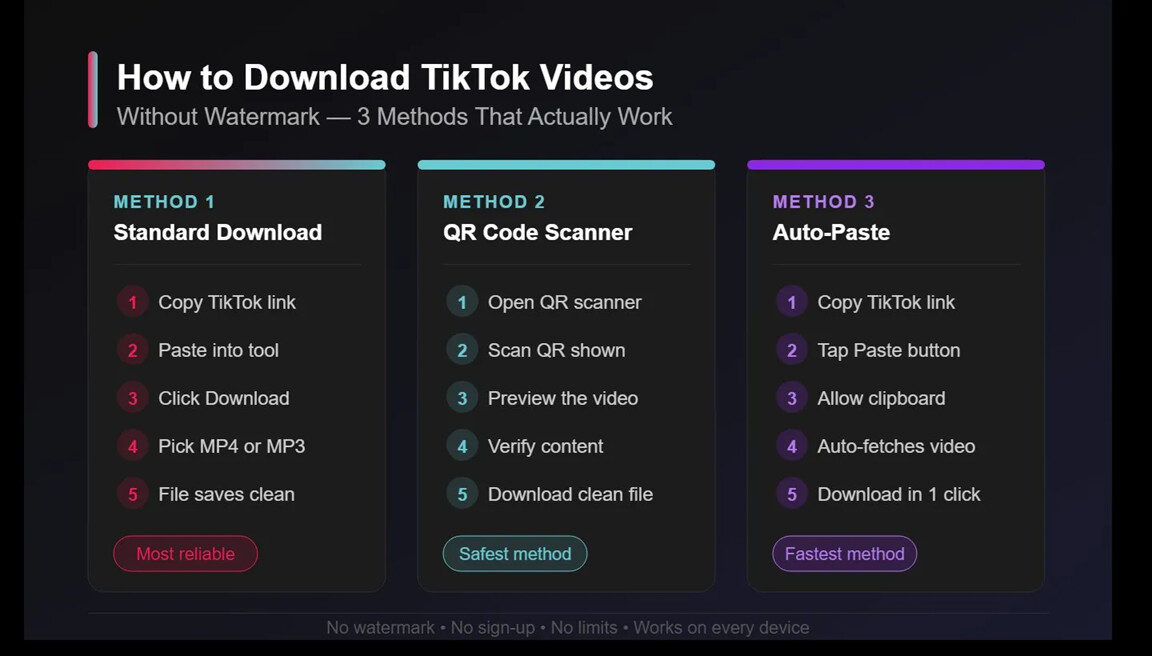
If you’ve ever tried to save a TikTok the normal way, you already know the problem — the logo gets burned into the corner forever. Useless if you’re reposting to Reels, editing the clip, or just building a personal collection of stuff you actually like.
Three free browser tricks fix it. No app, no sign-up, no money out of pocket. The longest one takes about a minute. If you can copy and paste, you already have the skills.
🧰 The Sites You'll Actually Use (bookmark 2 — when one's down, swap)
These are the free browser tools — the “downloaders” referenced in every method below. No login, no install, all of them just take a TikTok link and hand you the clean file.
| Site | What it’s best at | When to reach for it |
|---|---|---|
 SnapTik SnapTik |
Fastest video download, HD/4K options | Default pick — quickest one for plain MP4 |
 SSSTik SSSTik |
Strong MP3 audio extraction, no-frills UI | When you mainly want audio, or SnapTik’s slow |
 MusicallyDown MusicallyDown |
Cleanest mobile interface | Phone-only days, smaller screen |
 TikDownloader TikDownloader |
Photo slideshows + 4K when source has it | Slideshow posts and high-res clips |
 Tikvib Tikvib |
Stories, profile pics, thumbnails, anonymous browsing | Bonus stuff (Method 4 territory) |
Trick: Bookmark two of these, not one. They all rely on TikTok’s public link structure, and when TikTok shifts something on their end, one site usually breaks for a day or two before catching up. Two bookmarks = zero downtime.
📋 Method 1 — Plain Copy-Paste (the workhorse)
The most reliable approach for almost anyone. Works on Android, iPhone, laptop, desktop — no install.
| Step | What you do | What you’ll see |
|---|---|---|
| 1 | Open the TikTok video, tap the Share arrow → Copy Link | Phone confirms the link is on your clipboard (the invisible tray for whatever you just copied) |
| 2 | Open a free downloader site in your browser | A box that says “Paste link here” |
| 3 | Paste the link in, hit Download | Loading spinner, then format options |
| 4 | Pick MP4 (the regular video file your phone already plays) or MP3 (audio only — just the sound, no picture) | The clean file lands in your Downloads folder |
🪞 Method 2 — QR Scan (the safety-first version)
Same result as Method 1, but with a checkpoint in the middle. Useful when you’re not 100% sure the link is what you think it is — pasted from a chat, copied off someone else’s screen, etc.
A QR code is just the pixelated square your camera already knows how to read (like a barcode on steroids). Pointing your phone at it opens a preview link.
Steps:
- Copy the TikTok link the same way as Method 1
- Open the downloader and click its Scan option — a QR appears on screen
- Point your phone camera at the QR — a preview link pops up on your phone
- Tap the preview — the actual video plays so you can confirm “yep, this is the one”
- Hit download from there
⚡ Method 3 — Auto-Paste (the lazy speedrun)
For when you don’t even want to think about pasting. The tool reads your clipboard for you. Three taps total.
Steps:
- Copy the TikTok link (Share → Copy Link)
- Open your downloader, tap the Paste button
- The browser pops up “Allow this site to read your clipboard?” — hit Allow
- The link auto-fills, the tool fetches the video, Download is one click away
If the Paste button doesn’t appear, your browser blocks clipboard access by default — Method 1 still works in that case, no big loss.
🎁 Bonus — What else you can pull from TikTok
Most people stop at the video file and miss everything else.
| What to grab | Why you’d want it |
|---|---|
 MP3 audio only MP3 audio only |
Trending sounds for your own edits, ringtones, offline playlists, voiceovers |
 TikTok Stories TikTok Stories |
Stories disappear after 24 hours — saving them early is the only way to keep them |
 Video thumbnails Video thumbnails |
The cover image of the video, full resolution — handy for designers and creators |
 Profile pictures Profile pictures |
Original-resolution avatar — useful for marketing decks, collab proposals, press kits |
📐 Format Options — what to pick when
| Format | Best for | What it actually means |
|---|---|---|
| Full HD (1080p) | Big screens, archive quality | The sharpest version — biggest file |
| HD (720p) | Phone viewing, social reposts | Looks great on any phone screen, half the file size |
| SD (480p) | Tight storage, slow internet | Fuzzy on TVs, tiny on disk |
| MP3 | Audio only | Just the sound — for music, voice, sound effects |
🪛 Tips that save you a headache
- Use Share → Copy Link every time — not the URL bar, not the “Save Video” option (that’s the watermarked one)
- Try desktop mode on mobile if a downloader site looks cramped — it’s the toggle in your browser menu, makes everything cleaner
- Keep your browser updated — old browsers sometimes break clipboard access and download prompts
- Private videos and creator-restricted ones can’t be grabbed by anything — that’s locked at TikTok’s end, not the tool’s fault. No workaround exists for those, anyone selling you one is selling air.
- If a tool throws an error, swap to a different one — same link, different service, usually works on the second try
💼 Why creators actually do this
If you post on Instagram Reels or YouTube Shorts, a watermarked TikTok looks like you stole it from somewhere — even if it’s your own video. Algorithms also de-prioritize content that looks recycled.
A clean source file gives you:
- Edit freedom — trim, recolor, add your own captions, splice with other clips
- Cross-platform reposts that don’t scream “TikTok refugee”
- Swipe-file ready clips for studying what works (pacing, hooks, transitions)
- Backup of your own content — TikTok accounts get banned, lost, hacked. Keep originals.
 Quick Hits
| Want | Do |
|---|---|
| Clean download, fastest |
→ Method 3 (Auto-Paste) |
 Verify before saving Verify before saving |
→ Method 2 (QR Scan) |
 Most reliable, zero surprises Most reliable, zero surprises |
→ Method 1 (Copy-Paste) |
| Just the audio |
→ Any method, pick MP3 |
 No install ever needed No install ever needed |
→ All three, browser only |
 Private/restricted video Private/restricted video |
→ Can’t be done — TikTok-side lock |
The watermark was a tax on your content. Now it isn’t. What are you saving first?
Use downloaded content responsibly. Everything on TikTok belongs to the original creator. Downloads are for personal use, offline viewing, and personal creative projects — not commercial redistribution without permission.
 !
!