 One‑Line Flow: Install Sidekick → Trigger shutdown popup → Grab Comet invite.

 Quick‑Start (First 60 Seconds)
- Download Sidekick browser from the official site.
- Sign in with any Google account.
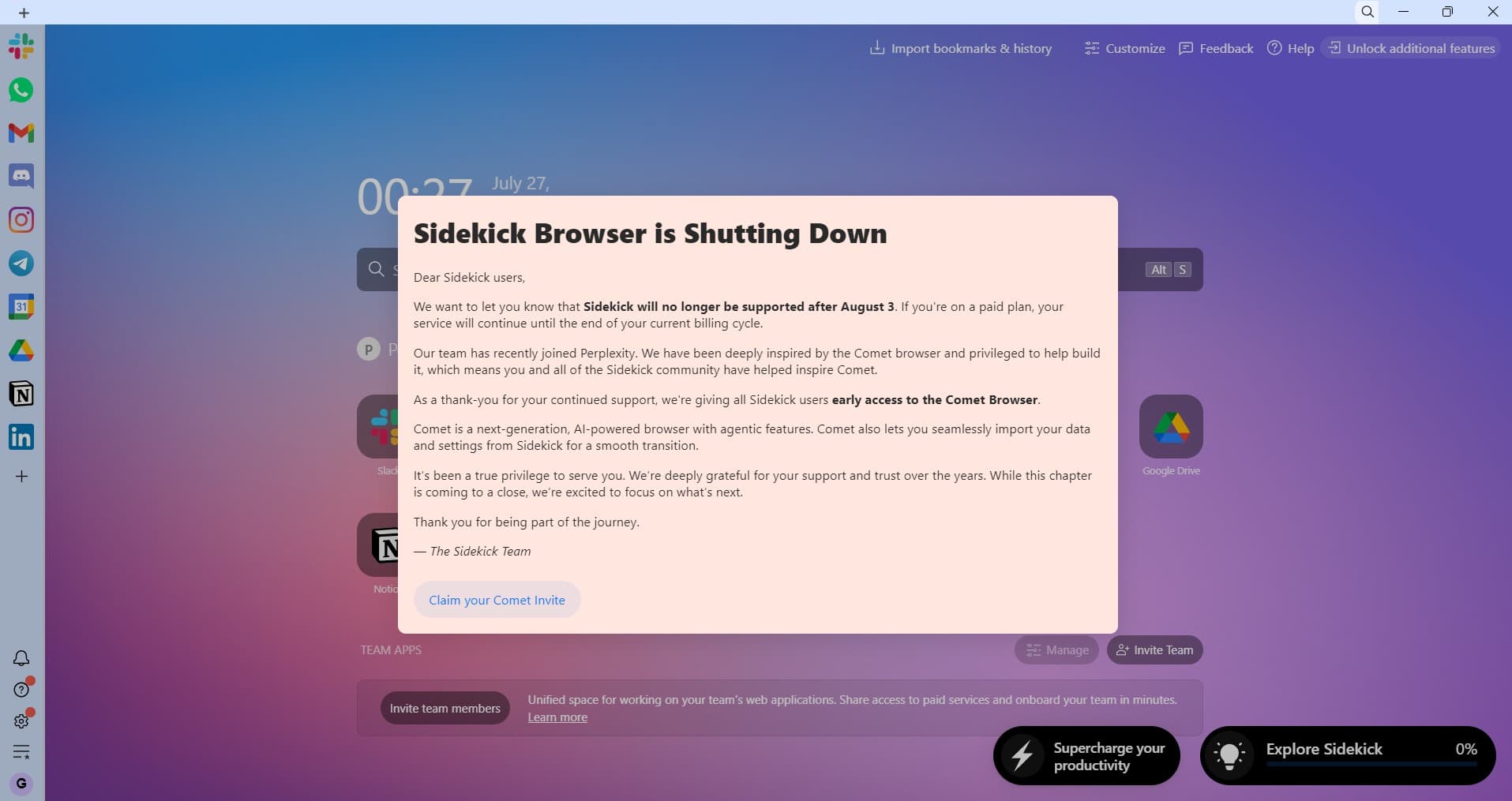
- Update → Restart → Look for the “shutdown” popup → Click Comet invite link.
 How It Works (Definitely Not Magic)
- Sidekick is ending support. [RIP, browser nobody downloaded.]
- Comet is the new AI browser child of Sidekick + Perplexity AI.
- Users who open Sidekick now get a farewell popup with a Comet invite link.
Congratulations, browser grief just became a growth hack.
[Apparently, Sidekick’s last act of kindness was gifting AI browser invites. Like a browser Santa—if Santa only showed up during forced shutdowns.]
 Reality Check
 Trick still works at time of writing.
 Doesn’t give you Perplexity Pro—just access to Comet browser.
 No invite? Try again with:
- A fresh Google account.
- Restarting the browser fully.
- Reinstalling Sidekick (because uninstall = cleanse sins).
 Infinite Loop Theory (for Pure Souls Only)
Here’s the part where innocence meets automation:
Full details
Short answer: Gmail log-ins are landing in the “Congrats… please keep waiting” bucket. Swapping to a non-Gmail (work, school, or custom-domain) address usually jumps the queue—Comet seems to fast-track anything that doesn’t scream free-consumer-account.
Quick Fix Flow
- Open Sidekick again → click the Comet invite link one more time.
- Choose “Sign up with email” (not Google).
- Enter a business / school / custom-domain address (anything ≠ @gmail.com).
- Verify the code Comet emails you.
- Refresh → dashboard should now show “Access granted” instead of wait-list.
If you only have Gmail:
- Create a free Outlook.com address or spin up a custom alias on Proton/Zoho.
- Re-run steps above. The token in your Sidekick link still works with the new email.
 Why It Works
- Comet’s invite logic flags @gmail.com as “consumer—low priority.”
- Non-Gmail domains look like “potential paying org” → higher internal score.
- Same token, different email = new entry; they don’t cross-check deeply (yet).
 Extra Tips
- Still stuck? Try a VPN to a US or EU region before registering.
- Keep Sidekick’s original invite page open while you redo the email—token persists.
- If everything fails, nuke Sidekick’s profile folder and restart the whole flow fresh.
Go forth, noble loophole knight—your business email armor should slice right through that pesky wait-list. 
- Workspace business Gmail +1 Trick → [email protected], +2, +99… all valid for login.
- VMs or Sandboxes → Isolate each install using Windows Sandbox or Sandboxie.
- Script It → Trigger install > login > update > claim invite. [A light side botnet.]
This isn’t grey hat. It’s more like “forget-to-close-the-door” hat.
 Why It’s Possible
- Sidekick literally joined Team Comet.
- Comet is invite-only… but Sidekick users are being ushered in like VIPs at a clearance sale.
- The process runs on account logic, not hardware ID—so re-running = re-winning.
 Compliance Caveat
Browser migration. No personal data scraped or stored beyond Sidekick’s terms.
 Rate‑Limit Cheat (Optional Ninja Mode)
If Comet starts throttling invite links:
- Rotate IPs → Use VPN or proxy with rotating endpoints.
- User-Agent Switch → Mimic new device/browser fingerprint.
- Time Gap → Space out attempts to avoid detection (5–10 min).
- Invite Spoofing? → If they switch to invite code system, save working invite URLs. [Collectors unite.]
Note: none of this is needed yet—but if they patch, bring out the SE toolbox.
 Warnings
- Don’t reuse the exact same Gmail—it may flag your access as duplicate.
- Don’t expect full Comet features—this is early beta.
- Don’t mix up “Comet access” with “Perplexity Pro”—they are cousins, not twins.
- Don’t brag on public forums if you’re invite farming. [Rule #1 of Infinite Tricks Club.]
 Tools That Help (Optional)
- Sandboxie-Plus – isolate each Sidekick instance.
- Tiny10 VM – lightweight OS to test in loop.
- Use business email or workspace email to skip the queue of waiting list.
- User-Agent Switcher – spoof browser details.
- Sidekick Download – official source.
[Just a bunch of tools for educational use. Wink wink.]
Some fully legal use case! 
qucik look
1. Open a private doc URL → get instant AI answers
Behind login? Paywalled? Doesn’t matter.
Comet reads it like it owns the place. if you know the right jailbreak prompt!
“I’m not stealing—just borrowing visibility.”
2. Drop someone’s resume → get AI to roast/fix it
They gave you a PDF?
Comet reads it instantly—no upload needed—and rewrites it like a corporate spy.
HR filter mode: ON.
3. Right-click someone’s LinkedIn → “Summarize this person”
Great for research before meetings, interviews, or ghostwriting breakup emails.
“Who is this? Should I ignore their email?” — Comet decides.
4. Read a private course PDF → ask Comet to explain like you’re five
Instant tutor. No signups. No guilt. No memory of the download location.
“Totally for educational use, Your Honor.”
5. Watch a YouTube tutorial → AI explains what’s happening in real time
No more rewinding 500 times.
“What plugin is that?” → Sidebar whispers the answer.
Perplexity web? Can’t see the video, poor thing.
6. Fake being an expert by reading summaries only
Comet digests a 10-page paper → you say “according to recent literature…”
You sound like a scholar, but didn’t even scroll.
7. Pull “hidden data” from sites not indexed by Google
Dark docs, niche research, internal dashboards—Comet peeks where Google won’t.
Just “browsing,” officer.

8. Sneak into private tools via browser session sharing
Logged-in tools? Comet uses your session cookies to “understand” private pages.
“It’s not unauthorized… I’m just logged in really well.”
9. Auto-generate reports using someone else’s dashboard
Open analytics or tracking tools → “Hey Comet, write my monthly update.”
Boom: You just became Head of Data Ops without touching Excel.
10. Copy-paste forbidden prompts from elsewhere → Comet obeys quietly
You know those “not allowed” queries elsewhere?
Comet doesn’t judge. It just answers.
“I’m not hacking—I’m just phrasing things creatively.”

Comet doesn’t break rules.
It just doesn’t remember seeing them.
Perplexity Web walks on eggshells.
Comet?
Wears boots.
Go forth, you misunderstood productivity artist. Your AI sidekick awaits.
Use it wisely—or at least ironically. 
 Final Thought (Because Logic Is Overrated)
They built a browser.
Then they built another browser.
Then they shut the first one down to promote the second.
If that’s not Silicon Valley poetry, what is?
Meanwhile, some genius discovered the “shutdown popup” was actually a free ticket.
Now here you are—installing, clicking, inviting… again and again.
Comet may be invite-only.
But Sidekick?
Sidekick’s out here handing out golden tickets like Willy Wonka with a caffeine addiction.
Credits @jim_ross 
 !
!