 Finally Got My GitHub Student Developer Pack Approved After 6 Attempts! (My Experience & Tips)
Hey everyone! 
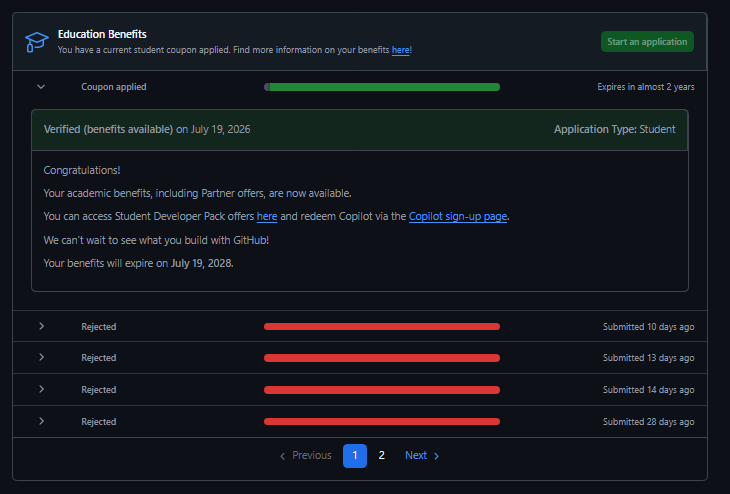
After getting rejected 6 times in a row, I finally managed to get my GitHub Education Benefits approved! I wanted to share a few practical takeaways and technical steps that worked for me during this trial-and-error process.
 Key Lessons Learned & Steps Taken:
1.  Match Your Name Exactly (Wait 24 Hours)
- Before starting the application, change your GitHub Account First & Last Name to match the exact details registered on your .edu account.
- Pro Tip: Let at least 24 hours pass after updating your name before submitting the application.
2.  Align Your Device Time Zone
- Change your device’s Time Zone to match the physical location/region of the institution on your edu account.
3.  Language Settings
- Remove any extra display languages from your device settings and make sure your primary system language is set to English (United States).
4.  Browser Geolocation Adjustment & DevTools Spoofing
- Adjust your browser’s location settings so it matches your school’s physical location.
- Method A (DevTools): You can override your location directly without extensions via Chrome Developer Tools:
- Press
F12(orInspect). - Open the command menu (
Ctrl+Shift+P/Cmd+Shift+P). - Search for “Sensors” and set a custom latitude/longitude corresponding to your campus coordinates.
- Press
- Method B (Extensions): Alternatively, use a browser extension (I personally used Change Geolocation (Location Guard)).
 For Mobile Users: If applying on a smartphone, use a mobile browser that supports extensions/DevTools (like Kiwi Browser or Firefox Android) so you can apply these location changes.
5. Android & VPN Setup (If applying via Android)
- If you are submitting via an Android device, in addition to the steps above, you can use Windscribe VPN with its GPS Spoofing feature enabled.
- Also, turn on Decoy Traffic in the VPN settings so your outgoing data packets aren’t easily flagged as VPN traffic.
6.  Print Physical Copies of Documents
- Always print out a physical paper copy of the documents/student IDs you plan to submit instead of capturing screens or uploading digital files.
Hope these personal takeaways help anyone else who’s currently stuck in the verification loop. Good luck! 
 Special thanks to the creator who shared the original guide on creating the .edu account—your method laid the foundation for this!
 !
!