What you get: A portable Windows scanner that indexes drives quickly and filters large, old, or temporary files for permanent cleanup.
Start here:
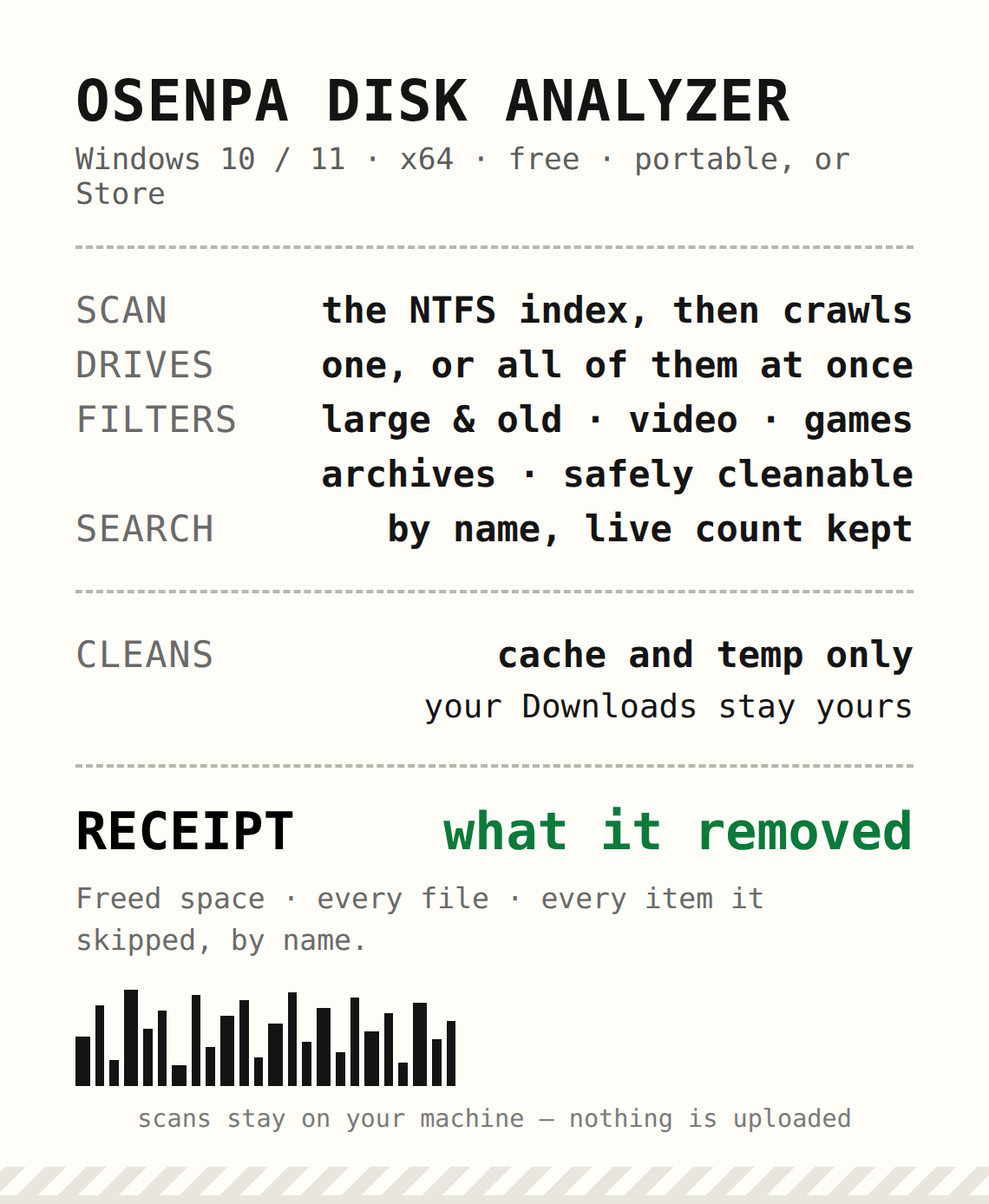
Osenpa Disk Analyzer — scans drives via NTFS indexing and filters files by size or age.
Manual review — lets you open specific file locations from the scan list to delete items safely in batches.
Watch out: The Free Space Now button permanently empties the Recycle Bin and caches immediately without a confirmation prompt or detailed pre-deletion list.
Thanks for featuring Osenpa Disk Analyzer. One important clarification: Free Space Now starts immediately, cannot be cancelled and includes the Recycle Bin in its fixed cleanup scope. The receipt appears afterward and shows counts, categories and reported skips, not every deleted path or a pre-deletion approval step. Please update step 5 and the title to reflect this. The current version is 1.1.2, with a 3.1 MiB portable EXE.
I’ve been burned by an aggressive disk cleaner before (it wiped a folder of project assets I kept meaning to “organize later”), so the printed per-file deletion log is exactly the feature that makes me trust this one. Reviewing by name before anything becomes permanent changes the whole dynamic — most cleaners just show a progress bar and hope you don’t ask questions.
Also appreciate the honesty about what it doesn’t do (no registry play, no duplicate finder). The “Safely cleanable” filter plus review-before-delete is how this category should work.
Thanks for your comment. I want to clear up one detail about Free Space Now: it starts cleaning as soon as you select it, without a chance to review individual files first. It can’t be cancelled once it starts, and the report shown afterward doesn’t list every deleted file.
The cleanup also includes the Recycle Bin, so please restore anything you need from there before using it. For personal files, you can use the scan results to open their locations and inspect them yourself before deciding what to remove.
Thanks for the clear warning about Free Space Now, because that detail changes how I would use it. Before running it, I would first back up anything important and restore anything I might still need from the Recycle Bin. I would then run a normal scan and review the Large and old results first, since those usually hold the biggest safe wins. Only after checking the listed files by location would I delete in small batches, and I would keep Downloads and project folders out of any bulk cleanup. That slower order keeps the speed benefit without risking files that cannot be recovered after a permanent delete.
 What you get: A portable Windows scanner that indexes drives quickly and filters large, old, or temporary files for permanent cleanup.
 Start here:
 Watch out: The Free Space Now button permanently empties the Recycle Bin and caches immediately without a confirmation prompt or detailed pre-deletion list.
 Free Windows disk scanner — finds what fills the drive, lists every file it deletes
 !