 An AI That Runs On YOUR Computer And Never Says “I Can’t Help With That”
An AI That Runs On YOUR Computer And Never Says “I Can’t Help With That”Free. Beta. Yours.
This one runs entirely on your own machine. No middleman. No bouncer. No “as an AI…”
The model has had its built-in “I can’t talk about that” reflex surgically removed — a technique called abliteration. Think of it as taking the safety brake off a car you already own. It still thinks. It still answers. It just doesn’t bail on you halfway through.
 Why “Local” Actually Matters
Why “Local” Actually Matters| Cloud AI | Local AI (this) | |
|---|---|---|
| Where your question goes | Stranger’s data center | Stays on your machine |
| What gets logged | Everything | Nothing |
| Filters between you & answer | Several | Zero |
| Works offline |  |
 |
| Monthly cost |  |
Free |
 The 30-Second Checklist
The 30-Second Checklist
Free account + API key — from the Cerberus panel
Ollama installed — the program that runs the model
A GPU — any decent graphics card
~5 GB free disk — for the smallest model
~10 minutes — start to first message
 What Each Thing Actually Is
What Each Thing Actually Is🔧 Ollama — what it is, why you need it
A small free program that runs the AI on your computer.
Mental model: Ollama is the oven. The desktop app is the recipe interface that talks to it. The model is what gets baked.
- Get it: ollama.com
- Start it: Open the black command-line window (Start menu → type
cmd) → typeollama serve→ leave that window open.
The oven is now on.
🎮 GPU — what it is, do you have one
Your graphics card. The thing that draws games.
The desktop app sniffs out yours automatically the moment you install it. Rough rule of thumb:
If your PC can run a recent game on medium settings, it can run the smaller models here.
🔑 API key — what it is, where to get it
Your personal entry pass. Like a hotel keycard — proves it’s you, costs nothing.
Make a free account on the Cerberus panel → generate a key → paste it into the desktop app once → done forever.
still no subscription.. just an account and a generated key
 The Setup, Step By Step
The Setup, Step By StepSTEP 1 → Download the installer
Get it from  access.cerberusai.dev
You’ll see two files in there.
Grab the cmd one, not the .exe.
The .exe gets jammed by Windows’ built-in bouncer. The cmd version walks past it.
STEP 2 → Tell Windows to chill out
Windows runs a doorman called SmartScreen — yells “I don’t recognize this app!” at anything not signed by big-name developers. It’s why your homemade installers always feel haunted.
Quick way around it:
App & Browser Control → Reputation-based protection settings
Flip “Check apps and files” to OFF
Install Cerberus
Like turning your apartment buzzer off for ten minutes while a friend drops off a package.
STEP 3 → Open the desktop app and sign in
Drop in your Cerberus account + paste the API key you generated from the panel. One time only.
STEP 4 → Pull a model
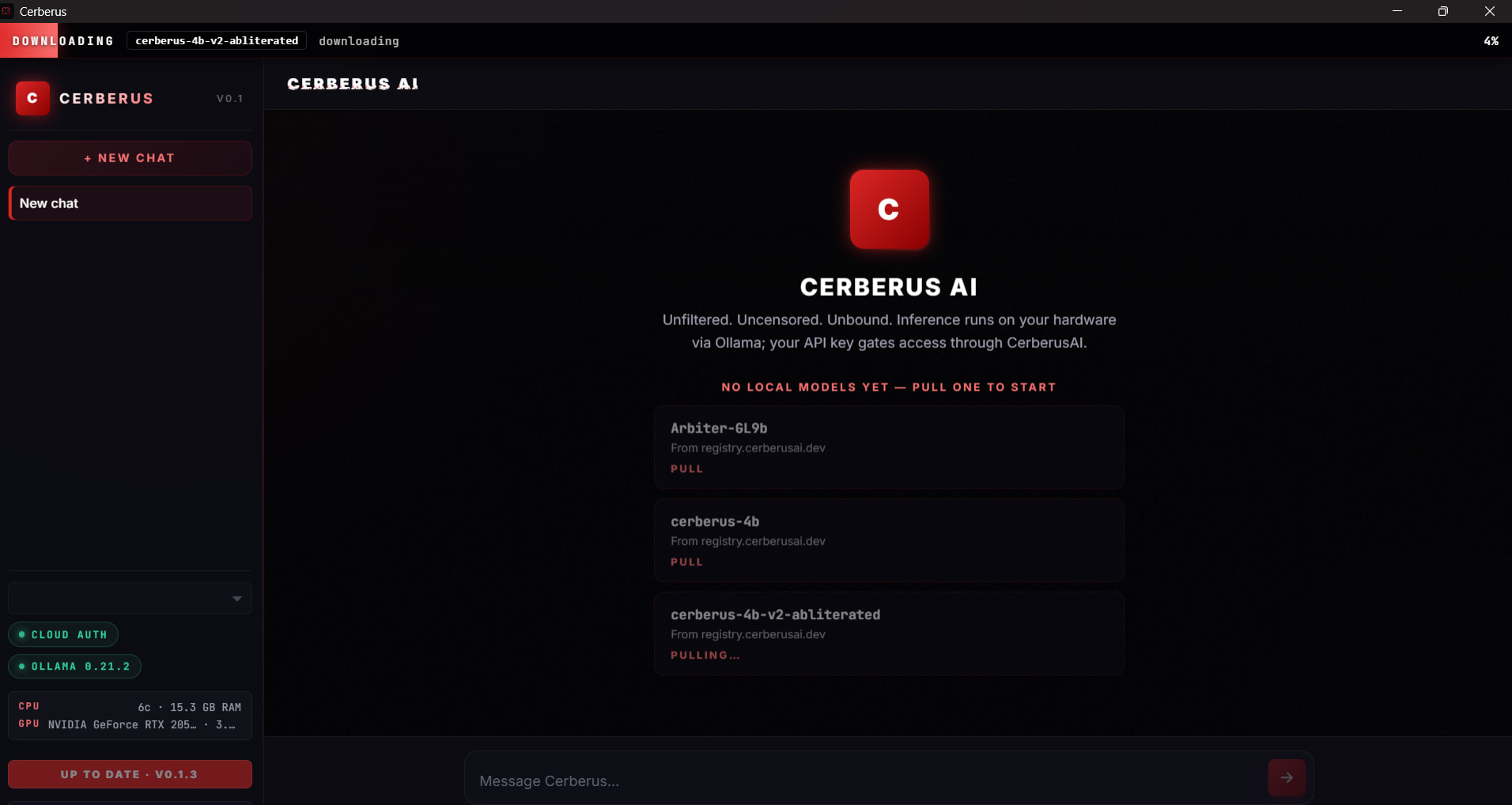
The app shows three options in the side panel. Pick the one that matches your machine:
| Model | Size | Best For |
|---|---|---|
| cerberus-4b | Light | First-time users, modest hardware |
| cerberus-4b-v2-abliterated | Light | Same size, fewer “I can’t” moments — the daily driver |
| Arbiter-GL9b | Bigger | Sharper answers, machines with breathing room |
Click PULL on whichever one fits.
Every time after = instant load
“VRAM” you’ll see mentioned = just “graphics card memory.” Bigger model needs more of it.
STEP 5 → Type into the message box
That’s it. You’re now talking to an AI that lives entirely on your hardware. No round trips. No filters in the middle.
it is still in beta but free to test
 If Something Goes Sideways
If Something Goes SidewaysBob Ross rule: nothing here is your fault. Every error has a fix below.
❌ The app says it can't connect
90% of the time: Ollama isn’t running in the background.
The desktop app needs that black command window with ollama serve open. If you closed it, the app has nothing to talk to.
Fix:
- Open a fresh
cmdwindow - Type
ollama serve - Leave it open (minimize, don’t close)
- Restart the desktop app
❌ The model pull bar is frozen at X%
Model store hiccup. Wait one minute → cancel → click PULL again. Resumes from where it stopped.
❌ Windows blocked the installer anyway
SmartScreen kicked back in or never went off.
Right-click the installer file → Properties → tick “Unblock” at the bottom → Apply → run.
❌ Auto-detect missed my GPU
Update your graphics drivers, reboot, then reinstall the desktop app. The hardware sniff runs once during install.
 The Backstory (Optional)
The Backstory (Optional)If this is your first time meeting Cerberus, the earlier chapters are here:
 Cerberus — the 2.6 GB AI that never says “I can’t help”
 Cerberus v2 — sharper, darker, uncensored
 You are here → the desktop app
 The Whole Pitch, In One Sentence
The Whole Pitch, In One Sentencethe conversation belongs to you and only you.
 No telemetry
No “this chat was reviewed for quality”
No quiet refusals when you ask the wrong thing
Tell me what happened in the replies.
thanks


 !
!